Adobe InDesign isn’t just for print—it can also produce interactive PDFs packed with hyperlinks, buttons, forms, and even embedded video or audio. Whether you’re designing a digital brochure, an e-catalog, or a client presentation, adding interactivity elevates your content and engages readers.
This guide will show you how to build interactive PDFs directly in InDesign.
Why Interactive PDFs?
- Enhanced Engagement: Clickable elements guide users through your content.
- Multimedia Integration: Embed video or audio to showcase products or demos.
- Navigation Ease: Use internal links, page buttons, and table of contents for smooth reading.
- Form Functionality: Collect feedback or data with fillable fields.
Step 1: Set Up Your Document
- New Document with Digital Intent
In the New Document dialog, uncheck “Facing Pages” if it’s a single-page layout, and set Intent to Web or Digital Publishing. - Margins and Safe Zones
Keep interactive elements well within the page (avoid bleeds) so they won’t be cut off in PDF viewers.
Step 2: Add Hyperlinks
- Create a Text or Object
Select the text or shape you want to turn into a link. - Open Hyperlinks Panel
Window > Interactive > Hyperlinks. - New Hyperlink
Click the “Create New Hyperlink” icon.- Link To: URL, File, Email, or Page Number.
- Appearance: Choose invisible rectangle or styled button.
- Test Your Links
Export a PDF (File > Export > Adobe PDF (Interactive)) and click to verify.
Step 3: Add Buttons and Forms
- Place Buttons
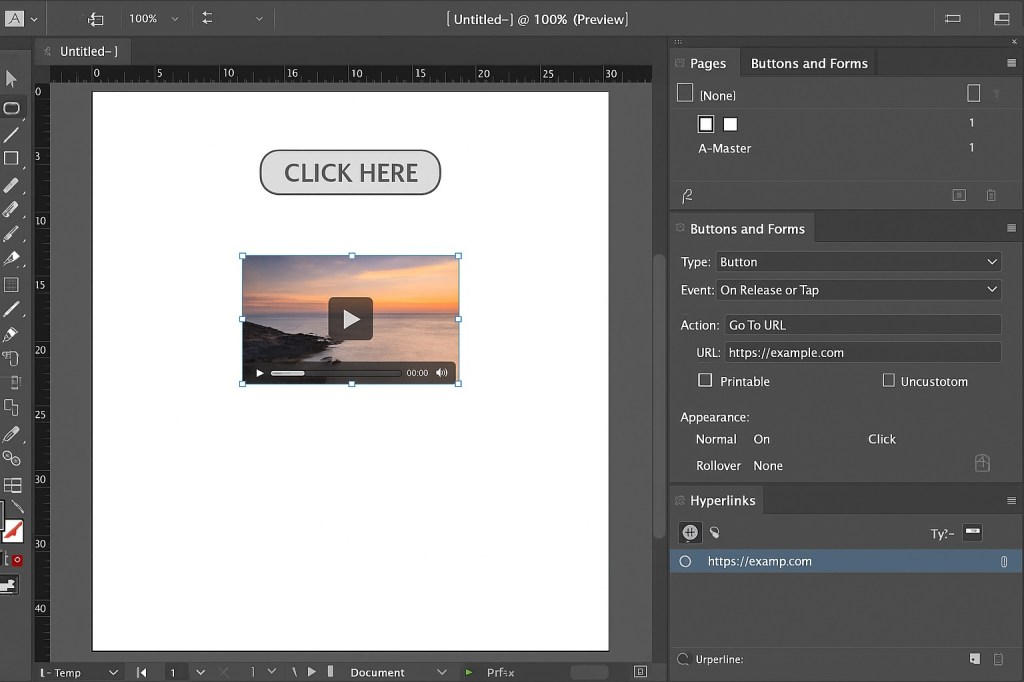
Draw a rectangle or import an icon for your button. - Convert to Button
Window > Interactive > Buttons and Forms.- Select Button from the Type dropdown.
- Assign Actions (Go To Page, Go To URL, Play Media).
- Interactive Form Fields
Use Buttons and Forms panel to insert Text Field, Check Box, or Radio Button.- Name the field for form data export.
- Set Export Value (for checkboxes/radio).
Step 4: Embed Multimedia
- Place Video/Audio
File > Place, choose an MP4 or MP3.- Select Show Import Options to poster frame.
- Media Panel
Window > Interactive > Media.- Set Poster (thumbnail), Controls, and Loop options.
- Play on Page Load (optional)
In the Media panel, check Play on Page Load.
Step 5: Export as Interactive PDF
- File > Export
Choose Adobe PDF (Interactive). - Export Settings
- Pages: Select range.
- Compression: Keep as-is for clear graphics; interactive PDFs don’t need print resolution.
- Interactive Elements: Ensure Include Hyperlinks, Include Buttons, Include Media are checked.
- Test in Acrobat or Browser
Open in Adobe Acrobat or modern PDF viewer to confirm functionality.
Pro Tips
- Use a Table of Contents with Interactive TOC Styles for quick navigation.
- Name buttons and form fields clearly to simplify data export.
- Keep multimedia files optimized (under 10 MB) for smoother loading.
- Preview interactivity in Window > EPUB Interactivity Preview.
Final Thoughts
Interactive PDFs created in InDesign bridge the gap between print and digital. By integrating links, forms, and media, you deliver richer experiences that captivate your audience. Once you master these tools, digital publishing becomes as straightforward as laying out a brochure.



