Keep your files clean, complete, and collaboration-ready.
When you’re sharing an InDesign project with a remote team—whether it’s with designers, editors, or a print vendor—just sending the .indd file isn’t enough. Fonts go missing, links break, and layouts fall apart.
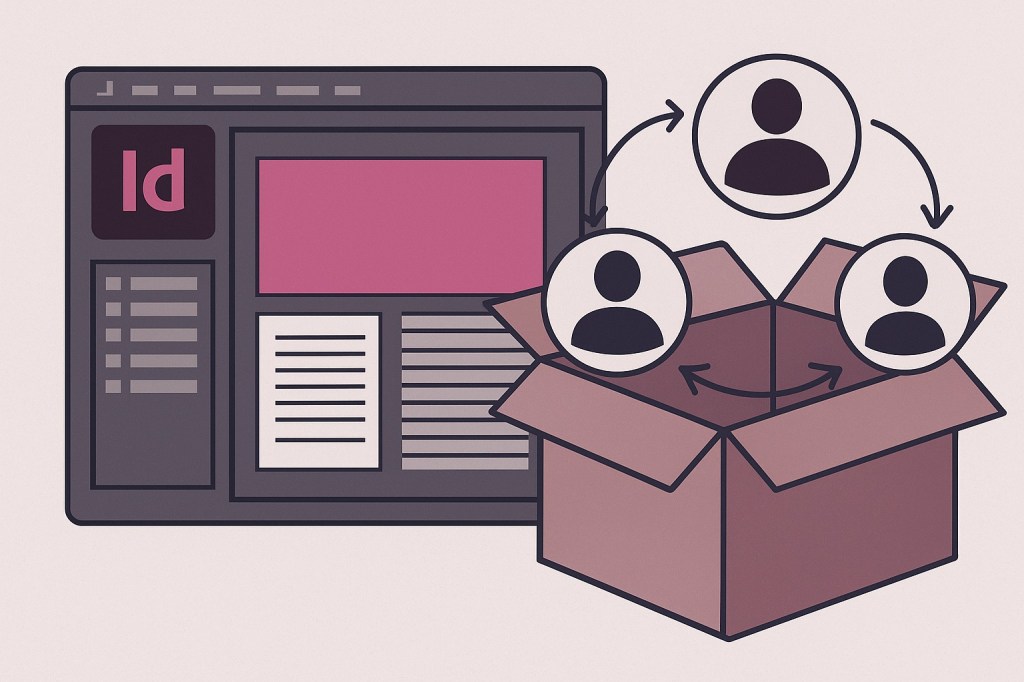
That’s why Adobe InDesign includes a powerful feature called Package, which bundles everything your document needs into a single organized folder. It’s the safest, most professional way to hand off an InDesign project.
Here’s how to package your project for remote collaboration, the right way.
📦 What Does Packaging Do?
When you package a project, InDesign collects:
- The
.inddfile - All linked images and graphics
- All used fonts (if licensing allows)
- An
.idmlversion for backward compatibility - An optional PDF preview
- A report file with document specs
Everything is organized into a single folder, ready to be zipped and shared.
🛠️ Step 1: Final Check Before Packaging
Before you package:
- Resolve any missing links (Window > Links)
- Fix missing fonts (Type > Find Font)
- Check for overset text, incorrect colors, or preflight errors
- Save your file!
This prevents errors from being passed along to others.
📁 Step 2: How to Package Your InDesign File
- Go to File > Package
- InDesign opens a Summary window:
- Shows fonts, links, colors, print settings, etc.
- Review any issues highlighted here
- Click Package in the bottom right
- In the dialog:
- Choose a location and folder name
- Check the boxes to:
- Copy fonts
- Copy linked graphics
- Include an IDML file
- Include a PDF
- Include instructions (optional)
- Click Continue, then Save
InDesign creates a new folder with everything inside.
🧠 Step 3: Tips for Remote Collaboration
- ZIP the packaged folder before sharing to preserve file structure
- Use cloud storage (Google Drive, Dropbox, WeTransfer) for large packages
- Include a readme.txt if there are special instructions (like version notes or design guidelines)
- Use consistent naming conventions (e.g.,
ClientName_Project_v2) - Confirm that all team members use compatible InDesign versions (or include the
.idmlfile for backward compatibility)
🖥️ Bonus: When to Use IDML vs. INDD
.inddis the native InDesign format.idml(InDesign Markup Language) is useful when sharing with teammates using older InDesign versions
Always include both in a package for maximum compatibility.
💡 Pro Tips
- Create a template version of your package for future reuse
- Ask team members to turn on Preflight to catch issues early
- If using custom fonts, confirm licensing allows redistribution
- Keep your packaged folders clean—avoid unnecessary duplicate files
📘 Final Thought
Packaging your Adobe InDesign project isn’t just a technical step—it’s a mark of professionalism and respect for your collaborators. It ensures that your designs remain intact, your files are complete, and your team can get to work without hunting down missing assets.
Collaboration is smoother when everyone’s on the same page—and has the same files.



