Creating and styling mathematical expressions in Adobe InDesign can be a bit tricky, especially since InDesign doesn’t include native support for complex mathematical notation like you’d find in LaTeX. But with the right tools and techniques, you can lay out professional-looking math content for textbooks, reports, or academic publications. Here’s how.
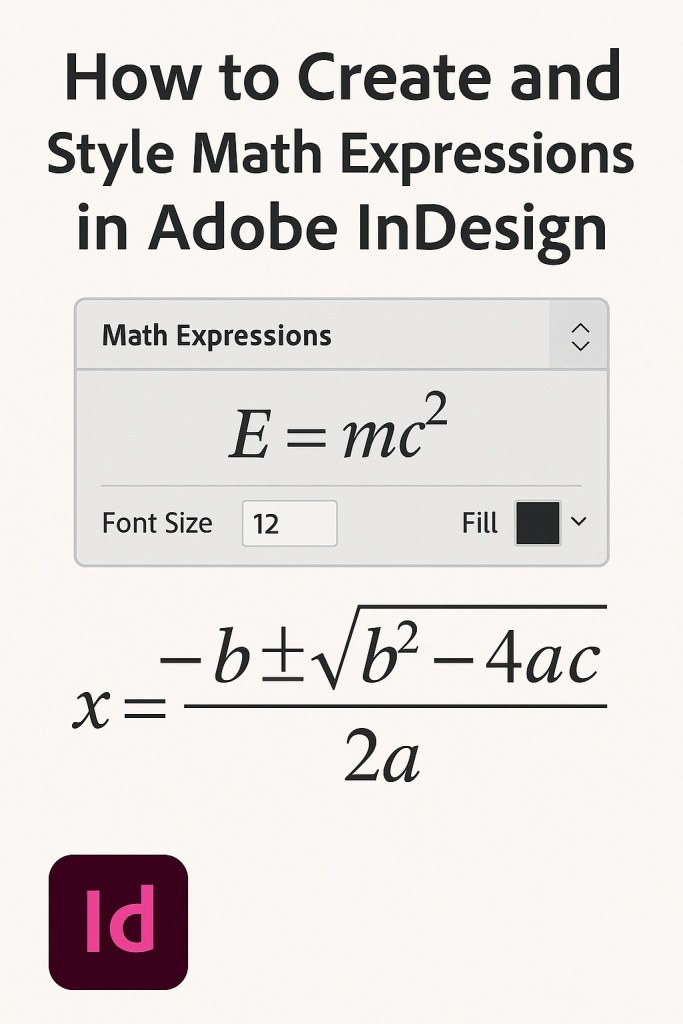
1. Open the Math Expressions Panel
Go to Window > Math Expressions to activate the tool.
2. Create a Math Expression
- Click Create Expression.
- Place the expression on your page.
- Choose from preset symbols or expression groups.
- Style via the panel: adjust font size and fill color.
3. Use MathML Directly
- Select Object > Insert MathML or insert via the panel.
- Paste your MathML code into the input area.
- Preview the output and click Place—the expression appears as an SVG.
4. Edit Math Expressions
- On canvas: with the Type tool, select and edit characters; use arrow keys to navigate.
- Via MathML: right-click the expression, choose Edit MathML, update code, preview, then Save.
5. Styling Guidelines
Changing font size impacts the entire expression; color changes can be applied selectively.
6. Export Options
Expressions export seamlessly across formats:
- PDF (accessible)
- EPUB (choose SVG or MathML for reflowable formats)
- HTML, IDML, PNG, JPEG, or through Publish Online as SVG



