Nothing stops your design flow like the dreaded “Missing Fonts” warning in Adobe InDesign. Whether you’re opening a client file, switching devices, or collaborating with a team, InDesign will alert you if any fonts used in the document are not installed on your system.
But don’t worry—InDesign makes it easy to fix missing fonts, replace them with alternatives, and ensure consistent typography across your layouts.
Why Fonts Go Missing in InDesign
Common reasons include:
- The original font isn’t installed on your machine
- The document was created on a different system
- You received the file without the necessary fonts
- The font was activated via Adobe Fonts but is now disabled
- The font file was renamed, moved, or deleted
Step 1: Identify Missing Fonts
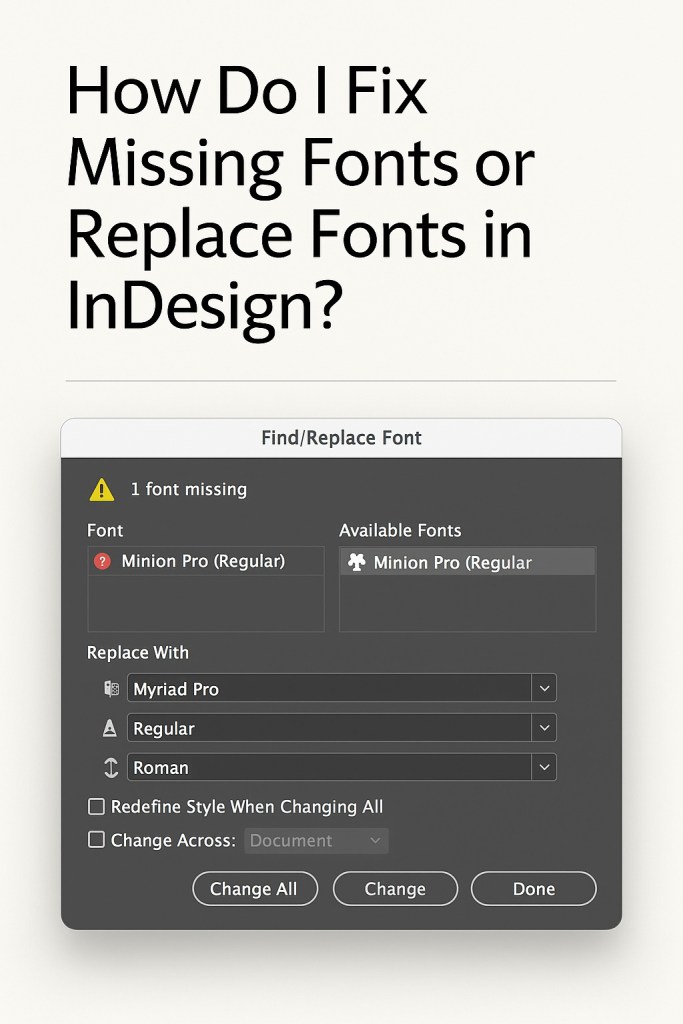
When you open an InDesign file with missing fonts, a Missing Fonts dialog appears.
To check fonts at any time:
- Go to Type > Find/Replace Font…
- The dialog will show:
- All fonts used in the document
- Which are available and which are missing
- Font types (e.g., TTF, OTF, Adobe Fonts)
Step 2: Replace or Fix the Missing Fonts
Option 1: Activate from Adobe Fonts (if available)
- In the Find/Replace Font dialog, look for fonts with a cloud icon
- Click Activate
- InDesign will sync the font from Adobe Fonts (Creative Cloud)
💡 This is the easiest fix for fonts included in your CC plan.
Option 2: Replace with a Local Font
- In the Find/Replace Font window
- Select the missing font
- Choose a replacement font from the dropdown
- Click Change All to apply it across the document
You can replace just some styles (e.g., Regular, Bold) or the entire font family.
Option 3: Install the Missing Font Manually
If the font isn’t available via Adobe Fonts:
- Ask the original designer/client to send the font file (TTF, OTF)
- Download the font legally from a foundry or licensing platform
- Install it on your system (double-click or drag into Font Book on Mac / Fonts folder on Windows)
- Restart InDesign to refresh the font list
Step 3: Clean Up Unused or Duplicate Fonts
To avoid font clutter or substitution errors:
- Use Type > Find/Replace Font to remove unused fonts
- Standardize your paragraph/character styles to avoid accidental overrides
- Create a font guide for client-facing templates or team projects
Pro Tip: Always Package Your Fonts
When sending a project to a printer or collaborator:
- Go to File > Package
- InDesign collects:
- The .indd file
- All linked images
- Fonts (if license allows embedding)
- A summary report
- Share the packaged folder to ensure font consistency
Summary
Missing fonts are one of the most common and fixable issues in Adobe InDesign. Whether you’re activating from Adobe Fonts, swapping in local alternatives, or installing manually, InDesign gives you the tools to restore and manage your typography with confidence.
👉 Try Adobe InDesign free for 7 days — Start your trial today.



