Designing layouts manually for every version of a document — such as name badges, business cards, product sheets, or event flyers — can be time-consuming. That’s where Data Merge in Adobe InDesign comes in. With just a spreadsheet and a few setup steps, you can automate the creation of hundreds of unique layouts in minutes.
Whether you’re designing for print or export, this guide shows you how to use Data Merge and templates to streamline production and scale your design output with ease.
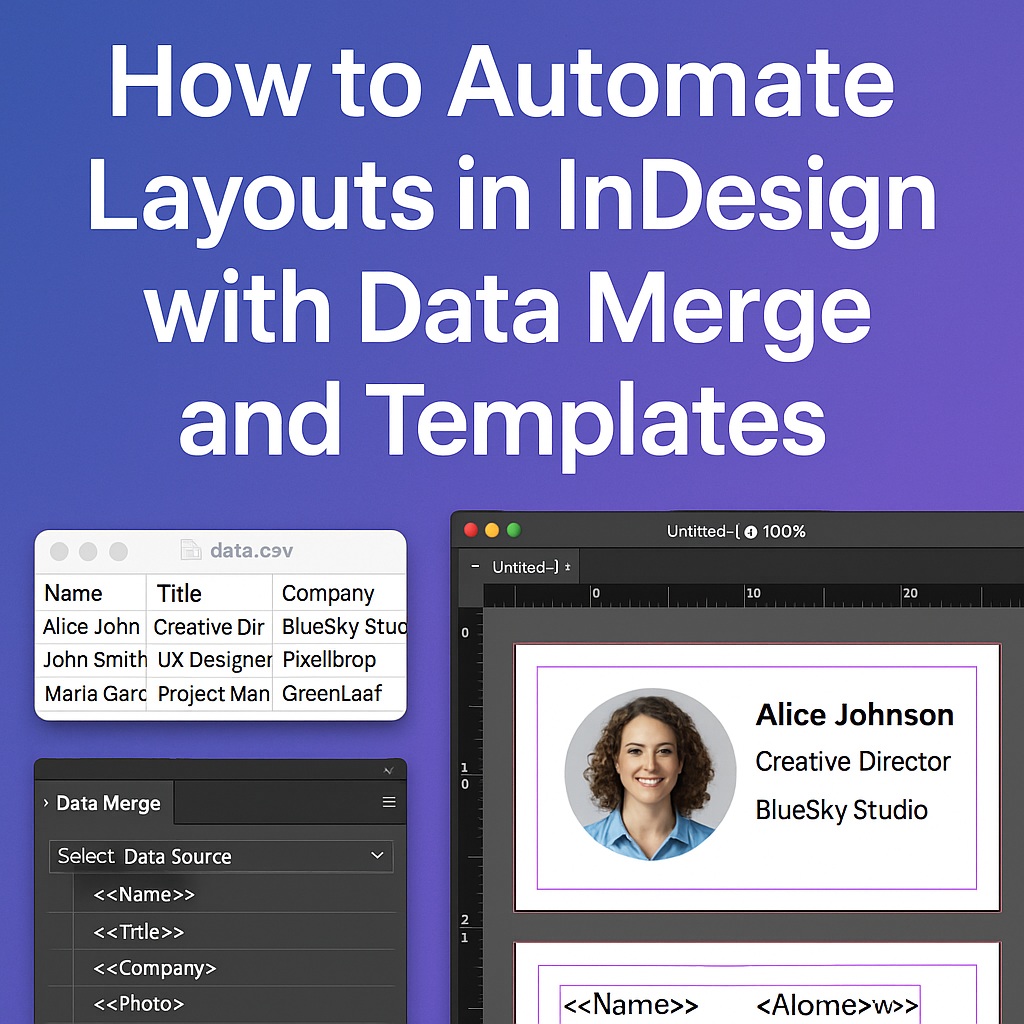
What Is Data Merge in InDesign?
Data Merge is a built-in feature in InDesign that allows you to link external data (like a CSV or TXT file) to your document. You design a single layout template with placeholders, and InDesign auto-fills and generates multiple versions based on your data.
Use Cases for Data Merge
- Business cards for every team member
- Product spec sheets with dynamic pricing and SKUs
- Conference badges with QR codes and profile info
- Direct mail postcards with personalized names and locations
- Certificates or awards for participants
🛠️ Step-by-Step: Automate Layouts with Data Merge
Step 1: Prepare Your Spreadsheet
Create a CSV or TXT file with clearly labeled column headers.
Example:
Name, Title, Company, Photo
Alice Johnson, Creative Director, BlueSky Studio, alice.jpg
John Smith, UX Designer, PixelDrop, john.jpg
🧠 Tip: Make sure your image fields contain relative paths if you plan to import photos.
Step 2: Create a Template in InDesign
Open a new document or use a standard template for your layout.
- Add text frames for placeholders (like Name, Title, etc.)
- Add an image frame if you’re using photos
- Style your design with paragraph and object styles for efficiency
Step 3: Load the Data File
- Go to Window > Utilities > Data Merge
- Click the menu icon > Select Data Source
- Choose your CSV or TXT file
You’ll see the data fields appear in the panel.
Step 4: Insert Placeholders
- Click in a text frame and choose a field (e.g.,
<<Name>>) - Insert image placeholders by selecting the image frame and clicking on an image field
InDesign now treats this document as a template for all records in your data source.
Step 5: Preview and Adjust
Click the Preview checkbox to see how your layout looks with actual data. You can flip through each record to check alignment, spacing, and overflow.
🧠 Tip: Use auto-size text frames and object styles for smooth scaling across different content lengths.
Step 6: Generate the Merged Layouts
In the Data Merge panel:
- Click Create Merged Document
- Choose whether to generate all records, a range, or individual pages
- Select options for export (single pages, separate files, etc.)
InDesign will create a new document with all the merged layouts.
⚡ Bonus: Export All as PDF in One Go
After merging, go to:
File > Export > Adobe PDF (Print)
You can batch export the full document or even automate with a script if needed.
Expert Tips for Scaling
- Combine Data Merge with master pages to quickly switch layouts
- Use nested styles for advanced text formatting inside placeholders
- Save your template as an InDesign Template (.indt) for future automation
- For recurring data updates, consider linking InDesign to Google Sheets via third-party plugins or scripts
Summary
With just one well-designed template and a simple spreadsheet, you can generate dozens—or even thousands—of personalized layouts in Adobe InDesign using Data Merge. It’s one of the fastest ways to automate repetitive design tasks while maintaining high visual standards.
Master this workflow, and you’ll save time, reduce errors, and increase output — all without leaving InDesign.
👉 Try Adobe InDesign free for 7 days — Start your trial today.



