If you produce catalogs, manuals, or product sheets in multiple languages, Adobe InDesign’s XML Import feature can save you days of manual labor. By structuring content in XML and linking it to InDesign templates, you can automatically populate layouts with consistent, language-specific data.
It’s a favorite tool among publishers, enterprise teams, and anyone building data-driven documents.
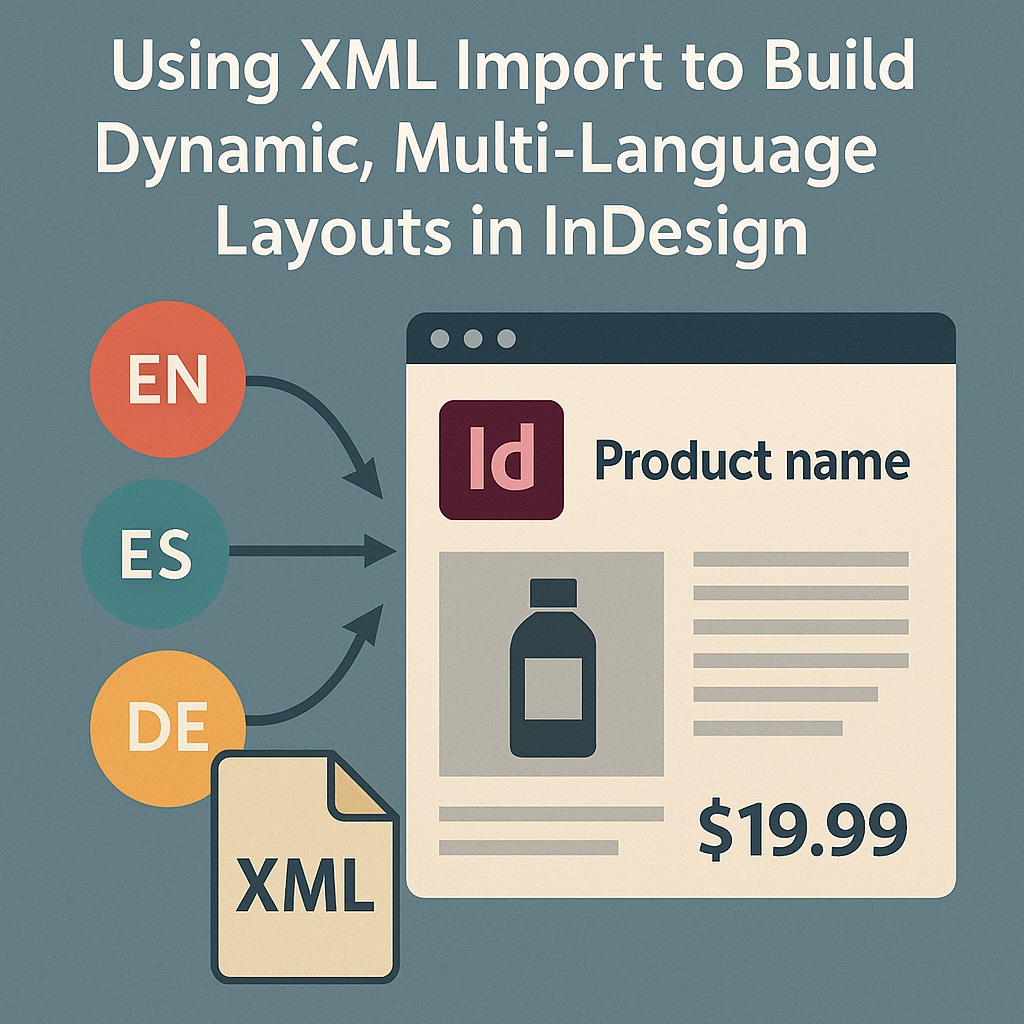
What Is XML Import in InDesign?
XML (eXtensible Markup Language) is a plain-text format used to structure content. In InDesign, you can map XML elements to frames, styles, and layout positions.
Once mapped, importing XML can automatically:
- Fill in product details
- Replace placeholder text
- Generate repeating layouts
- Swap content for other languages
How XML Import Works in InDesign
Step 1: Prepare the XML File
Your XML should have a clear structure and valid tags. Example:
<catalog>
  <product>
    <name>Eco Thermos</name>
    <description>Insulated stainless steel</description>
    <price>$19.99</price>
  </product>
  <product>
    <name>Smart Mug</name>
    <description>Bluetooth temperature control</description>
    <price>$34.99</price>
  </product>
</catalog>
Step 2: Open the Structure Panel
Go to:
View > Structure > Show Structure
You’ll see a panel for tags and hierarchy.
Step 3: Tag Your Template
In your InDesign layout:
- Select a text frame (e.g., product name)
- Assign a tag (e.g., “name”)
- Repeat for description, price, etc.
Use:
Window > Utilities > Tags
→ Define tags to match your XML
Step 4: Import the XML
Go to:
File > Import XML
→ Choose your file
→ Select “Merge Content” or “Append Content”
You can choose to auto-create frames or manually bind XML elements to tagged frames.
Mapping XML to Layout
To control layout precision:
- Drag XML elements from the Structure panel onto tagged frames
- Use the Map Tags to Styles feature to auto-apply Paragraph/Character styles
- Repeat the process for multiple languages using the same template
🌍 Multi-Language Publishing
Simply create separate XML files per language:
catalog_en.xmlcatalog_es.xmlcatalog_de.xml
Then use one layout template to import different files and generate localized documents. This method scales beautifully for product catalogs, real estate listings, or multilingual government forms.
Tips for Smoother Workflows
- Clean and validate your XML using online validators
- Create style rules for each tag using “Map Tags to Styles”
- Use Data Merge for simpler tabular data needs
- Combine with Object Styles for full design consistency
- Automate the import/export process with ExtendScript
Summary
XML import in InDesign allows you to design once and publish many times—whether you’re localizing documents, syncing content from a CMS, or managing high-volume publishing. It’s a powerful way to bring structure and scale to your design work.
👉 Try Adobe InDesign free for 7 days — Start your trial today.



