Adobe InDesign’s integration with Firefly-powered generative AI opens up new creative possibilities — from layout prototyping to client-ready designs. If you’re looking for inspiration, here are five powerful and practical ways to use AI-generated images in your InDesign workflows.
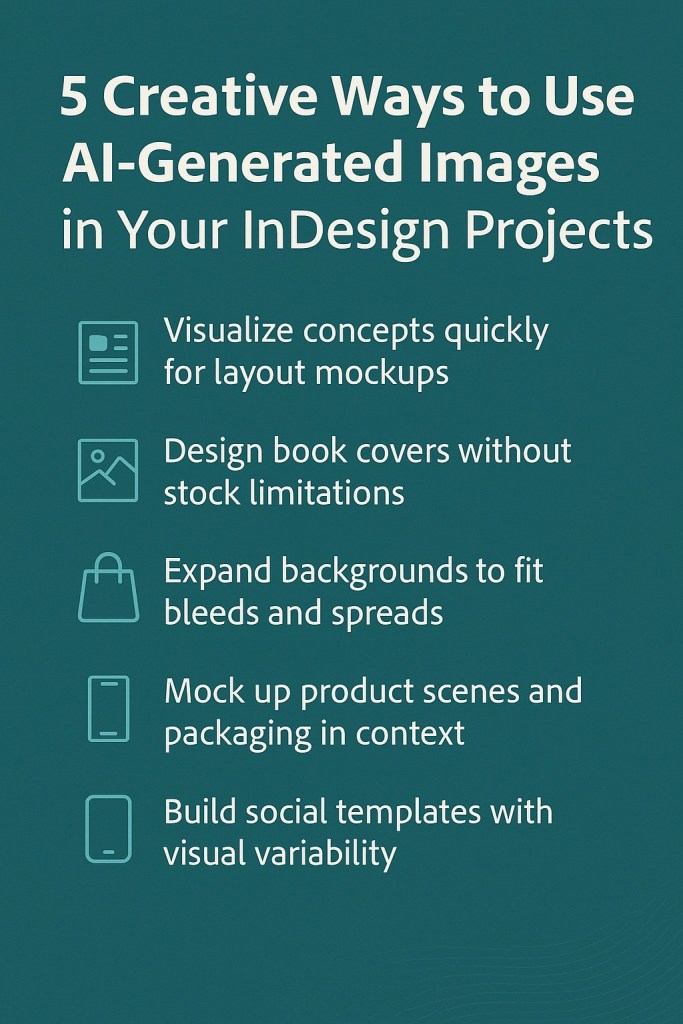
1. Visualize Concepts Quickly for Layout Mockups
When you’re building pitch decks, editorial spreads, or marketing proposals, you often need placeholder images that “feel right” before committing to final artwork.
With Text to Image, you can:
- Generate 3–4 visual options from a single prompt
- Place the results directly into your design
- Speed up the ideation phase with on-brand aesthetics
✅ Example prompt: “A futuristic cityscape at night with glowing lights, wide angle”
2. Design Book Covers Without Stock Limitations
Skip the endless stock image scrolling. Instead, describe the scene you want — and generate cover artwork that matches your story’s tone, setting, or emotion.
How it helps:
- Control the aspect ratio and art style
- Create surreal, vintage, or cinematic covers on demand
- Replace expensive photo shoots for drafts or low-budget publications
✅ Pro tip: Use Firefly’s image-style presets (e.g., Photo, Vector, Digital Art) for consistent visual themes.
3. Expand Backgrounds to Fit Bleeds and Spreads
InDesign’s Generative Expand tool lets you extend image content when resizing or reflowing a layout — perfect for:
- Magazine spreads
- Posters and flyers
- Trim and bleed zone adjustments
Firefly will generate new, visually consistent areas beyond the original crop.
✅ No Photoshop needed! Just resize the frame and click “Generate > Expand Image.”
4. Mock Up Product Scenes and Packaging in Context
Designing product catalogs, ads, or retail signage? Instead of sourcing stock images, use AI prompts to create the perfect backdrop or lifestyle scene for your layout.
Use cases:
- Cosmetics on a marble counter
- Tech products in a modern home office
- Apparel shown in a flat-lay style
✅ Example prompt: “A perfume bottle on a pink velvet surface with dramatic lighting”
5. Build Social Templates With Visual Variability
If you’re designing social media graphics, blog headers, or ad creatives, AI-generated images let you:
- Rapidly generate variations on a theme
- Customize content for different audiences
- Break creative ruts with fresh visuals
Combine with InDesign’s Object Styles and Libraries to scale these visuals across campaigns.
💡 Tips for Using AI Images in Real Projects
- Use highly descriptive prompts to get better visual results
- Save generated assets to Creative Cloud Libraries for reuse
- Always review and touch up images as needed — they’re a creative starting point, not always final
- Embed alt text for accessibility and SEO when publishing online
Summary
AI-generated images in InDesign aren’t just a novelty — they’re a workflow accelerator. Whether you’re building layouts, mocking up client projects, or iterating on design ideas, tools like Text to Image and Generative Expand offer flexibility and speed without leaving your layout environment.
So go ahead — explore, experiment, and let your prompts guide your creativity.
👉 Try Adobe InDesign free for 7 days — Start your trial today.



