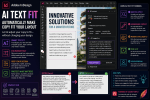
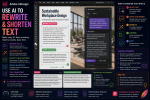
One document. One voice. Total consistency.
When working with a team—whether it’s in publishing, branding, or marketing—clear guidelines are essential. A style guide built in Adobe InDesign helps define how design elements should look and behave, so every team member stays on the same visual wavelength.
In this guide, you’ll learn how to create a professional, easy-to-update style guide in InDesign that ensures brand consistency and streamlines collaboration across projects.
🧱 Step 1: Determine What to Include
A good style guide includes more than just fonts and colors. Start by outlining sections such as:
- Logo usage: versions, placement, clear space, don’ts
- Color palette: primary and secondary colors, CMYK and RGB values
- Typography: font families, sizes, hierarchy
- Grid system: margins, columns, spacing
- Imagery: photography style, illustration usage
- Voice and tone (optional): editorial tone, brand language
- Examples: do’s and don’ts for layouts, covers, or ads
Knowing what needs to be standardized will shape your document structure.
📄 Step 2: Set Up Your InDesign Document
- File > New > Document
- Choose a standard format (e.g., A4 or Letter)
- Set appropriate margins and bleeds
- Turn on Facing Pages if needed
Use Master Pages to create consistent headers, footers, and section markers.
🎨 Step 3: Build a Reusable Color Palette
- Open the Swatches panel
- Create new swatches for each brand color
- Label them clearly (e.g., “Primary Blue”, “Accent Yellow”)
- Include HEX, RGB, and CMYK values next to swatches for easy reference
💡 Pro tip: Use Color Themes to show combinations in action.
🅰️ Step 4: Document Your Typography System
- Define and style Headings, Subheadings, Body Text, Captions, and more using Paragraph Styles
- Include font names, sizes, weights, and tracking
- Show real examples in action: headlines + body copy layouts
- If needed, add Character Styles for inline accents
🖼️ Step 5: Add Logo and Image Guidelines
- Insert approved logo versions (full-color, black, white)
- Describe minimum size, spacing rules, and misuse examples
- For imagery, show:
- Acceptable photo styles (e.g., candid vs. posed)
- Color treatments or filters
- Use of illustrations, icons, or graphics
🧩 Step 6: Show Layout Examples
Demonstrate how to apply your brand elements in real contexts:
- Sample brochure layout
- Social media post example
- Newsletter or ad mockups
- Cover pages or infographics
Use Grids and Guides to highlight structure.
🗃️ Step 7: Export and Share
When your style guide is complete:
- Export to PDF (Interactive or Print) for easy sharing
- Keep a live InDesign file to update as needed
- Store it in a shared folder or cloud library
- Optionally, publish it as an online resource via Adobe Publish Online
🧠 Pro Tips
- Use Object Styles for image frames, logos, and reusable elements
- Separate visual and editorial sections with tabs or color coding
- Include a Table of Contents using InDesign’s TOC function
- Set up Bookmarks for digital navigation
- Keep the document short, focused, and visually aligned with the brand itself
📘 Final Thought
A well-crafted style guide isn’t just a document—it’s a playbook. With Adobe InDesign, you can create a clear, professional guide that empowers your entire team to design with clarity, confidence, and cohesion.
Build once. Align always. Let your brand speak with one unified voice.