Get it right before it hits the press.
Offset printing is the gold standard for high-quality, high-volume printing. But if your Adobe InDesign file isn’t set up correctly, you could run into issues like missing bleeds, color mismatches, or low-resolution images—leading to costly delays or poor results.
In this step-by-step guide, you’ll learn how to properly prepare and package your InDesign files for offset printing success.
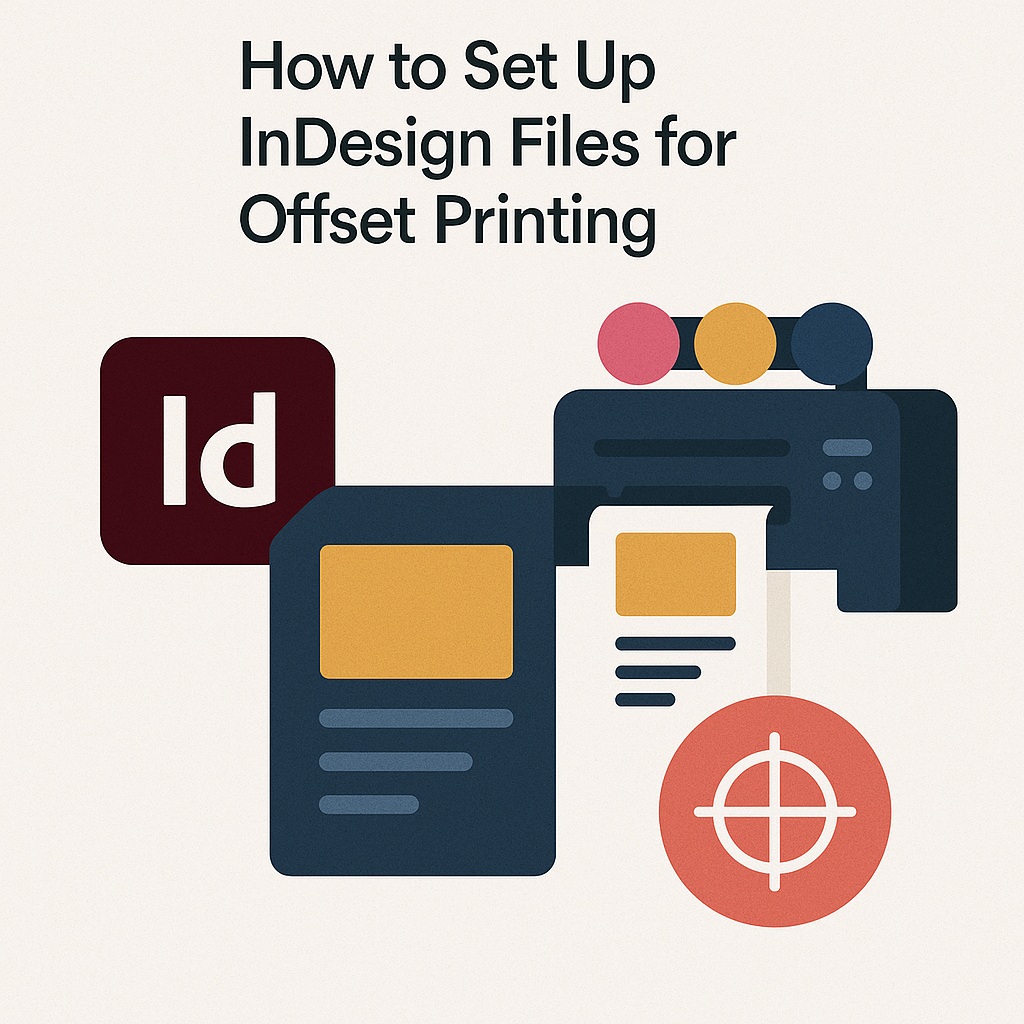
🧭 Step 1: Understand Offset Printing Requirements
Before you begin:
- Ask your printer for specs and templates
- Clarify final trim size, bleed, and safe zones
- Know the required color mode (usually CMYK)
- Ask about preferred file format (PDF, package, or native files)
Printers often have a checklist—use it early to avoid surprises later.
📐 Step 2: Set Up Your Document Correctly
When creating a new document:
- Go to File > New > Document
- Enter trim size (e.g., 8.5″ x 11″)
- Add 0.125″ (3mm) of bleed on all sides
- Set appropriate margins (0.25″ or more for safety)
- Enable Facing Pages if designing a booklet
Tip: Name your document with versioning (e.g., CompanyBrochure_v3_print.indd).
🖼️ Step 3: Use High-Resolution Images
- All images should be 300 DPI at 100% scale
- Avoid upscaling low-res images
- Use TIFF, PSD, or EPS for print (not PNG or GIF)
- Ensure images are linked, not embedded
- Go to Links panel to verify status and resolution
Use Preflight (Window > Output > Preflight) to catch image issues early.
🎨 Step 4: Use CMYK Color Space
- Go to Window > Color > Swatches
- Convert all RGB swatches to CMYK
- Avoid spot colors unless requested by printer (e.g., Pantone)
- Set black text to 100% K only (not rich black)
Avoid transparency effects that can behave unpredictably in print.
📝 Step 5: Proof Your Typography and Layout
- Use Paragraph Styles and Character Styles consistently
- Align to baseline grid if needed
- Watch for widows, orphans, and text overflow
- Keep all important content within the safe margin area
- Check all pages for consistency before export
Use View > Overprint Preview to simulate press appearance.
📤 Step 6: Export to PDF for Print
- Go to File > Export > Adobe PDF (Print)
- Choose High Quality Print or your printer’s preset
- Under Marks and Bleeds, check:
- Crop marks
- Use Document Bleed Settings
- Under Compression, keep image resolution at 300 dpi
- Save with a descriptive name (e.g.,
ProductCatalog_PrintReady.pdf)
Always preview the PDF before sending.
📦 Step 7: Package Your Files (Optional but Recommended)
If your printer requests native files:
- Go to File > Package
- InDesign gathers:
- The .indd file
- Fonts
- Linked images
- Output instructions (.txt)
- Save everything in one folder
- Zip before sending
This ensures your printer has everything they need to replicate your layout perfectly.
🧠 Pro Tips
- Ask for a printed proof or digital soft proof
- Keep a press-ready checklist for future projects
- Lock finished layers to prevent accidental changes
- Use slug area for printer notes or version info
- Save time with InDesign Print Presets
📘 Final Thought
Offset printing delivers unmatched quality—but only if your file is set up correctly. With the right settings, linked assets, and clean typography, your Adobe InDesign document will glide through the press process and come out looking exactly as you intended.
Print is permanent. Prep it perfectly.