Simple setup. Professional results.
Saddle stitch is one of the most popular booklet binding methods—perfect for magazines, catalogs, event programs, and reports. But before sending your InDesign file to print, you need to make sure it’s correctly set up to align, fold, and bind cleanly.
This guide walks you through the essentials of preparing a saddle-stitched booklet layout in Adobe InDesign, step by step.
📘 What Is Saddle Stitch?
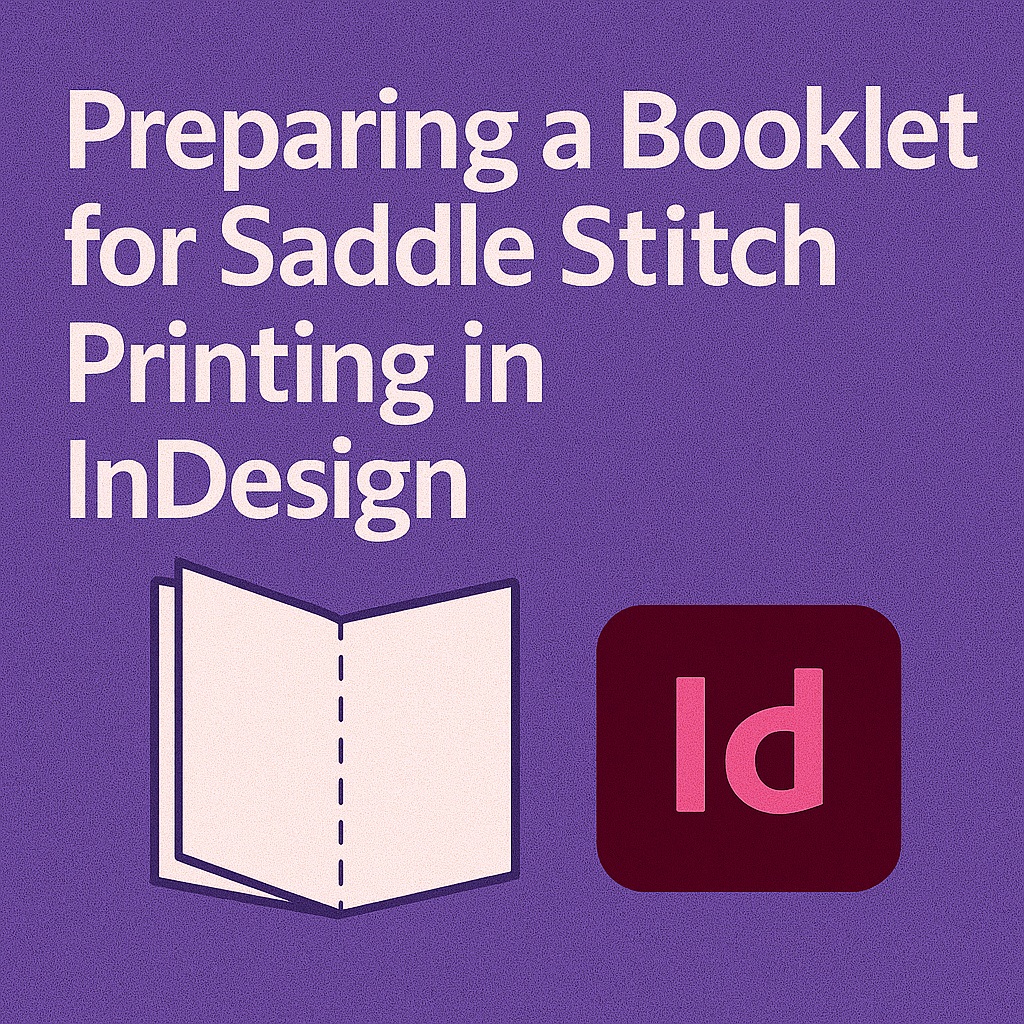
Saddle stitching involves folding sheets and stapling them along the center spine. It’s ideal for documents between 8 and 80 pages (in increments of 4). Unlike perfect binding, saddle stitch uses no glue, just folded paper and staples.
🧱 Step 1: Determine Your Page Count
Saddle-stitched booklets require:
- Multiples of 4 pages (e.g., 8, 12, 16…)
- A minimum of 8 pages
- A typical maximum of 64–80 pages (varies by paper weight)
Plan content ahead so blank or filler pages aren’t needed last minute.
📐 Step 2: Create a Facing Pages Document
- Go to File > New > Document
- Set your final trim size (e.g., 5.5″ x 8.5″, or A5)
- Enable Facing Pages
- Set appropriate margins and bleed (typically 0.125″ or 3mm)
- Choose Primary Text Frame if your layout is text-heavy
Tip: Design in single pages, not printer spreads—let InDesign or your printer do the imposition.
🖼️ Step 3: Build with Consistent Layout and Styles
- Use Master Pages for recurring elements (headers, footers, page numbers)
- Create a clean grid system (2-3 columns per page)
- Apply Paragraph and Object Styles for consistency
- Design with a gutter margin to avoid center-spine text crowding
Avoid placing important visuals or text too close to the fold line.
📄 Step 4: Add and Organize Your Pages
- Use Pages panel to reorder, duplicate, and insert
- Double-check content flows logically
- Add blank pages where needed to reach a multiple of four
- Include:
- Cover (can be same stock or separate)
- Table of contents
- Section headers
- Legal/disclaimer/back page info
🧪 Step 5: Proof Carefully
- Use View > Overprint Preview to simulate print look
- Export a test PDF and print it double-sided
- Fold and staple to check:
- Page order
- Margin spacing
- Creep (page shifting in thicker booklets)
- Readability at the spine
For higher page counts, account for creep adjustment (handled by printer or with InDesign imposition plug-ins).
📤 Step 6: Export for Print
For digital delivery to printer:
- Go to File > Export > Adobe PDF (Print)
- Choose High Quality Print or printer’s preset
- Under Marks and Bleeds, check:
- Crop Marks
- Use Document Bleed Settings
- Set compatibility to Acrobat 5 or later
- Name your file clearly (e.g.,
Booklet_Final_PrintReady.pdf)
Optional:
- Use File > Package to gather fonts, links, and instructions
- Share a low-res proof for internal review
🧠 Pro Tips
- Always keep important content 0.25″ from trim edge
- For heavy booklets, ask printer about creep compensation
- Use rich black for large black areas (C:60, M:40, Y:40, K:100)
- Add a slug area with job details, version, or color notes
- Ask printer if they need printer spreads or reader spreads—never guess
📘 Final Thought
Preparing a saddle-stitched booklet in InDesign is straightforward with the right setup. Focus on clean layouts, correct page counts, and solid export practices, and you’ll have a polished, print-ready piece your audience will love.
When it folds well, it reads well.
👉 Try Adobe InDesign free for 7 days — Start your trial today.