Adobe InDesign has long been one of the leading professional applications for page layout, publishing, typography, and document production. But InDesign is changing.
Artificial intelligence is becoming part of the InDesign workflow.
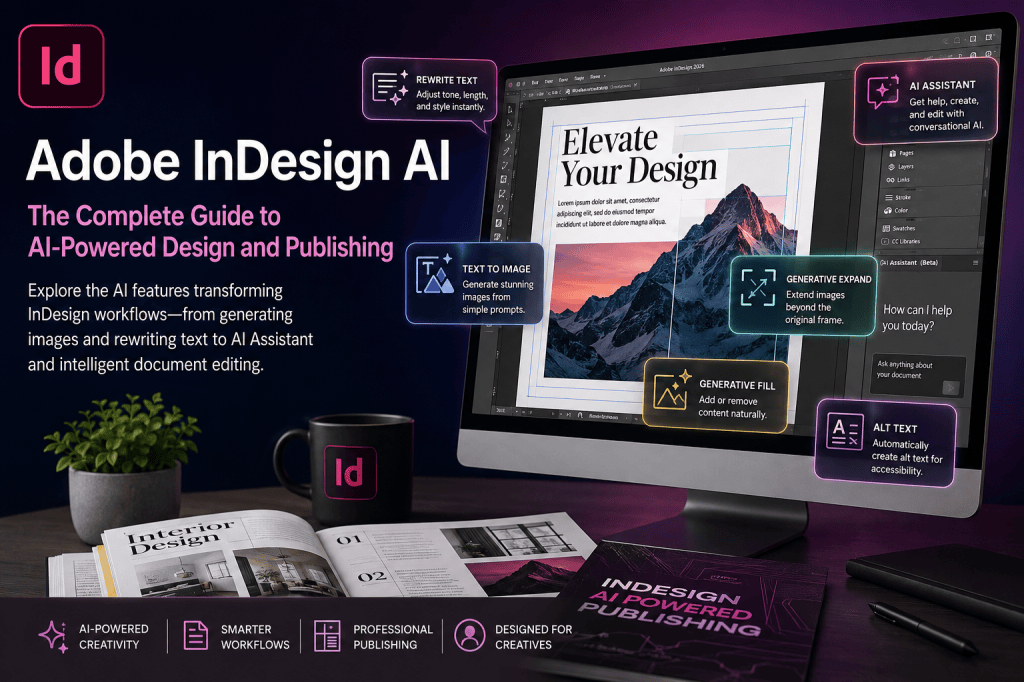
Adobe has introduced AI-powered capabilities for generating and modifying images, rewriting and generating text, creating alt text, and even carrying out document-level tasks through a conversational AI Assistant.
For designers, publishers, marketers, authors, and production professionals, this represents an important shift. AI in InDesign isn’t simply about generating an image or writing a paragraph. Increasingly, it can help remove repetitive production work from the publishing process.
This guide explains what Adobe InDesign AI is, which AI features are currently available, how they can fit into professional workflows, and what the arrival of AI could mean for the future of desktop publishing.
Want to explore these features yourself? You can get Adobe InDesign directly from Adobe and start experimenting with its latest design, publishing, and AI capabilities.
What Is Adobe InDesign AI?
“Adobe InDesign AI” isn’t a single feature.
It is better understood as a growing collection of artificial-intelligence capabilities integrated into InDesign and InDesign Beta.
These capabilities currently include areas such as:
- AI-assisted text generation and rewriting
- Text-to-image generation
- Generative image expansion
- Generative image editing
- Automatic alt-text generation
- Conversational assistance
- Document-aware editing
- Multi-step workflow execution
Adobe uses both Adobe Firefly technology and selected partner AI models for these capabilities.
This is significant because InDesign has traditionally been a highly structured production environment. Designers create layouts using frames, styles, grids, master—or parent—pages, images, typography, swatches, and other precisely controlled objects.
AI is now being introduced without abandoning that structured approach.
The goal isn’t to replace InDesign’s existing tools. Adobe describes its generative capabilities as complementary to established InDesign workflows.
That distinction matters.
InDesign isn’t becoming an AI image generator with a page-layout tool attached to it. AI is being integrated into a professional publishing environment.
What AI Features Are Available in Adobe InDesign?
Adobe’s current documentation identifies a growing collection of generative AI capabilities across InDesign and InDesign Beta.
The major areas include:
1. Text to Image
Text to Image allows you to create imagery from a written prompt without leaving InDesign.
Instead of finding an external image, generating it elsewhere, downloading it, and importing it into your document, you can generate visual concepts within the layout workflow itself.
For example, you might request:
“Modern Scandinavian office interior with natural light”
and use the generated result as part of a brochure or editorial layout.
This can be particularly useful during:
- Concept development
- Mockups
- Editorial design
- Marketing design
- Presentation development
- Early-stage client proposals
AI-generated images remain editable as normal images once placed into the InDesign document.
2. Generative Expand
One of the recurring problems in layout design is finding the right image with the wrong dimensions.
Perhaps you have a landscape photograph but need it to fill a taller frame.
Traditionally, your choices might include cropping the image differently, resizing the frame, editing the photograph in another application, or choosing another image.
Generative Expand introduces another possibility.
It can extend an image beyond its original boundaries and generate additional visual content that attempts to match the existing lighting, perspective, texture, and surroundings.
This is particularly useful when adapting the same creative assets to multiple layouts.
Imagine creating:
- An A4 advertisement
- A square social graphic
- A vertical poster
- A landscape brochure
- A digital banner
from the same campaign image.
Generative Expand can potentially make adapting that asset much easier.
3. Generative Fill
Generative Fill brings prompt-based image modification into the InDesign workflow.
It can be used to alter parts of an image—for example, adding, removing, or replacing visual elements—while attempting to preserve the visual characteristics of the surrounding image.
This reduces the need to interrupt the layout process for certain straightforward image modifications.
It is important, however, to review generated results carefully. AI-generated imagery can contain visual inaccuracies, inappropriate details, or elements that don’t match the intended brand or editorial context.
Generative AI should accelerate reviewable creative work, not eliminate review.
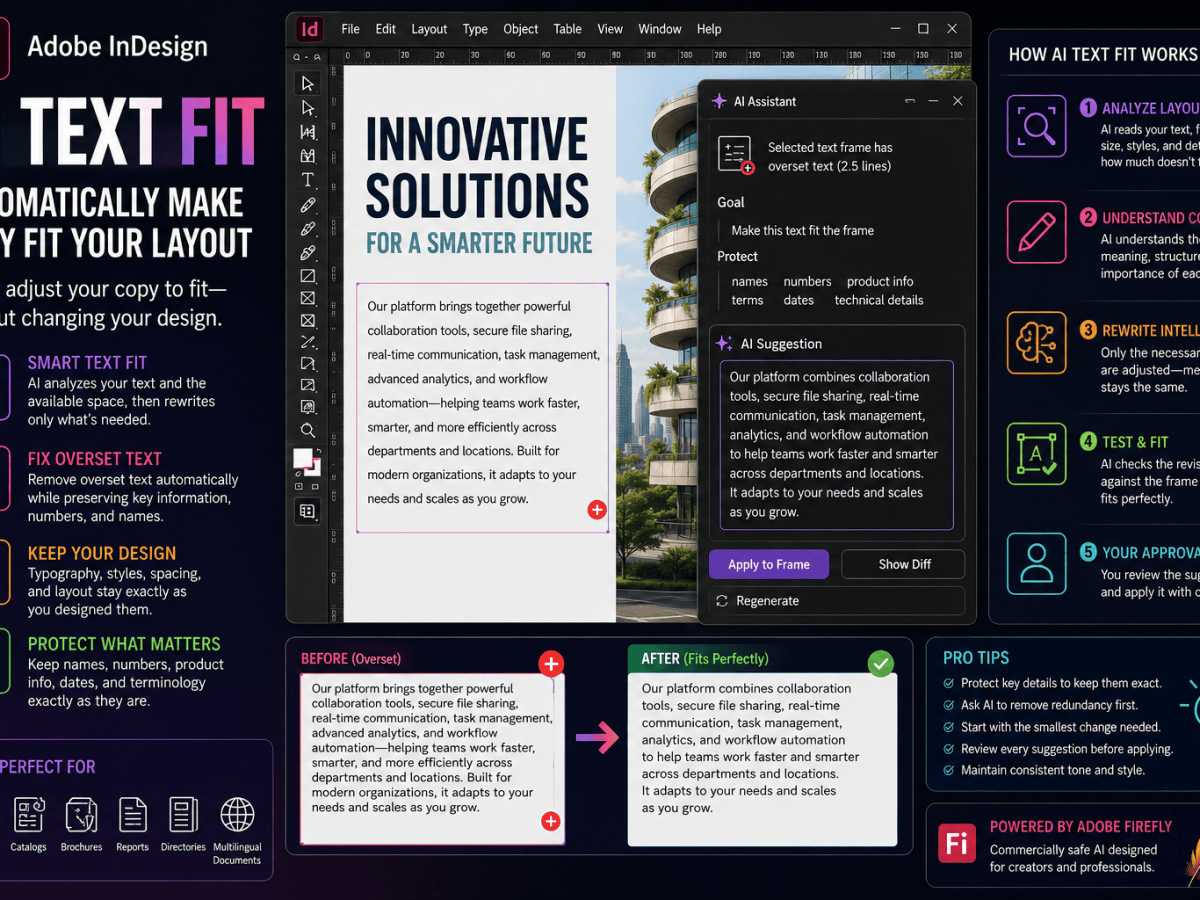
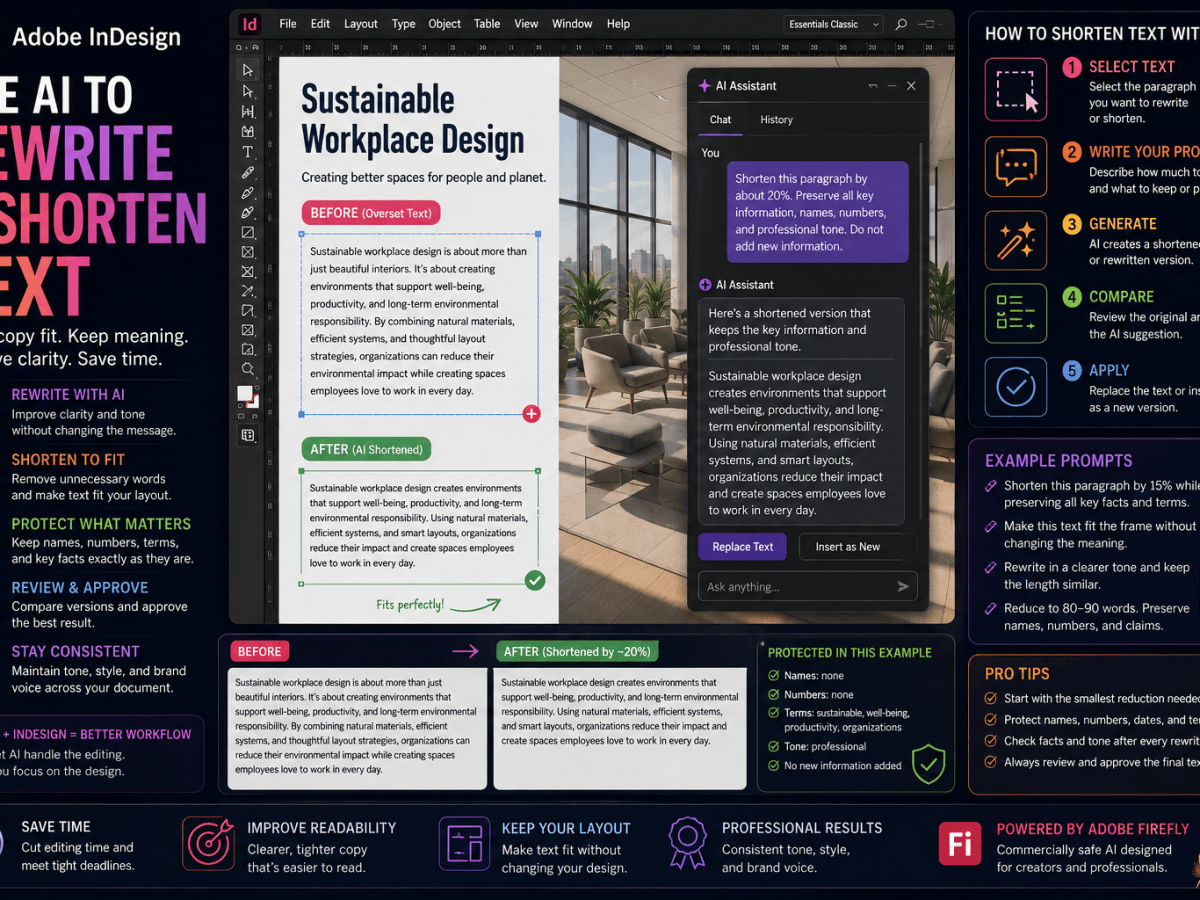
4. Generate Text and Rewrite
AI in InDesign isn’t limited to graphics.
InDesign can also assist with text.
Generate Text and Rewrite introduce AI-powered writing operations directly into the document-production workflow.
Depending on the operation, you can generate new content or modify existing text.
Rewrite options include operations such as:
- Rephrase
- Shorten
- Lengthen
- Fit Text
Tone options include styles such as:
- Formal
- Casual
- Inspirational
- Academic
- Personal
- Comical
This creates some interesting possibilities for layout designers.
Consider the familiar problem of receiving copy that is slightly too long for the available space.
Traditionally, the designer might resize the text frame, reduce the font size, change tracking, alter the layout, or ask the writer to shorten the copy.
AI introduces another option:
Fit the text to the available space while preserving the basic message.
That doesn’t mean designers should blindly allow AI to rewrite approved copy. Editorial review remains essential.
But during drafting, prototyping, marketing production, or collaborative design, the capability can be extremely useful.
Practical example
Suppose a brochure contains a 150-word company description, but the layout works best with approximately 110 words.
Instead of manually rewriting the paragraph, you can ask InDesign to shorten it and then review the suggested result.
This is a small example of a much bigger idea:
AI can increasingly understand the relationship between content and layout
These capabilities are increasingly turning Adobe InDesign into more than a page-layout application: it is becoming an AI-assisted publishing environment.
5. AI-Generated Alt Text
Accessibility is becoming increasingly important in digital publishing.
Images in accessible documents often require alternative text so that screen readers can communicate their meaning to users who cannot see the image.
Creating good alt text manually can become time-consuming in publications containing many images.
InDesign can now generate alt text automatically for placed images.
The generated description can then be reviewed and edited before publication.
This is important.
AI-generated alt text should generally be treated as a starting point rather than unquestioned final copy.
Context matters enormously.
A photograph that is decorative in one publication could convey essential information in another. AI can analyze an image, but the designer or editor still understands the document’s purpose.
Nevertheless, automatic generation can substantially reduce the initial workload involved in accessibility preparation.
Adobe also allows alt text to be regenerated when an image has changed.
This makes AI-generated alt text particularly interesting for:
- Accessible PDFs
- EPUB publications
- Educational materials
- Corporate reports
- Government publications
- Digital magazines
- Public-facing documentation
6. InDesign AI Assistant
Potentially the most significant development is AI Assistant, currently documented by Adobe as an InDesign Beta capability.
Unlike a simple generative feature, AI Assistant is designed to work conversationally with the document.
Instead of finding individual commands and manually performing every step, you describe what you want to accomplish.
The assistant can interpret the request in the context of the document and help execute the workflow.
Adobe describes capabilities including:
- Adjusting margins
- Defining grids
- Placing page numbers
- Aligning objects
- Updating typography
- Transforming objects
- Managing colors and swatches
- Applying changes across layouts
- Creating document variations
- Updating branding
- Checking print readiness
This takes InDesign AI into a different category.
We are no longer talking only about generating content.
We’re beginning to talk about executing publishing workflows.
From Commands to Conversations
Traditional InDesign workflows are command-oriented.
You need to know:
- What you want to accomplish.
- Which InDesign feature performs it.
- Where that feature is located.
- Which settings to configure.
- In which order to perform the operations.
Conversational AI can potentially change that relationship.
Instead of thinking:
Which menu contains the command I need?
the designer can increasingly think:
What result am I trying to achieve?
The AI Assistant can interpret that intention and help translate it into InDesign operations.
For experienced designers, this can reduce repetitive production work.
For beginners, it may reduce some of the initial complexity of learning a sophisticated professional application.
AI Assistant Can Understand Document Context
One of the most important aspects of AI Assistant is document context.
A generic chatbot knows what you tell it.
A document-aware assistant can potentially understand elements of the publication you are actively working on.
That makes prompts considerably more useful.
Instead of asking:
“How do I change typography in InDesign?”
you could ask for an operation affecting the document itself.
For example:
“Update the headings throughout this document to use the new typography.”
Or:
“Check this catalog for potential print-production problems.”
Or:
“Apply these branding changes across the document.”
Adobe says actions remain inspectable and reversible through InDesign’s native history mechanisms.
Human review therefore remains part of the workflow.
AI for Repetitive Publishing Tasks
This is where AI could have the greatest effect on professional InDesign production.
Consider a 100-page product catalog.
Changing one heading isn’t difficult.
Changing typography, colors, images, branding, or layout elements consistently across dozens or hundreds of pages can be.
Likewise, creating one brochure isn’t necessarily complicated.
Producing 25 localized versions of that brochure can become a substantial production task.
AI-assisted workflows are particularly interesting when applied to:
- Catalog production
- Localization
- Brand updates
- Template maintenance
- Multi-market publications
- Marketing campaigns
- Long documents
- Repetitive layout changes
- Production checking
The value of AI isn’t necessarily that it performs one difficult task.
Often, the value comes from performing hundreds of simple tasks consistently.
Using AI for Print-Readiness Checks
Experienced designers know that creating the layout is only part of professional publishing.
The document also needs to be production-ready.
Potential problems include:
- Low-resolution images
- Incorrect color modes
- Missing bleed
- Overset text
- Missing fonts
- Incorrect links
- Layout inconsistencies
Adobe lists print-readiness checking among the use cases for AI Assistant.
This is an intriguing application of AI because it moves beyond content creation into production intelligence.
Rather than merely asking AI to create something, you’re asking it to inspect the publication for potential problems.
That could make AI particularly valuable in professional publishing environments.
AI for Book Design
Book production involves a considerable amount of structured formatting.
A typical book might contain:
- Chapter headings
- Running headers
- Page numbers
- Paragraph styles
- Character styles
- Images
- Captions
- Footnotes
- Tables
- Cross-references
- Indexes
- Front matter
AI won’t replace the need for a well-designed document structure.
But it can potentially assist with repetitive editing, content adjustment, image preparation, accessibility, and production checks.
The strongest workflow will likely combine traditional InDesign automation—styles, parent pages, GREP, scripts, and structured documents—with newer AI capabilities.
AI for Magazine Publishing
Magazine production combines editorial content with image-heavy layouts.
That makes it particularly suitable for AI-assisted workflows.
Potential applications include:
- Generating visual concepts
- Extending photographs
- Adjusting copy length
- Rewriting placeholder text
- Creating alternative headlines
- Generating alt text
- Checking layouts
- Producing promotional variations
AI can accelerate production, but editorial judgment remains essential.
A magazine’s identity comes from its creative direction—not from the AI model.
AI for Marketing Materials
Marketing departments frequently need to create variations of the same content.
One campaign might require:
- Brochures
- Flyers
- Posters
- Sales sheets
- Event materials
- Product sheets
- Advertisements
- Localized documents
This is precisely where AI-assisted production can become valuable.
Instead of recreating every variation manually, designers can increasingly use AI alongside templates, styles, automation, and structured content to accelerate production.
AI for Catalog Production
Catalogs are another particularly promising use case.
Large catalogs combine structured product information, images, descriptions, pricing, and repeated layout patterns.
InDesign already has powerful catalog-production capabilities through tools such as Data Merge and scripting.
Adding AI creates additional possibilities.
For example:
- Rewrite product descriptions
- Adjust copy length
- Generate missing descriptive text
- Generate alt text
- Adapt images
- Check layouts
- Identify production problems
- Apply document-wide changes
This is where traditional InDesign automation and AI can complement each other.
Data Merge handles structured data.
Scripts handle deterministic automation.
AI handles tasks requiring interpretation.
Combining all three could create extremely powerful publishing workflows.
AI Does Not Replace InDesign Automation
This deserves emphasis.
AI isn’t necessarily a replacement for:
- Paragraph styles
- Character styles
- Object styles
- Parent pages
- GREP
- Data Merge
- JavaScript/UXP scripting
- Templates
- Preflight
- Structured workflows
If a deterministic rule can reliably perform a task, traditional automation may still be the better solution.
For example, if every Heading 1 must use a particular typeface at 24 points, you don’t need AI to decide what to do.
Use a paragraph style.
AI becomes particularly useful when the task requires interpretation, variation, natural-language instructions, or interaction with less structured information.
The future of efficient InDesign production is therefore unlikely to be:
AI instead of automation.
It is much more likely to be:
AI + automation + structured document design.
InDesign AI and Adobe Firefly
Adobe Firefly provides the technology behind several of InDesign’s generative visual capabilities.
Firefly-powered functionality allows users to generate or modify imagery from text prompts while remaining inside the publishing workflow.
Adobe currently says Firefly returns 2K output for generated images and up to 4K for expanded images in InDesign.
This is useful for layout production, but designers should always verify that generated assets have sufficient quality and resolution for their intended output—particularly for large-format or high-quality print production.
InDesign Also Uses Partner AI Models
Not every InDesign AI capability relies exclusively on Firefly.
Adobe’s current documentation says that some features use partner models.
At the time of writing, Adobe identifies GPT 5.2 and Claude Sonnet 4.6 for AI Assistant, while Rewrite and Alt Text use GPT 4.1 mini.
Adobe automatically determines which model is appropriate for these features rather than offering manual model selection.
This architecture is worth watching.
Instead of forcing every AI operation through one model, Adobe can use different technologies for different publishing tasks.
Can InDesign Content Be Used to Train AI Models?
This is understandably important for designers working with confidential client materials.
Adobe states that user content is not used to train partner AI models or Adobe AI models.
Nevertheless, organizations handling confidential, regulated, copyrighted, or commercially sensitive material should always evaluate their own governance requirements before introducing generative AI into production workflows.
Do InDesign AI Features Cost Extra?
According to Adobe’s current InDesign generative AI FAQ, access to generative AI capabilities is included with an existing InDesign license without a separate InDesign AI add-on charge.
However, generative credits can apply to AI operations, and Adobe’s policies, allowances, beta conditions, and feature availability can change.
Always check the current Adobe terms for your subscription before building production workflows around specific credit limits.
Want to try InDesign’s AI-powered tools? Get Adobe InDesign from Adobe and explore its professional page-layout, publishing, and generative AI capabilities.
Is InDesign AI Free?
The better question is whether the AI capabilities are included with InDesign.
Adobe currently states that generative AI features are accessible as part of the existing InDesign license without an additional fee specifically for those features.
Some operations use generative credits.
The AI Assistant is also currently associated with InDesign Beta and has its own availability conditions.
For that reason, distinguish between:
Included with InDesign
and
Unlimited AI generation.
They don’t necessarily mean the same thing.
Is InDesign AI Available Everywhere?
No.
Adobe states that generative AI availability is subject to regional restrictions.
Some features also have language limitations.
AI Assistant, for example, is currently documented as supporting English (North America) and English (International).
Feature availability will almost certainly continue evolving, so check Adobe’s current documentation if a specific AI capability is essential to your workflow.
Does AI Make InDesign Easier for Beginners?
Potentially, yes.
InDesign has always had a learning curve.
Professional page-layout software needs sophisticated capabilities, and sophistication inevitably creates complexity.
AI Assistant introduces another way to interact with that complexity.
Instead of needing to know the exact menu command immediately, a beginner may be able to describe what they want.
This doesn’t eliminate the value of learning InDesign fundamentals.
You still need to understand concepts such as:
- Frames
- Typography
- Styles
- Grids
- Bleed
- Color
- Resolution
- Links
- Parent pages
- Preflight
AI can help you operate the software.
It doesn’t automatically teach you good design.
Will AI Replace InDesign Designers?
Probably not—but it is likely to change what designers spend their time doing.
AI is particularly good at accelerating repetitive operations, generating variations, transforming content, and assisting with routine production work.
Professional designers contribute something different:
- Creative direction
- Typography
- Visual hierarchy
- Brand interpretation
- Editorial judgment
- Accessibility judgment
- Production knowledge
- Client communication
- Quality control
The designer’s role may increasingly shift from manually executing every operation toward directing, reviewing, refining, and controlling increasingly automated workflows.
That could actually make deep InDesign knowledge more valuable.
Someone still needs to know whether the AI-produced result is correct.
The Bigger Change: From AI Generation to AI Agents
The first generation of creative AI focused heavily on generation:
Prompt → image.
Then came transformation:
Existing image → modified image.
AI Assistant points toward the next stage:
Goal → planned workflow → actions → reviewed result.
That’s much closer to an AI agent than a conventional generative tool.
For example, imagine telling InDesign:
“Prepare this 120-page catalog for our German market, update the supplied copy and images, check the layouts for overset text, verify print readiness, and show me anything requiring manual review.”
The important concept isn’t whether every part of that exact workflow can be completely automated today.
The important point is the direction of travel.
Publishing software is becoming increasingly capable of interpreting intent, not merely commands.
AI + Data Merge + GREP + Scripting
This is where things become particularly interesting for advanced InDesign users.
InDesign already has an impressive automation ecosystem.
Combine:
Data Merge
for structured content,
GREP
for pattern-based text automation,
Scripts
for deterministic programmable workflows,
and
AI
for contextual and interpretive operations,
and InDesign becomes capable of increasingly sophisticated automated publishing systems.
That combination could be particularly powerful for:
- Product catalogs
- Real-estate publications
- Financial reports
- Technical documentation
- Personalized marketing
- Direct mail
- Educational publishing
- Multilingual publications
- Corporate reporting
This is an area we will explore extensively on InDesignPerfect.
Should You Start Using AI in InDesign?
Yes—but start with specific problems rather than trying to “AI-enable” everything.
Look at your current workflow and ask:
Which tasks consume time without requiring much creative judgment?
Those are often the best candidates.
For example:
- Resizing imagery
- Shortening copy
- Creating variations
- Generating initial alt text
- Repetitive layout modifications
- Production checking
- Localization preparation
Experiment there first.
Then measure whether AI genuinely saves time.
The goal isn’t to use AI because it is new.
The goal is to build a better publishing workflow.
A Practical InDesign AI Workflow
A modern production process might eventually look something like this:
1. Create the document structure
Use grids, styles, parent pages, templates, and other conventional InDesign tools.
2. Import structured content
Use Word, spreadsheets, XML, Data Merge, databases, or other content sources.
3. Automate predictable operations
Use styles, GREP, scripts, and Data Merge.
4. Use AI where interpretation is useful
Generate or rewrite copy, adapt imagery, generate alt text, or request document-aware assistance.
5. Review
Check AI-generated content for accuracy, consistency, accessibility, brand compliance, and visual quality.
6. Preflight
Verify fonts, images, colors, bleed, overset text, links, and other production requirements.
7. Export and publish
Produce print PDF, accessible PDF, EPUB, or other required formats.
The crucial step is still number five:
Human review.
AI accelerates production. Responsibility for the finished publication still belongs to the publisher and designer.
The Future of AI in Adobe InDesign
InDesign AI is still evolving rapidly.
The most interesting development isn’t any single generative feature.
It is the convergence of:
Design + content + automation + AI.
Traditional publishing applications wait for instructions.
AI-assisted publishing applications increasingly interpret goals.
That could eventually allow designers to work at a much higher level.
Instead of manually changing 500 objects, you specify the desired result.
Instead of checking 100 pages individually, you ask the system to identify potential problems.
Instead of manually producing dozens of variations, you define the rules and review the results.
The designer becomes less of an operator and more of an orchestrator of the publishing process.
Frequently Asked Questions About Adobe InDesign AI
Does Adobe InDesign have AI?
Yes. Adobe InDesign includes multiple AI-powered capabilities, including image generation and expansion, AI-assisted text operations, alt-text generation, and other generative functionality. Adobe is also developing AI Assistant in InDesign Beta.
Does InDesign have an AI Assistant?
Yes. Adobe currently provides AI Assistant through InDesign Beta. It is designed to provide contextual assistance and perform document-related operations through conversational prompts.
Can InDesign generate images with AI?
Yes. Text to Image allows imagery to be generated from text prompts inside the InDesign workflow.
Can AI extend images in InDesign?
Yes. Generative Expand can extend an image beyond its original boundaries to help it fit a larger or differently proportioned frame.
Can InDesign generate text with AI?
Yes. InDesign supports AI-assisted text generation and rewriting, including operations for rephrasing, shortening, lengthening, fitting text, and changing tone.
Can InDesign automatically create alt text?
Yes. InDesign can automatically generate alt text for placed images. You should still review generated descriptions before publishing accessible documents.
Is InDesign AI included with an InDesign subscription?
Adobe currently states that its generative AI capabilities are available as part of an existing InDesign license without a separate additional charge for the features themselves. Generative-credit rules can still apply.
Will AI replace traditional InDesign tools?
No. AI complements rather than replaces established features such as styles, parent pages, Data Merge, GREP, scripting, and Preflight.
Is AI Assistant available in the normal version of InDesign?
At the time of writing, Adobe documents AI Assistant as an InDesign Beta capability. Because beta features can change, check Adobe’s latest documentation for current availability.
Final Thoughts
Adobe InDesign is entering a new stage of its development.
For decades, improvements to desktop-publishing software largely meant better tools, better performance, improved format support, and increasingly sophisticated automation.
AI adds another layer.
InDesign can increasingly help generate, interpret, transform, inspect, and act upon the content inside a publication.
But that doesn’t make traditional InDesign expertise obsolete.
Quite the opposite.
The most powerful workflows are likely to combine AI with the features professional InDesign users already rely on: typography, styles, grids, templates, Data Merge, GREP, scripting, accessibility, and disciplined production practices.
The future of InDesign isn’t simply AI-powered design.
It is AI-assisted professional publishing.
And we are only at the beginning.
Start Creating with Adobe InDesign
Whether you’re designing books, magazines, brochures, reports, catalogs, marketing materials, or digital publications, InDesign combines professional page-layout tools with an expanding collection of AI-assisted capabilities.
Explore Adobe InDesign and start building professional print and digital publications with Adobe’s latest design, publishing, automation, and AI tools.
Recommended Next Guides
Continue exploring the InDesign AI series:
- What Is Adobe InDesign AI? A Beginner’s Guide
- How to Use AI in Adobe InDesign
- Adobe InDesign AI Assistant: Complete Guide
- How to Use AI Assistant in Adobe InDesign
- Adobe InDesign AI Assistant Prompts: Practical Examples
- How to Use Rewrite in Adobe InDesign
- How to Generate Text in Adobe InDesign
- How to Generate Images with AI in Adobe InDesign
- How to Use Generative Expand in Adobe InDesign
- How to Generate Alt Text with AI in Adobe InDesign
- How AI Is Changing Adobe InDesign Workflows
- Adobe InDesign AI vs Canva AI
As these supporting articles are published, link each item above to its corresponding tutorial and link each tutorial back to this pillar page.