Artificial intelligence is rapidly becoming part of the Adobe InDesign experience.
For years, InDesign has been primarily known as professional page-layout software for creating books, magazines, brochures, catalogs, reports, interactive documents, and other print and digital publications.
That fundamental purpose hasn’t changed.
What is changing is how designers can work inside InDesign.
Adobe is introducing AI-powered tools that can generate and modify images, rewrite text, create alternative text for accessibility, help adapt content to layouts, and even assist with document-level tasks through conversational instructions.
So what exactly is Adobe InDesign AI? Which features can you use today? And does AI fundamentally change the way you should use InDesign?
This beginner’s guide explains the essentials.
If you want to explore InDesign’s latest design, publishing, and AI capabilities yourself, you can get Adobe InDesign directly from Adobe.
What Is Adobe InDesign AI?
Adobe InDesign AI isn’t one standalone product or button.
Instead, the term describes the growing collection of artificial-intelligence and generative-AI capabilities integrated into Adobe InDesign.
These tools are designed to assist with tasks involving:
- Text
- Images
- Layouts
- Accessibility
- Document editing
- Repetitive production
- Publishing workflows
Some capabilities use Adobe Firefly, while Adobe also uses selected partner AI models for particular functions.
The important distinction is that AI exists inside a professional publishing application.
That’s different from using a standalone AI generator and then importing its results into your layout.
The objective is to bring AI closer to the actual document-production workflow.
Does Adobe InDesign Have AI?
Yes.
Modern versions of Adobe InDesign include a growing collection of AI-powered and generative capabilities.
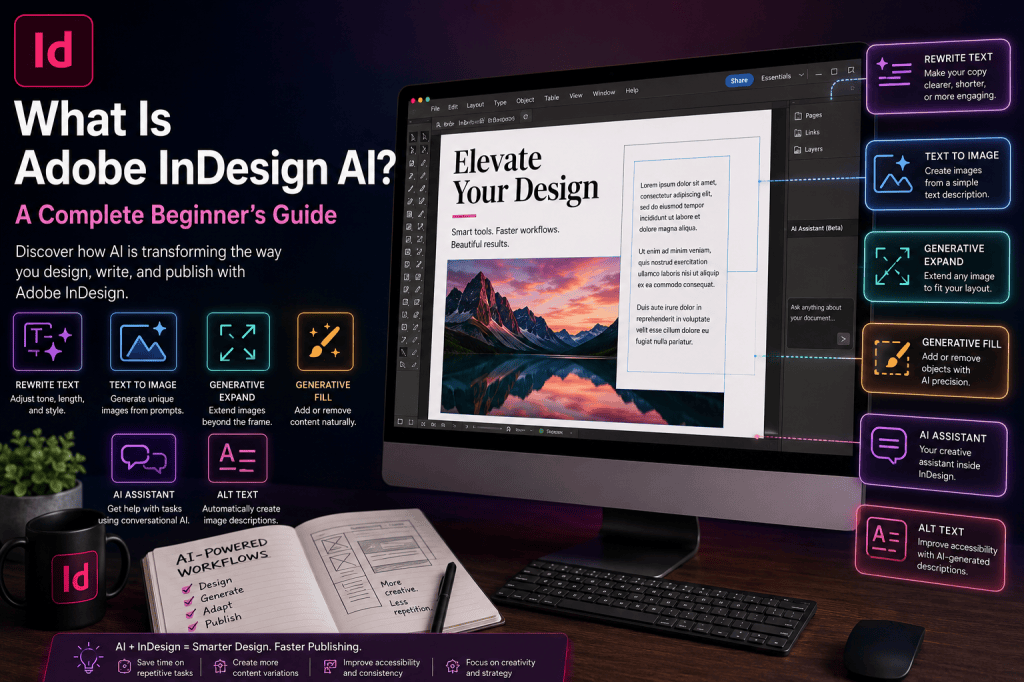
Depending on the InDesign version, feature availability, region, language, and whether you’re using the regular or Beta application, these can include capabilities such as:
- Text to Image
- Generative Expand
- Generative Fill
- Rewrite
- AI-generated alt text
- AI Assistant
Some features are more mature than others, and experimental capabilities may initially appear in InDesign Beta.
Because Adobe continues to develop these tools, the exact feature set will evolve over time.
Why Is Adobe Adding AI to InDesign?
The answer becomes clearer when you consider how professional publishing works.
Creating a publication isn’t simply a matter of designing one page.
A designer might need to:
- Create the layout.
- Import copy.
- Place photographs.
- Resize and crop images.
- Format headings.
- Apply styles.
- Adjust copy to fit.
- Create multiple versions.
- Add accessibility information.
- Check the document.
- Correct production problems.
- Export the final publication.
Now multiply those tasks across 20, 100, or even 500 pages.
Professional publishing contains a significant amount of repetitive work.
AI can potentially reduce some of that workload.
The purpose isn’t necessarily to have artificial intelligence “design the publication.”
A much more useful objective is:
Let AI handle selected repetitive or interpretive tasks while the designer remains responsible for the publication.
That distinction is essential to understanding the future of InDesign.
Adobe InDesign AI vs Traditional InDesign
Traditional InDesign is highly deterministic.
You tell the application exactly what to do.
For example:
- Apply this paragraph style.
- Change this swatch.
- Move this frame.
- Resize this image.
- Replace this text.
- Export using these PDF settings.
AI introduces another interaction model.
Instead of defining every individual operation, you can increasingly describe the result you want.
For example:
“Shorten this paragraph.”
Or:
“Extend this photograph to fill the frame.”
Or potentially:
“Update the typography throughout this document.”
This represents a shift from:
Command → Action
toward:
Intent → Interpretation → Action
That is one of the most significant changes AI could bring to professional design software.
What Can AI Do in Adobe InDesign?
Let’s look at the main capabilities.
1. Generate Images from Text
InDesign can use generative AI to create images based on text prompts.
Instead of leaving your document to find or generate an image elsewhere, you can describe the image you need.
For example:
“Minimal modern workspace with natural lighting and neutral colors.”
The AI generates visual possibilities that can then be used within the layout.
This can be useful for:
- Early concepts
- Mockups
- Marketing materials
- Editorial layouts
- Presentation documents
- Placeholder imagery
- Creative exploration
It doesn’t eliminate the need for professional photography, illustration, stock imagery, or commissioned artwork.
Instead, it gives designers another source of visual material.
Example
Imagine you’re designing a travel brochure but don’t yet have the final hero image.
You could generate a temporary concept image inside the design process rather than interrupting your layout work.
Later, the generated image could either remain in the document or be replaced with the final photography.
2. Expand Images with AI
One of the most practical AI features in a page-layout environment is Generative Expand.
Designers frequently encounter this problem:
The image is good.
The layout is good.
But the proportions don’t match.
Perhaps a horizontal photograph needs to fit a vertical frame.
Cropping might remove an important part of the photograph.
Generative Expand provides another option.
AI can create additional visual content beyond the original boundaries of the image.
This can make it easier to adapt existing imagery to different page layouts.
For example, the same campaign image might need to work in:
- A4 portrait
- A5 landscape
- Square advertisements
- Vertical posters
- Web banners
- Brochures
Generative expansion can help create the extra visual space required for those variations.
3. Modify Images with Generative Fill
Generative Fill allows parts of an image to be modified using AI.
Depending on the image and request, you can potentially add, remove, or replace visual elements.
This can reduce the need to leave InDesign for certain straightforward image modifications.
However, generated results should always be inspected carefully.
AI-generated images can contain errors.
Look particularly closely at:
- People
- Hands
- Faces
- Text
- Logos
- Product details
- Architecture
- Repeated patterns
- Brand-specific objects
Generative AI is a production aid, not a substitute for visual quality control.
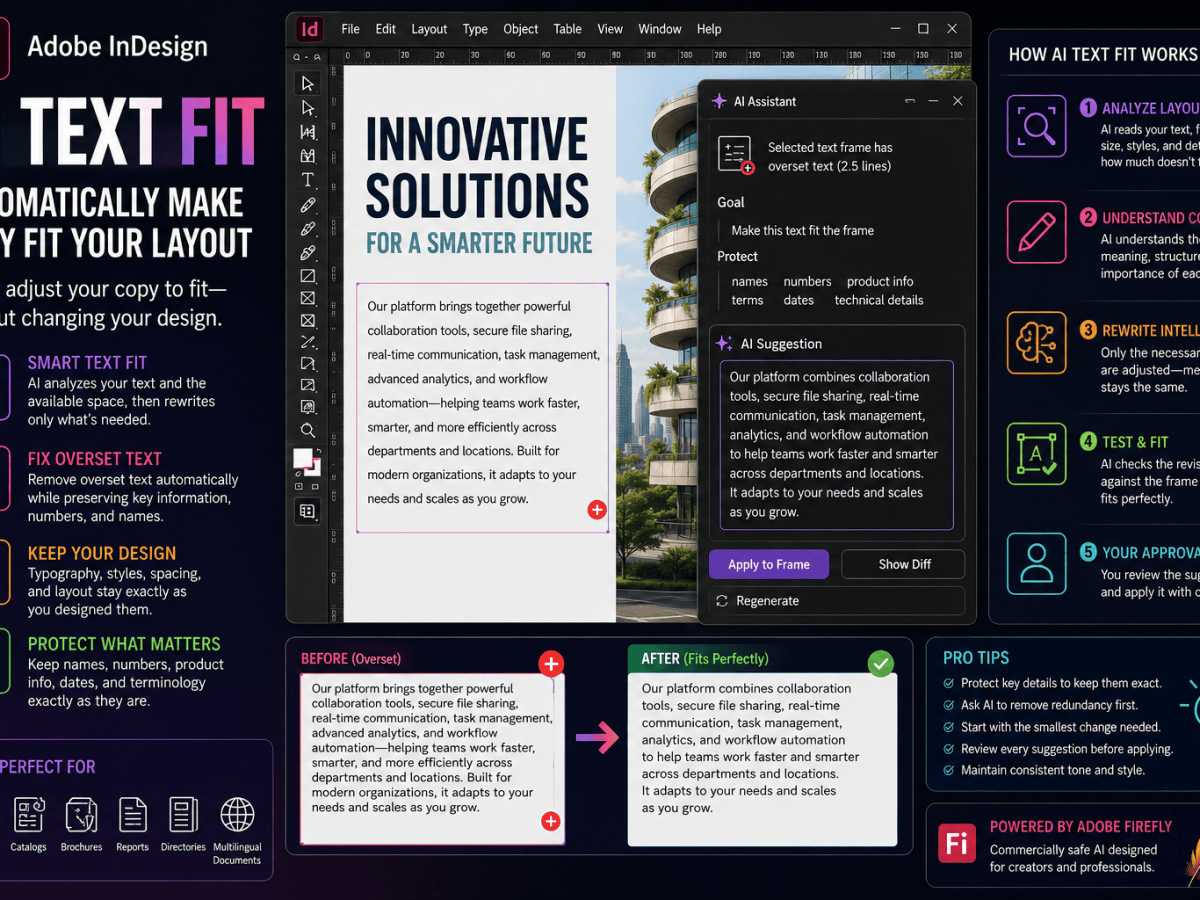
4. Rewrite Text with AI
AI can also work with text inside InDesign.
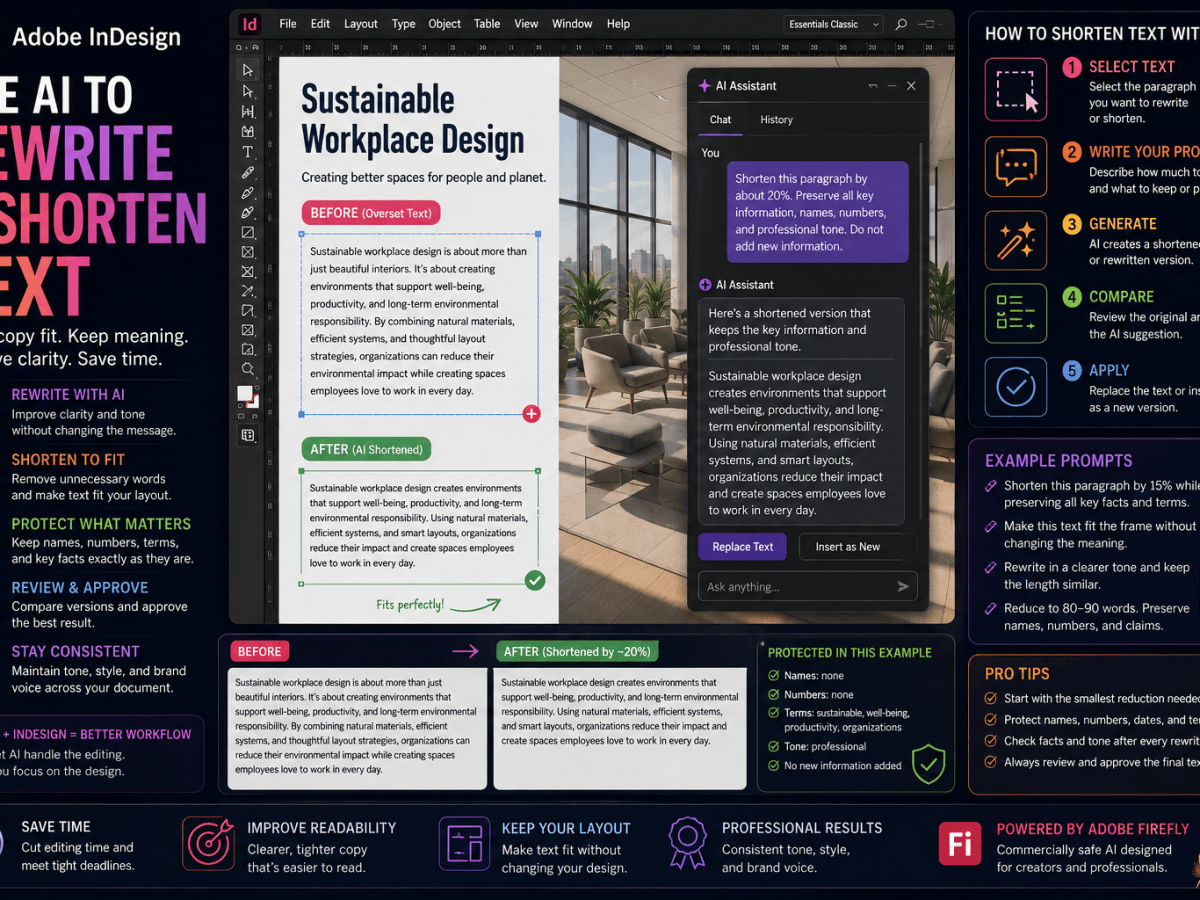
Rewrite functionality can help modify existing copy.
Possible operations include:
- Rephrasing text
- Shortening copy
- Lengthening copy
- Adjusting tone
- Fitting text to available space
The last capability is particularly interesting for designers.
Text frequently doesn’t fit the layout perfectly.
Perhaps a paragraph is four lines too long.
Traditionally, the designer might:
- Reduce font size
- Tighten tracking
- Increase the text frame
- Change the layout
- Ask the writer to shorten the text
AI provides another possibility.
You can ask it to shorten or fit the copy.
The result still needs editorial review, but the first revision can be generated quickly.
5. Generate Text
AI can also assist with generating new text.
This can be useful during:
- Prototyping
- Layout development
- Marketing production
- Concept design
- Placeholder content creation
Rather than filling a design with meaningless Lorem Ipsum, designers can increasingly work with realistic contextual content during the design stage.
For example, while creating a mock travel magazine, you could generate realistic draft copy about the destination.
That allows you to evaluate the layout using text that resembles the final content much more closely.
6. Generate Alt Text with AI
Accessibility is an increasingly important part of digital publishing.
Images in accessible documents often require alternative text.
Alt text allows assistive technologies such as screen readers to communicate the purpose or meaning of an image.
Creating descriptions manually for hundreds of images can become time-consuming.
AI can help generate an initial description.
The designer or editor can then review it.
This is an important distinction.
AI-generated alt text should be reviewed by a human.
The AI can recognize what’s in an image.
But it may not fully understand why that image matters within the document.
Context determines whether an image is:
- Informational
- Decorative
- Functional
- Complex
- Redundant
Human judgment therefore remains essential.
7. Work with an AI Assistant
One of Adobe’s most ambitious developments is the InDesign AI Assistant.
AI Assistant introduces a conversational interface to document production.
Instead of finding individual commands, you can describe what you want to accomplish.
The assistant can then help interpret and execute the requested operation.
Potential tasks include areas such as:
- Typography
- Layout
- Alignment
- Margins
- Grids
- Page numbers
- Colors
- Swatches
- Object transformations
- Document variations
- Branding changes
- Production checking
At the time of writing, AI Assistant should still be regarded as an evolving InDesign Beta capability rather than a reason to assume every conversational workflow is available in the standard production version.
But strategically, AI Assistant may be more important than individual generative features.
Why?
Because it changes how we communicate with InDesign.
InDesign Is Becoming Conversational
Think about how beginners traditionally learn InDesign.
They ask questions like:
Where is the Pages panel?
How do I add page numbers?
How do I change the margins?
How do I align these objects?
How do I create a paragraph style?
The user needs to translate their goal into InDesign terminology.
Conversational AI potentially reverses that process.
You describe your goal in ordinary language.
The software translates your intention into operations.
That doesn’t mean traditional InDesign knowledge becomes unnecessary.
But it could significantly reduce the friction involved in performing unfamiliar tasks.
Can Beginners Use InDesign AI?
Absolutely.
In fact, beginners may eventually be among the biggest beneficiaries.
InDesign is professional software, and professional applications inevitably have a learning curve.
You need to understand concepts such as:
- Text frames
- Image frames
- Parent pages
- Paragraph styles
- Character styles
- Object styles
- Swatches
- Bleed
- Preflight
- Links
- Packaging
AI can potentially help beginners navigate some of that complexity.
But there’s an important warning.
AI doesn’t teach design judgment.
You still need to understand:
- Typography
- Composition
- Hierarchy
- Readability
- Color
- Spacing
- Print production
- Accessibility
AI can execute an instruction.
It doesn’t guarantee that the instruction is a good design decision.
If you’re learning professional page layout for the first time, you can start with Adobe InDesign and gradually explore its traditional design tools alongside its newer AI-powered capabilities.
Can Professional Designers Benefit from InDesign AI?
Yes, although the benefits may be different.
Experienced InDesign users already know how to perform most common operations.
They don’t necessarily need AI to explain how to create page numbers.
Where AI becomes more interesting is scale.
Changing one object manually is easy.
Changing 500 objects is not.
Creating one layout variation is straightforward.
Creating 40 market-specific versions is production work.
Professional use cases could therefore include:
- Document-wide changes
- Localization
- Brand updates
- Catalog production
- Accessibility preparation
- Image adaptation
- Content variations
- Quality checking
- Repetitive editing
- Production automation
For professionals, the value of AI may be less about learning InDesign and more about reducing production time.
InDesign AI for Books
Book design remains one of InDesign’s traditional strengths.
AI could assist book workflows through:
- Draft text generation
- Copy adjustment
- Image generation
- Alt-text creation
- Accessibility preparation
- Repetitive formatting assistance
- Document checking
But books also demonstrate why structured InDesign knowledge remains essential.
Good book production still depends heavily on:
- Paragraph styles
- Character styles
- Parent pages
- Sections
- Running headers
- Page numbering
- Footnotes
- Cross-references
- Tables of contents
- Indexes
AI should complement this structure rather than replace it.
InDesign AI for Magazines
Magazine designers can use AI across both visual and editorial workflows.
Potential uses include:
- Generating concept imagery
- Extending photographs
- Rewriting headlines
- Adjusting article length
- Creating draft captions
- Generating alt text
- Creating promotional variations
Again, the strongest workflow combines AI with human creative direction.
InDesign AI for Marketing
Marketing production may become one of the most important applications of InDesign AI.
Campaigns frequently need multiple versions.
For example:
One campaign could require:
- Brochure
- Flyer
- Poster
- Sales sheet
- Event handout
- Product sheet
- Regional version
- Language variation
AI can potentially help modify content and assets while InDesign maintains the underlying design system.
This combination of templates + styles + automation + AI could dramatically accelerate campaign production.
InDesign AI for Catalogs
Catalog production is another strong candidate.
InDesign already supports sophisticated automated publishing workflows through Data Merge and scripting.
AI adds another layer.
Imagine a product catalog containing thousands of products.
Structured data can supply:
- Product names
- SKUs
- Prices
- Specifications
- Images
AI could potentially assist with:
- Product descriptions
- Text variations
- Copy shortening
- Alt text
- Image adjustments
- Layout checking
The structured data remains deterministic.
AI handles the less structured tasks.
That distinction is important.
Does InDesign AI Replace Data Merge?
No.
Data Merge solves a different problem.
Data Merge takes structured information and inserts it into predefined layouts.
If you have 1,000 product records in a spreadsheet, Data Merge can automate the placement of that information.
AI isn’t necessarily better at this.
A good rule is:
Use deterministic automation when the rules are predictable.
Use AI when interpretation is required.
The two approaches can work together.
Does AI Replace GREP?
Again, no.
GREP is incredibly powerful for pattern-based text automation.
For example, GREP can identify:
- Phone numbers
- Prices
- URLs
- Dates
- Product codes
- Repeated text patterns
If you know exactly what pattern you’re searching for, GREP can be faster and more predictable than AI.
AI becomes useful when the problem can’t easily be expressed as a fixed pattern.
Does AI Replace InDesign Scripts?
No.
Scripts remain one of the most powerful ways to automate InDesign.
A script can perform precisely defined operations repeatedly and consistently.
AI and scripts solve different problems.
A future advanced workflow might look like:
AI interprets the request → script executes the deterministic operation → AI evaluates the result → designer approves it.
That combination could be extremely powerful.
Is InDesign AI the Same as Adobe Firefly?
No.
Adobe Firefly is Adobe’s generative AI technology and ecosystem.
InDesign is the professional page-layout application.
Some InDesign generative capabilities use Firefly technology, but InDesign’s AI functionality shouldn’t be treated as synonymous with Firefly.
InDesign can also use other AI technologies for particular features.
Think of it this way:
Adobe InDesign = publishing environment
Adobe Firefly = generative AI technology
Firefly can operate as part of the InDesign workflow.
Is InDesign Becoming Like Canva?
There is some overlap, particularly as both platforms introduce AI-powered creative tools.
But their traditional strengths remain different.
Canva emphasizes accessibility, templates, collaboration, and fast content creation.
InDesign remains focused much more heavily on professional page layout and publishing.
Its strengths include:
- Advanced typography
- Long documents
- Print production
- Structured styles
- Professional PDF output
- Complex layouts
- Books
- Magazines
- Catalogs
- Publishing automation
AI doesn’t remove those differences.
Instead, it gives InDesign some of the conversational and generative capabilities increasingly expected in modern creative applications.
Is Adobe InDesign AI Safe for Professional Work?
AI can be used professionally, but it needs governance.
Never assume generated content is automatically correct.
Review:
AI-generated text
Check:
- Facts
- Grammar
- Tone
- Brand consistency
- Legal claims
- Product information
AI-generated images
Check:
- Visual errors
- Brand compliance
- Product accuracy
- Resolution
- Copyright and licensing considerations
- Editorial suitability
AI-generated alt text
Check:
- Accuracy
- Context
- Relevance
- Accessibility value
AI-assisted document changes
Check:
- Typography
- Layout consistency
- Overset text
- Image placement
- Print settings
- Accessibility
- Brand compliance
The designer remains responsible for the final document.
Is Adobe InDesign AI Free?
Adobe currently makes generative AI capabilities available through eligible InDesign licensing rather than positioning “InDesign AI” as a completely separate product.
Some AI operations can be subject to Adobe’s generative-credit system, account type, region, language, or feature-specific availability.
Because Adobe’s AI policies continue evolving, check your current Creative Cloud plan and Adobe’s current documentation for the precise conditions that apply to your account.
Do You Need a New Version of InDesign?
Generally, you’ll want a current version of InDesign to access Adobe’s newest AI functionality.
Older InDesign installations won’t suddenly acquire modern generative features.
This is another reason to keep production environments reasonably current, although organizations should test major upgrades before deploying them across critical publishing workflows.
If you’re using an older version or you’re new to the application, you can get the latest Adobe InDesign directly from Adobe and explore the newest publishing and AI capabilities.
Will AI Replace InDesign Designers?
AI is more likely to change the designer’s job than eliminate it.
Consider what AI is particularly good at:
- Generating variations
- Transforming content
- Recognizing patterns
- Repetitive operations
- Drafting
- Summarizing
- Interpreting instructions
Now consider what professional designers contribute:
- Creative direction
- Visual judgment
- Typography
- Brand interpretation
- Communication
- Editorial understanding
- Accessibility judgment
- Production expertise
- Quality control
Those aren’t the same capabilities.
The likely future is therefore not:
AI versus designer
but:
Designer using AI
A designer who understands typography, publishing, automation, and AI may be considerably more productive than either a designer who ignores AI or an AI user who doesn’t understand professional publishing.
AI Changes the Role of the Designer
Traditionally, designers spend substantial time executing operations.
AI may gradually shift some of that effort toward:
- Defining outcomes
- Giving instructions
- Evaluating alternatives
- Reviewing changes
- Maintaining design systems
- Managing automated workflows
In other words, the designer increasingly becomes the director of the production process.
That’s a much more interesting development than simply asking whether AI can generate a picture.
Where Should Beginners Start?
If you’re completely new to InDesign AI, don’t try every feature at once.
Start with one practical task.
For example:
Experiment 1 — Rewrite
Select some draft text and experiment with shortening or rephrasing it.
Experiment 2 — Generate an image
Create a simple image from a text prompt.
Experiment 3 — Generative Expand
Take an existing image and see whether AI can adapt it to a different frame.
Experiment 4 — Alt text
Generate alt text for an image and compare the result with the description you would write manually.
Experiment 5 — AI Assistant
If you have access to InDesign Beta and AI Assistant, experiment with simple document-related instructions before attempting more complicated workflows.
The objective is to understand where AI genuinely improves your workflow.
Don’t Use AI Just Because It’s Available
This may be the most important advice in this article.
AI isn’t automatically the best solution.
If a paragraph style can solve the problem perfectly, use the paragraph style.
If GREP can perform the operation reliably, use GREP.
If Data Merge can generate 1,000 personalized documents predictably, use Data Merge.
If a script can automate the workflow deterministically, use the script.
Use AI when AI provides an actual advantage.
Usually that means the task involves:
- Interpretation
- Natural language
- Variation
- Unstructured content
- Visual generation
- Contextual decisions
Professional workflows should use the simplest reliable tool for the job.
The Future of InDesign AI
We’re still relatively early in the integration of AI into professional publishing software.
Image generation attracted much of the initial attention.
But conversational document assistance may ultimately prove more important.
The future could involve designers giving increasingly sophisticated instructions such as:
“Create three versions of this brochure for different customer segments.”
Or:
“Update this document to our new branding.”
Or:
“Check all 150 pages for layout and accessibility problems.”
Or:
“Prepare this catalog for publication and show me everything that needs manual attention.”
The shift is subtle but profound.
Instead of controlling every operation individually, the designer increasingly defines objectives.
AI helps execute them.
Frequently Asked Questions
What is Adobe InDesign AI?
Adobe InDesign AI refers to the collection of artificial-intelligence and generative-AI capabilities integrated into Adobe InDesign. These can assist with text, images, accessibility, document editing, and publishing workflows.
Does InDesign use Adobe Firefly?
Yes. Adobe Firefly technology powers some generative capabilities used within InDesign.
Can InDesign create AI images?
Yes. InDesign supports AI-assisted image generation through features such as Text to Image.
Can InDesign rewrite text?
Yes. AI-assisted rewriting can help rephrase, shorten, lengthen, or otherwise adapt text.
Can InDesign expand photographs using AI?
Yes. Generative Expand can generate additional image content outside the original image boundaries.
Can InDesign generate alt text?
Yes. AI can generate initial alternative-text descriptions for images, which should then be reviewed for accuracy and context.
Does InDesign have an AI chatbot?
Adobe is developing an AI Assistant for InDesign that provides conversational interaction with documents. Availability can depend on InDesign Beta, region, language, and Adobe’s current rollout.
Is InDesign AI good for beginners?
It can be. Conversational assistance and AI-powered operations can make certain tasks easier to discover, although beginners should still learn fundamental InDesign and design concepts.
Does AI replace GREP, Data Merge, or scripts?
No. These are deterministic automation technologies and remain extremely useful. AI complements them by handling tasks requiring greater interpretation or variation.
Is Adobe InDesign AI free?
AI capabilities are associated with eligible InDesign subscriptions rather than sold as a standalone “InDesign AI” application, but generative-credit and feature-availability rules may apply.
Final Thoughts
Adobe InDesign AI isn’t about replacing the designer.
It’s about expanding what the designer can delegate to the software.
InDesign already provides powerful tools for professional publishing, typography, long documents, automation, and print production.
AI adds a new layer.
It can help:
Generate.
Rewrite.
Expand.
Describe.
Interpret.
Assist.
And increasingly:
Act.
That final capability may ultimately matter most.
As conversational AI becomes more deeply integrated into InDesign, designers may spend less time finding commands and performing repetitive operations and more time defining what the publication should achieve.
For beginners, that could make InDesign easier to approach.
For professionals, it could make sophisticated publishing workflows significantly more productive.
Either way, AI is becoming an increasingly important part of the InDesign ecosystem.
Explore Adobe InDesign
If you want to experiment with AI-assisted publishing yourself, the best way to understand these capabilities is to work with them.
Explore Adobe InDesign‘s professional page-layout, typography, publishing, automation, and latest AI-powered capabilities directly from Adobe.
Continue Learning About InDesign AI
This article is part of the Adobe InDesign AI series on InDesignPerfect.
Start with the main guide
Adobe InDesign AI: The Complete Guide to AI-Powered Design and Publishing
Continue with
How to Use AI in Adobe InDesign
This should be the next article in the cluster. Rather than explaining what InDesign AI is, it will be a practical, task-oriented tutorial showing readers where to find the AI tools and how to start using them.
Other guides in this series include:
- Adobe InDesign AI Features: Everything You Can Do with AI
- Adobe InDesign AI Assistant: Complete Guide
- How to Use AI Assistant in Adobe InDesign
- Adobe InDesign AI Assistant Prompts
- How to Use Rewrite in Adobe InDesign
- Generate Text in Adobe InDesign
- How to Generate Images with AI in Adobe InDesign
- How to Use Generative Expand in Adobe InDesign
- How to Generate Alt Text with AI in Adobe InDesign
- How AI Is Changing Adobe InDesign Workflows
- Adobe InDesign AI vs Canva AI