Adobe InDesign 21.4 is one of the more interesting InDesign updates of 2026.
Released in May 2026, the update doesn’t attempt to reinvent InDesign. Instead, Adobe has concentrated on improving several areas that are becoming increasingly important to professional publishing: AI-assisted writing, accessibility, Adobe Express integration, responsive Flex Layout workflows, and EPUB publishing.
The headline addition is undoubtedly Rewrite, which brings AI-assisted text rewriting directly into InDesign.
But that’s only part of the story.
InDesign 21.4 also introduces smarter alt-text management, better handling of images edited with Adobe Express, improvements to Flex Layout, and new options designed to prevent text clipping in reflowable EPUB publications.
Let’s look at what changed and, more importantly, what these changes mean for everyday InDesign users.
Adobe InDesign 21.4 at a Glance
The major improvements in InDesign 21.4 are:
- Rewrite for AI-assisted text editing
- New writing tones
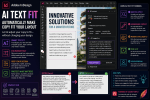
- Fit Text for adapting copy to available space
- Language-aware text generation
- Alt-text update notifications
- Improved Adobe Express “Save as New” workflow
- More intuitive Flex Layout editing
- Better text-resizing control for reflowable EPUBs
- Accessibility improvements
- Numerous stability and bug fixes
Adobe subsequently released InDesign 21.4.1 in June 2026, which concentrates on bug fixes rather than introducing another major collection of features.
For most designers, therefore, 21.4 is the release containing the significant new functionality.
1. Rewrite Is the Headline Feature
The biggest addition in InDesign 21.4 is Rewrite.
InDesign has traditionally been the place where finished or nearly finished copy is formatted.
You write the text in Microsoft Word, Google Docs, a content-management system or another writing application. The copy is then imported into InDesign, where the designer handles typography and layout.
The problem is familiar to almost every publication designer.
The copy doesn’t fit.
Perhaps a headline needs to lose three words. A product description is two lines too long. A paragraph produces an awkward final line. Or a piece of marketing copy simply doesn’t work with the available space.
Until now, solving these problems generally required manually editing the copy or asking the writer or editor for a revised version.
Rewrite changes that workflow.
InDesign can now generate variations of existing text directly inside the application.
Select the text you want to modify and Rewrite can help produce an alternative while preserving the meaning of the original content.
This brings writing assistance much closer to the actual layout process.
2. Rewrite Isn’t Just About Making Text Shorter
The interesting thing about Rewrite is that Adobe isn’t treating it as a simple “shorten this paragraph” button.
The feature can refine text using different tones and instructions.
That means the designer can potentially adapt copy depending on its intended purpose.
For example, text might need to become:
- more professional
- more casual
- more concise
- more engaging
- better suited to the available layout
This has obvious applications in marketing and commercial publishing.
Imagine you’re creating a product brochure.
The supplied description reads perfectly well, but it’s too formal for the rest of the publication.
Instead of leaving InDesign, rewriting the paragraph elsewhere, copying it back and then checking the layout again, you can generate a variation while remaining inside the document.
The key advantage isn’t simply AI-generated writing.
It’s AI-assisted writing within the context of the layout.
That distinction matters.
3. Fit Text Could Be Extremely Useful for Designers
One of the most practical parts of Rewrite is Fit Text.
This addresses one of the oldest problems in page layout: making copy fit within a predetermined area.
Consider a magazine layout containing a sidebar.
The designer has allocated a fixed amount of space for approximately 150 words.
The writer delivers 190.
There are several traditional solutions.
You could reduce the font size.
You could reduce leading.
You could adjust tracking.
You could enlarge the text frame.
You could redesign the page.
Or you could edit approximately 40 words out of the copy.
None of these is necessarily ideal.
Fit Text introduces another possibility.
InDesign can help adapt the text to the available space.
That could be particularly valuable for:
- advertisements
- product catalogs
- brochures
- newsletters
- presentation-style documents
- annual reports
- magazine sidebars
- captions
- promotional materials
The important point is that designers should still review the result.
A paragraph fitting perfectly inside a frame doesn’t automatically mean it is accurate, well written or appropriate.
Fit Text should therefore be treated as an editing assistant, not an automatic replacement for editorial judgment.
4. Rewrite Can Match the Language of Your Content
InDesign 21.4 also improves the language behavior of generated text.
Adobe says Rewrite can generate and refine content while matching the language of the prompt or existing content.
This is important for international publishing.
A designer working on a multilingual document shouldn’t have to continually specify that French copy needs to remain French, German copy needs to remain German, or Dutch copy needs to remain Dutch.
Language-aware generation makes AI assistance more practical inside multilingual documents.
This could be particularly useful for international organizations producing:
- multilingual brochures
- regional catalogs
- product documentation
- tourism publications
- corporate reports
- marketing campaigns
It doesn’t replace professional translation or localization.
But it can make routine text adjustments much more convenient.
5. Why Rewrite Is More Important Than It First Appears
At first glance, Rewrite might seem like another generative AI feature added because every software company is currently adding AI.
But there is a deeper workflow implication.
InDesign has historically separated content creation from content presentation.
Writers created the words.
Designers created the pages.
Those roles still exist, but the boundaries between them are becoming less rigid.
InDesign can increasingly help manipulate the content while the designer is constructing the layout.
This means future InDesign workflows could become much more iterative.
Instead of:
Write → Edit → Import → Design → Discover problem → Return to writer → Edit → Reimport
the process increasingly becomes:
Write → Import → Design → Refine within layout → Publish
For small design teams, marketing departments and independent creators, that can represent a substantial productivity improvement.
6. Smarter Alt-Text Notifications
Accessibility is another major focus of InDesign 21.4.
Recent InDesign versions can use AI to generate alternative text describing images.
Alt text is important because screen readers can use it to explain visual content to people who cannot see the image.
But generating alt text creates another problem.
What happens when the image changes?
Suppose you place a photograph showing three people standing in front of a building.
You generate appropriate alt text.
Later, you crop the image so that only one person remains visible.
The original alt text may now be inaccurate.
InDesign 21.4 addresses this situation by providing a visual indicator when existing alt text may need to be updated.
When an image is cropped or refocused, InDesign can prompt you to regenerate the description.
This sounds like a small enhancement, but it solves an important accessibility workflow problem.
7. Accessibility Becomes Part of the Editing Process
The alt-text notification demonstrates an important shift in how accessibility is handled.
Traditionally, accessibility checks often happened near the end of production.
The document was designed first.
Accessibility was checked later.
That’s risky because last-minute accessibility corrections can require significant changes.
Adobe’s newer approach increasingly integrates accessibility into the normal design workflow.
The application can help identify when a design change potentially affects accessible content.
That makes accessibility more of an ongoing production consideration rather than a final checklist.
For designers creating documents for governments, educational institutions, large corporations and public organizations, this is becoming increasingly important.
8. Better Adobe Express Image Editing Workflow
Adobe introduced direct Adobe Express image-editing integration in InDesign 21.3.
InDesign 21.4 improves that workflow.
The Save as New option now provides better control when working with linked or embedded images that have been edited using Adobe Express.
Why does that matter?
Professional InDesign documents frequently contain dozens or hundreds of linked images.
Maintaining those links correctly is essential.
When an image is modified, the designer needs to know whether the existing asset should be updated or whether the edited version should become a separate asset.
The improved Save as New workflow provides more control over that decision.
It’s another example of Adobe reducing the friction between its applications and services.
9. InDesign and Adobe Express Are Becoming More Closely Connected
The Express integration deserves attention beyond the individual Save as New improvement.
Traditionally, an InDesign designer might use:
InDesign → Photoshop → InDesign
for relatively straightforward image modifications.
Adobe is increasingly making another workflow possible:
InDesign → Adobe Express editing tools → InDesign
Photoshop isn’t going anywhere.
For sophisticated retouching, compositing, masking and professional image manipulation, Photoshop remains far more capable.
But many everyday publishing jobs don’t require sophisticated Photoshop work.
Perhaps you simply need to make a quick visual adjustment.
For these situations, Express integration can make the workflow faster.
10. Flex Layout Becomes Easier to Edit
Another area Adobe continues to develop is Flex Layout.
Flex Layout represents an important evolution in InDesign because it moves beyond the application’s traditional fixed-position layout model.
Traditional print design works beautifully with fixed coordinates.
You know the dimensions of the page.
You know where the headline belongs.
You know exactly where the photograph should appear.
Digital publishing is different.
Content may need to respond to different dimensions, varying amounts of text and changing display environments.
Flex Layout introduces more adaptable relationships between layout elements.
InDesign 21.4 makes Flex Layout editing more intuitive, including improvements intended to make it easier to select and work with elements within Flex Layout structures.
This builds on the Flex Layout improvements Adobe introduced in InDesign 21.3.
11. Why Flex Layout Matters
Flex Layout may not immediately affect every InDesign user.
If you primarily create print books, posters or fixed-format PDFs, your existing frame-based workflow may continue to work perfectly.
But Flex Layout is strategically important.
Publishing is increasingly multi-format.
A piece of content may eventually need to appear as:
- a printed brochure
- a PDF
- an EPUB
- a web experience
- a mobile-friendly document
- a social asset
- an interactive publication
Rigid layouts don’t adapt naturally to all those environments.
Flexible layout systems can.
This makes Flex Layout one of the InDesign technologies worth learning even if you don’t immediately need it for every project.
12. Better EPUB Text Resizing
InDesign 21.4 also introduces an important improvement for reflowable EPUB publishing.
One of the core principles of accessible digital publishing is allowing readers to resize text.
Someone with impaired vision may significantly increase the text size on an ebook reader.
But poorly constructed layouts can cause enlarged text to become clipped or hidden.
InDesign now provides more control over how CSS sizing is handled during reflowable EPUB export.
Designers can choose among options including:
None
CSS sizing rules targeting relevant frames and components can be removed, allowing content to reflow more freely.
Fixed
The existing layout dimensions are maintained.
Relative to Text Flow
Text and images resize proportionally relative to the text flow.
The default is Relative to Text Flow, while the None option can be useful when preventing text clipping is the priority.
13. Preventing Text Clipping Is an Accessibility Improvement
This EPUB improvement may sound technical, but its purpose is straightforward.
Readers should be able to enlarge text without losing content.
Imagine an ebook containing a callout inside an anchored text frame.
At the designer’s original text size, everything fits perfectly.
A reader increases the text size by 200%.
The frame doesn’t expand appropriately.
Half the text disappears.
That’s an accessibility failure.
The new resizing controls give designers more options for avoiding this situation.
Adobe also converts paragraph-style indents and spacing to relative em units in exported CSS, helping those measurements respond more appropriately to text sizing.
For designers producing ebooks, educational materials and accessible digital publications, these changes are worth testing carefully.
14. InDesign 21.4 Also Includes Important Bug Fixes
Feature announcements naturally receive most of the attention, but InDesign 21.4 also addresses a range of bugs.
Adobe’s release notes list fixes involving areas such as:
- alt-text message display
- Times New Roman and Calibri detection on Windows
- Math Expression behavior in EPUB preview on macOS
- application permissions on macOS
- IDML stability on Windows
- hangs when placing or updating linked files
- EPUB CSS behavior
- Flex Layout interface display
Some of these fixes are highly workflow-specific, but stability improvements can be just as valuable as new features in professional production environments.
A spectacular new AI feature doesn’t help much if a production document crashes while updating linked assets.
15. InDesign 21.4.1 Followed in June
Adobe released InDesign 21.4.1 in June 2026.
This is important because users checking Creative Cloud today may see 21.4.1 rather than 21.4.
The distinction is simple:
21.4 = major May feature update
21.4.1 = subsequent June maintenance release
According to Adobe’s release notes, 21.4.1 fixes an issue that could prevent users from moving multiple selected objects when the cursor was positioned over a placed image or frame content.
So if you’re upgrading today, you’ll normally want the latest 21.4.x build available rather than deliberately installing the original 21.4 release.
Which New Feature Matters Most?
For most users, the answer is probably Rewrite.
It’s the feature most likely to immediately change everyday workflows.
Designers regularly encounter text that is:
- too long
- too short
- too formal
- too repetitive
- poorly suited to the layout
Bringing AI-assisted rewriting directly into InDesign reduces the distance between editing and design.
However, professional publishing teams may find the accessibility improvements equally important.
And designers working heavily with digital publishing should pay close attention to Flex Layout and EPUB resizing.
The significance therefore depends on what you create.
Should You Upgrade to InDesign 21.4?
For most Creative Cloud users, yes.
The update is particularly attractive if you:
- regularly edit copy while designing
- create marketing materials
- work with accessible publications
- produce EPUB files
- use Adobe Express
- experiment with responsive layouts
- manage image-heavy documents
Organizations with tightly controlled production environments should, as always, test new versions against important documents, fonts, plug-ins, scripts and workflows before deploying them widely.
That is particularly important in automated publishing environments.
What InDesign 21.4 Tells Us About Adobe’s Direction
Perhaps the most interesting thing about InDesign 21.4 isn’t any single feature.
It’s the combination of features.
Look at where Adobe is investing:
AI-assisted content creation
Rewrite brings generative text editing directly into the page-layout process.
Accessibility
Alt-text monitoring and EPUB improvements help make accessibility part of the publishing workflow.
Responsive design
Flex Layout continues moving InDesign beyond purely fixed page geometry.
Connected Creative Cloud workflows
Adobe Express integration reduces the need to leave the application for straightforward image-editing tasks.
These developments point toward an InDesign that is less isolated than the traditional desktop publishing application.
InDesign is becoming a broader content production and publishing environment.
Final Thoughts
Adobe InDesign 21.4 isn’t revolutionary in the sense of completely changing how InDesign works.
You will still recognize the application immediately.
You will still create text frames, place images, define paragraph styles, build parent pages and export documents.
But underneath that familiar workflow, something important is changing.
InDesign is becoming smarter.
It can help rewrite the words inside your frames.
It can recognize when an image change may invalidate its alt text.
It can work more closely with Adobe Express.
It can create more adaptable layout relationships.
And it can give readers greater flexibility when consuming EPUB content.
For professional designers, the most interesting question therefore isn’t simply:
“What new buttons did Adobe add?”
It’s:
“Which parts of my existing workflow can these new capabilities improve?”
That is where InDesign 21.4 becomes much more interesting.
The best place to start is Rewrite. Try it on a duplicate document containing real-world copy and see how well Fit Text handles the kinds of layout problems you encounter every day.
Then explore the accessibility and Flex Layout improvements.
InDesign’s traditional strengths aren’t disappearing.
Adobe is gradually building new AI, accessibility and adaptive-publishing capabilities around them — and InDesign 21.4 provides one of the clearest examples yet of where the application is heading.