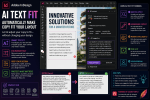
Adobe InDesign has traditionally been where text goes after it has been written.
Writers create the content in Microsoft Word, Google Docs, a content-management system, or another writing application. Designers then place that content into InDesign and transform it into a professionally designed publication.
Generative AI is beginning to change that workflow.
With Generate Text, Adobe InDesign can create text directly inside your document using a simple prompt. Instead of filling an unfinished layout with Lorem Ipsum or constantly switching between InDesign and an external writing tool, you can generate contextual draft copy directly inside a text frame.
For designers creating mockups, marketing materials, brochures, catalogs, newsletters, and other publications, this can be surprisingly useful.
Generate Text doesn’t turn InDesign into a replacement for professional writers.
What it does is make InDesign a more intelligent environment for developing content and layout together.
Here’s how it works and where it can improve your workflow.
What Is Generate Text in Adobe InDesign?
Generate Text is an AI-assisted feature that lets you create written content directly inside InDesign.
The basic idea is simple.
Instead of typing the copy yourself, you describe what you need.
InDesign generates text based on your prompt and places the result into the document.
For example, you might ask for:
A short introduction for a travel brochure promoting Amsterdam as a weekend destination.
Rather than receiving generic placeholder text, you receive draft copy related to the actual subject of the design.
That makes the page much easier to evaluate.
You can see how realistic words interact with:
- typography
- line breaks
- columns
- images
- headings
- spacing
- text frames
- the overall page composition
For early-stage design work, this can be much more useful than Lorem Ipsum.
Generate Text vs. Rewrite
Before going further, it’s important to understand the difference between Generate Text and Rewrite.
They are related AI-assisted writing tools, but they solve different problems.
Generate Text
Generate Text creates content.
You begin with a prompt describing what you want.
For example:
Write a 100-word introduction for a sustainable architecture magazine.
InDesign generates new copy.
Rewrite
Rewrite starts with existing content.
You select text that is already in the document and ask InDesign to transform it.
For example:
Make this paragraph shorter and friendlier.
A simple way to remember the difference is:
Generate Text = create new copy
Rewrite = modify existing copy
The two tools can also work together.
You might use Generate Text to create the first draft and Rewrite to refine it afterward.
Why Generate Text Matters for Designers
Designers often start working before the final copy exists.
This is normal.
A client may approve the overall concept before commissioning the final writing.
A marketing team may know which sections a brochure requires without having finished the content.
An editorial team may know the approximate length of an article without having received the final manuscript.
The designer still needs something to place in the layout.
Traditionally, that something has often been Lorem Ipsum.
Generate Text offers another approach.
Instead of meaningless placeholder copy, you can create contextual placeholder content.
That can make prototypes much more realistic.
The Problem with Lorem Ipsum
Lorem Ipsum has been part of graphic-design workflows for generations.
It remains useful.
Because the text is meaningless to most readers, it allows people to concentrate on the design rather than becoming distracted by the words.
But Lorem Ipsum has limitations.
Imagine showing a client a luxury hotel brochure.
The page contains a beautiful photograph of a Mediterranean resort.
Next to it is:
Lorem ipsum dolor sit amet, consectetur adipiscing elit…
The client has to mentally imagine what the final page will feel like.
Now compare that with realistic draft content:
Escape to the Mediterranean, where sunlit terraces, quiet beaches and contemporary coastal design create the perfect setting for a relaxing getaway.
Suddenly the design feels much closer to a finished publication.
That can make client presentations and internal reviews more productive.
How to Use Generate Text in Adobe InDesign
The Generate Text workflow is straightforward.
Start by creating or selecting the text frame where you want the generated content to appear.
Place the text cursor inside the frame.
Access Generate Text from the relevant contextual interface in InDesign.
Enter a prompt describing the content you need.
For example:
Write a short introduction for a brochure about sustainable office furniture. Professional but approachable tone. Approximately 80 words.
InDesign generates content based on your instruction.
Review the generated result.
If it isn’t suitable, adjust your prompt and generate another version.
The workflow is essentially:
Create frame → Enter prompt → Generate → Review → Refine
The quality of the result depends heavily on the quality of the prompt.
How to Write Better Generate Text Prompts
A vague prompt usually produces a vague result.
Consider:
Write about coffee.
That gives the AI very little direction.
Compare it with:
Write a 70-word introduction for a premium coffee shop brochure. Focus on ethically sourced beans, small-batch roasting and craftsmanship. Use a warm, sophisticated tone.
Now the system knows:
- what you’re writing
- how long it should be
- where it will be used
- which ideas matter
- what tone to use
A useful prompt formula is:
Content + Purpose + Audience + Length + Tone + Important details
You won’t always need every element.
But adding relevant context generally improves the result.
Example: Generate Copy for a Travel Brochure
Suppose you’re designing a brochure for a boutique hotel in Amsterdam.
Instead of:
Write something about Amsterdam.
try:
Write an 80-word introduction for a boutique hotel brochure in Amsterdam. Target international city-break travelers. Mention canals, museums, local restaurants and the hotel’s central location. Use an elegant but welcoming tone.
That prompt gives InDesign much more useful direction.
The generated copy should also be closer to the length and style required by the layout.
Example: Generate a Product Description
Imagine you’re building a furniture catalog.
You have the product photographs but not the final descriptions.
You could prompt:
Write a 60-word product description for a minimalist oak dining table designed for modern interiors. Highlight natural materials, craftsmanship and durability. Use a premium but straightforward tone.
The generated description can serve as temporary copy while the catalog design develops.
Later, the final approved product information can replace it.
Example: Generate Newsletter Content
Generate Text can also help when creating internal communications.
For example:
Write a 120-word introduction for a company newsletter announcing the opening of a new office in Rotterdam. Thank employees for their contribution and make the message positive and professional.
You now have a draft that can be edited by the appropriate person.
Again, the goal isn’t necessarily to publish the generated result immediately.
It’s to accelerate the journey from empty frame to usable draft.
Use Word Counts in Your Prompts
For designers, one of the most useful prompt elements is approximate length.
The difference between 50 and 250 words is enormous in page-layout terms.
If you know approximately how much space is available, tell Generate Text what you need.
For example:
Write approximately 50 words.
or:
Create three short paragraphs totaling about 150 words.
The result may not hit the requested word count perfectly, but providing a target gives the AI useful guidance.
You can then use Rewrite or Fit Text if further adjustment is necessary.
Generate Text Can Work with Your Formatting
One of the advantages of generating text inside InDesign is that the content enters an environment where typography and paragraph formatting already exist.
If your text frame has been prepared using the appropriate styles, generated content can immediately be evaluated within the visual system of the document.
This is much more useful than generating text in isolation.
You’re not simply asking:
Does this paragraph sound good?
You’re also asking:
Does this paragraph work on this page?
That’s the important InDesign context.
Generate Text + Paragraph Styles
For professional documents, you should continue using paragraph styles even when experimenting with generated text.
For example, your brochure might contain styles such as:
- Heading 1
- Heading 2
- Introduction
- Body
- Caption
- Quote
- Product Description
Set up the styles first.
Then generate content into the relevant areas.
This separates the content from its formatting and makes the document easier to maintain.
AI shouldn’t encourage designers to abandon good InDesign structure.
In fact, generated content becomes much more useful when combined with disciplined style-based document construction.
Generate Text + Rewrite: A Powerful Combination
Generate Text becomes more interesting when combined with Rewrite.
Imagine you’re creating a magazine prototype.
You ask Generate Text:
Write a 200-word introduction about how artificial intelligence is changing graphic design.
The result is good, but it runs several lines too long.
You could then select the generated paragraph and use Rewrite to shorten it.
The workflow becomes:
Generate → Place → Evaluate → Rewrite → Fit → Refine
This creates a much more integrated relationship between content creation and layout.
Instead of designing around static text, the content itself becomes more adaptable during the design process.
Generate Text for Mockups
Mockups are probably one of the strongest use cases.
Suppose an agency is pitching a new magazine concept.
The final editorial content doesn’t exist yet.
But the client needs to see:
- the cover
- contents pages
- feature articles
- interviews
- sidebars
- product pages
- advertisements
Lorem Ipsum can make those pages look unfinished.
Generate Text allows the team to create realistic sample copy for each section.
For example:
Write a 150-word opening paragraph for a magazine feature about Scandinavian interior design. Target design-conscious homeowners. Use an intelligent editorial tone.
The resulting mockup feels much closer to a real publication.
Generate Text for Brochure Prototypes
Brochures often begin with an outline rather than finished copy.
Perhaps the structure is:
Page 1: Cover
Page 2: Company introduction
Page 3: Services
Page 4: Customer benefits
Page 5: Case study
Page 6: Contact information
Generate Text can quickly populate those sections with representative content.
This allows the designer to develop the visual hierarchy before every sentence has been approved.
Once final copy arrives, it can replace the generated draft.
Generate Text for Catalog Design
Catalogs present another useful scenario.
When creating templates, designers often need realistic product information.
Generate Text can produce temporary:
- product descriptions
- category introductions
- promotional copy
- feature summaries
- collection descriptions
This makes it easier to test:
- text-frame dimensions
- paragraph styles
- spacing
- grid systems
- page density
Just remember that generated specifications should never be treated as real product data.
Generate Text for Educational Materials
Designers creating training manuals, worksheets or educational publications can also use AI-generated draft content during development.
For example:
Write a 100-word beginner-friendly explanation of the difference between RGB and CMYK for a graphic design training manual.
The generated material can help determine whether the proposed page structure works.
A subject-matter expert should still review the final educational content.
Generate Text for Multilingual Layout Testing
Multilingual publishing creates a particularly interesting opportunity.
Different languages require different amounts of space.
A layout designed around English copy may fail when translated.
During early development, you can use realistic content in the target languages to test how the layout behaves.
This helps identify potential issues with:
- text expansion
- line lengths
- headings
- buttons
- captions
- columns
- frame sizes
AI-generated multilingual content should not replace professional translation, but it can be useful for layout testing.
Don’t Confuse Draft Content with Approved Content
There is an important risk when using generated text in production documents.
Temporary content can accidentally become final content.
Imagine generating a placeholder description for a product.
Three weeks later, someone assumes the paragraph is approved.
The catalog goes to print.
The description contains an invented feature.
That’s a serious production failure.
Teams should therefore clearly distinguish between:
AI-generated draft copy
and
approved publication copy
Consider using document notes, workflow labels, comments or other production conventions to identify content that still requires editorial approval.
AI Can Invent Facts
Generative AI produces plausible language.
Plausible doesn’t mean factual.
If you request:
Write a description of our company’s history.
the AI cannot automatically know your actual company history unless the necessary information is provided.
It may create convincing but inaccurate details.
This is especially dangerous with:
- company histories
- dates
- prices
- statistics
- technical specifications
- quotations
- legal information
- medical information
- product capabilities
- people’s names
- addresses
Always verify factual claims.
Give the AI the Facts It Needs
One way to reduce errors is to include relevant facts in your prompt.
Instead of:
Write an introduction to our company.
use something like:
Write a 100-word company introduction using these facts: founded in 2008, based in Rotterdam, 45 employees, specializes in sustainable office furniture, serves customers across the Netherlands and Belgium. Do not introduce additional facts.
That gives the system a much stronger foundation.
The resulting copy still requires review, but the boundaries are clearer.
Don’t Use Generate Text for Sensitive Final Copy Without Review
Some content deserves particularly careful treatment.
Examples include:
- contracts
- legal notices
- medical information
- safety instructions
- financial disclosures
- regulatory statements
- warranty conditions
- privacy policies
AI may help create early drafts in appropriate circumstances, but the final content should be reviewed by qualified people.
InDesign makes generation convenient.
Convenience doesn’t remove responsibility.
Keep Your Brand Voice Consistent
Another challenge is consistency.
Suppose your company communicates in a direct, understated style.
AI-generated content might suddenly introduce phrases such as:
revolutionary
game-changing
world-class
groundbreaking
Those words may be completely inconsistent with your brand.
Good prompts can reduce this problem.
For example:
Use a clear, professional and understated tone. Avoid exaggerated marketing language and words such as revolutionary, groundbreaking and world-class.
The more specific your instructions, the more useful the result tends to become.
A Practical Generate Text Workflow
A professional workflow could look like this:
Step 1: Build the document structure
Create the grid, text frames, image frames and paragraph styles.
Step 2: Identify missing content
Determine which sections don’t yet have final copy.
Step 3: Define what each section needs
Estimate length, purpose, audience and tone.
Step 4: Generate draft content
Use specific prompts.
Step 5: Evaluate the result inside the layout
Check line breaks, page balance and visual hierarchy.
Step 6: Refine when necessary
Use Rewrite or manual editing.
Step 7: Verify facts
Never assume generated information is accurate.
Step 8: Mark draft content clearly
Make sure everyone knows it hasn’t necessarily been approved.
Step 9: Obtain editorial approval
Have the appropriate writer, editor, client or subject-matter expert review the copy.
Step 10: Replace temporary content where necessary
Before final export, make sure no unapproved placeholder material remains.
This keeps AI useful without weakening production control.
Generate Text vs. Lorem Ipsum
Should designers stop using Lorem Ipsum?
No.
There are situations where Lorem Ipsum remains preferable.
If you’re evaluating typography and don’t want stakeholders distracted by content, meaningless placeholder text is useful.
But when you need the design to feel realistic, Generate Text has a clear advantage.
Think of the choice this way:
Use Lorem Ipsum when the words should be ignored.
Use Generate Text when the words should help demonstrate the concept.
Both have a place in professional design.
Generate Text vs. ChatGPT
Generate Text also doesn’t eliminate the usefulness of dedicated AI assistants.
A conversational AI system can be more appropriate when you need to:
- brainstorm extensively
- research a subject
- compare many alternatives
- develop an article structure
- work through complex editorial requirements
- iterate through a long conversation
InDesign’s advantage is different.
Generate Text exists inside the publishing workflow.
You can generate the content where it will actually appear.
That makes it especially valuable for layout-oriented tasks.
Does Generate Text Replace Copywriters?
No.
Professional copywriting involves strategy, research, audience understanding, factual accuracy, brand positioning and editorial judgment.
Generate Text can accelerate certain tasks.
It can help produce:
- first drafts
- placeholders
- alternatives
- prototypes
- short descriptions
- concept copy
But the ability to generate grammatically correct paragraphs isn’t the same as developing an effective communication strategy.
The strongest workflow combines AI speed with human judgment.
The Bigger Picture: InDesign Is Changing
Generate Text is significant because of what it represents.
Adobe is adding generative capabilities throughout InDesign.
The modern application increasingly includes tools for:
Generate Text — creating written content.
Rewrite — transforming existing content.
Fit Text — adapting copy to available space.
Text to Image — generating visual content.
Generative Expand — extending images.
Generative Fill — modifying images.
Generate Alt Text — creating accessibility descriptions.
Individually, each feature solves a relatively specific problem.
Together, they represent something much larger.
InDesign is evolving from a page-layout application into an AI-assisted publishing environment.
Final Thoughts
Generate Text won’t fundamentally change what makes a good InDesign document.
Typography still matters.
Grid systems still matter.
Paragraph styles still matter.
Visual hierarchy still matters.
Good writing still matters.
What changes is how quickly designers can move from an empty frame to something meaningful.
Instead of waiting for final copy before evaluating a page, you can generate representative content.
Instead of presenting clients with pages full of Lorem Ipsum, you can create realistic prototypes.
Instead of leaving InDesign every time you need temporary copy, you can increasingly stay inside the application.
The best way to understand Generate Text is therefore not as an automatic writing machine.
Think of it as a content prototyping tool built into your layout environment.
Start with a simple test.
Open a duplicate InDesign document.
Create a text frame and ask Generate Text for approximately 100 words relevant to the design.
Then change the prompt.
Specify a different audience.
Specify a different tone.
Specify a different length.
Watch how those changes affect both the words and the page.
That is where Generate Text becomes interesting.
You’re no longer designing first and adding content later.
You’re beginning to develop content and layout together.