Adobe InDesign has traditionally been a desktop-first application.
One designer opens an INDD file, works on the publication, saves it, creates a PDF, and sends that PDF to someone else for review.
The client sends comments.
The editor sends another email.
Someone marks up a PDF.
Another person sends screenshots.
Then the designer has to combine feedback from several different places and work out which comments refer to which version.
For complex publishing projects, this can become surprisingly inefficient.
Adobe has been steadily changing that workflow.
InDesign now includes a growing collection of cloud-based collaboration capabilities that allow designers, editors, clients, and other stakeholders to work together much more directly.
Depending on the workflow, teams can now:
- save InDesign documents to Adobe’s cloud
- share designs through browser-based review links
- collect comments directly against layouts
- reply to and resolve feedback inside InDesign
- update a shared review without generating a new link
- invite collaborators to edit cloud documents
- organize shared creative assets through Adobe Projects
- maintain cloud-based versions of documents
- collaborate without emailing endless PDF revisions
This does not mean every InDesign workflow has suddenly become simultaneous multi-user editing.
But it does mean collaboration in InDesign in 2026 is very different from the traditional send-a-PDF-and-wait workflow.
Here’s what designers can do now.
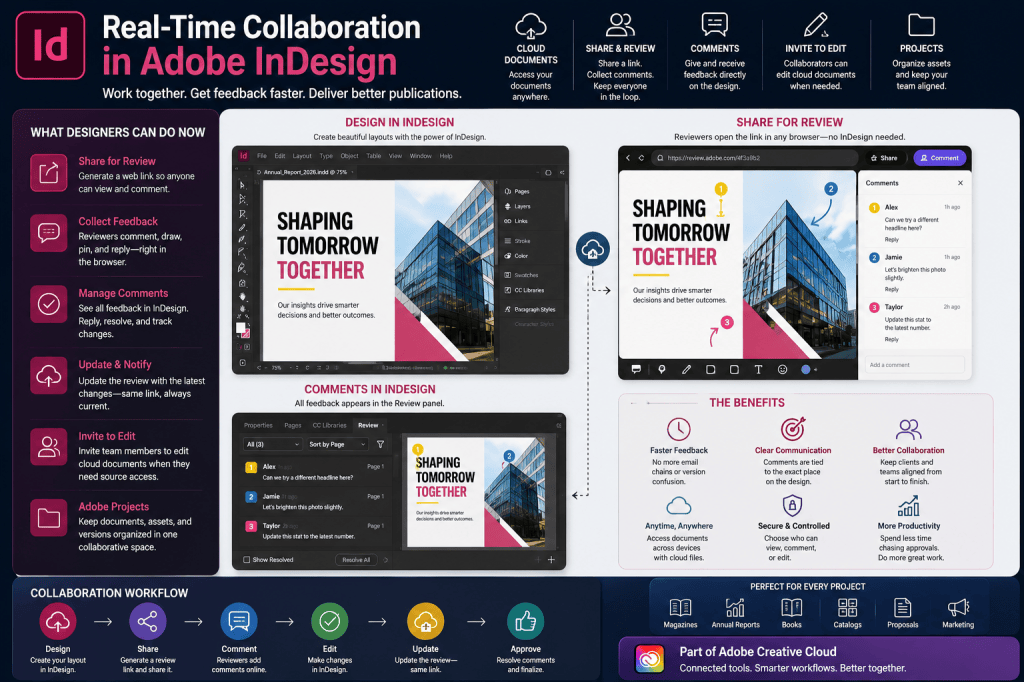
Why Collaboration Has Historically Been Difficult in InDesign
InDesign documents can be complicated.
A publication may depend on:
- fonts
- linked images
- Illustrator graphics
- Photoshop files
- paragraph styles
- object styles
- parent pages
- scripts
- plugins
This makes collaboration fundamentally different from editing a simple cloud document.
If two designers independently modify local copies of the same publication, combining those changes can be difficult.
Traditionally, teams solved this through processes rather than technology.
For example:
Designer A
Works on the master document.
Editor
Reviews a PDF.
Client
Adds comments.
Designer A
Makes the changes.
That workflow is safe, but it isn’t particularly collaborative.
The Old PDF Review Workflow
Imagine you’re designing a 60-page annual report.
You export:
Annual_Report_v1.pdf
The client reviews it.
Then you receive:
Annual_Report_v1_comments.pdf
You make changes and create:
Annual_Report_v2.pdf
Another stakeholder reviews the wrong file and sends comments on Version 1.
Someone else sends comments by email.
Another person sends screenshots through Microsoft Teams.
Soon your project folder contains:
Annual_Report_FINAL.pdf
Annual_Report_FINAL2.pdf
Annual_Report_FINAL_APPROVED.pdf
Annual_Report_FINAL_APPROVED_NEW.pdf
Most experienced designers have encountered some version of this problem.
Adobe’s collaboration tools are designed to reduce it.
InDesign Collaboration Now Has Several Layers
It is useful to think about modern InDesign collaboration as several related workflows rather than one single feature.
1. Share for Review
Stakeholders review the publication in a browser.
2. Comment Management
Designers receive and manage that feedback directly inside InDesign.
3. Cloud Documents
InDesign documents can be stored as cloud-native documents.
4. Invite to Edit
Selected collaborators can receive editing access to cloud documents.
5. Adobe Projects
Teams can organize shared creative assets and documents in collaborative workspaces.
These capabilities solve different problems.
Understanding which one to use is important.
What Is Share for Review?
Share for Review is one of the most useful collaboration features for everyday InDesign work.
It allows you to create a web-based review link from an InDesign document.
You send that link to:
- clients
- editors
- managers
- marketing teams
- colleagues
- other stakeholders
They open the publication in a web browser.
They don’t need to install InDesign simply to review the design.
That removes one of the biggest barriers to collaborative publishing.
How to Create a Review Link
The basic workflow is straightforward.
Open the InDesign document you want reviewed.
Choose:
File → Share for Review
Then create the review link.
Depending on the workflow, you can control who is allowed to access and comment on the review.
You can then copy the link and send it to your stakeholders.
Instead of receiving a static PDF attachment, they open the current review online.
Public vs Private Review Links
Not every publication should be accessible through the same type of link.
InDesign allows different access approaches.
You may create a link where anyone with access to the link can comment.
Or you can restrict the review to invited participants.
For sensitive publications, private access is obviously preferable.
Examples might include:
- financial reports
- confidential proposals
- unreleased products
- internal corporate documents
- pre-publication books
Always choose permissions according to the sensitivity of the content.
Reviewers Don’t Need InDesign
This is one of the biggest advantages of Share for Review.
Your client doesn’t need to understand InDesign.
They don’t need to know what a text frame is.
They don’t need your fonts.
They don’t need your linked graphics.
They don’t need the original INDD document.
They simply open the review in a browser.
That dramatically lowers the technical barrier to giving useful design feedback.
Reviewers Can Comment Directly on the Design
Generic email feedback can be frustrating.
Consider this comment:
Make the picture bigger.
Which picture?
Or:
The heading on the second section needs changing.
Which heading?
Visual review tools make feedback much more contextual.
Reviewers can associate feedback with particular areas of the design.
Depending on the available review tools, they can use mechanisms such as comments, pins, drawing tools, text annotations, emojis, and mentions.
Instead of:
The image somewhere near the middle looks wrong.
you can receive feedback associated with the actual element being discussed.
Comments Appear Inside InDesign
This is where the workflow becomes particularly useful.
The designer doesn’t have to keep switching between:
- InDesign
- PDF viewer
- browser
- Slack
- Teams
Feedback from the review workflow can appear in InDesign’s Review panel.
You can open:
Window → Comments → Review
and work through stakeholder feedback while editing the document.
That creates a much more integrated review cycle.
Jump Directly to Feedback
In a large publication, finding the element mentioned in a comment can waste time.
The Review panel helps connect comments with their location in the publication.
Select relevant feedback and navigate to the associated page or design area.
This becomes especially valuable for:
- books
- catalogs
- annual reports
- magazines
- technical manuals
- long corporate documents
The larger the document, the more valuable contextual feedback becomes.
Reply to Comments
Not every comment results in an immediate design change.
Sometimes you need clarification.
A reviewer says:
Replace this image.
You might respond:
Do you have the approved replacement photograph?
The conversation can remain associated with the review rather than moving into another email thread.
This creates a clearer audit trail for design decisions.
Resolve Completed Feedback
Once a change has been made, comments can be marked as resolved.
This provides a simple but useful workflow:
New comment
↓
Designer reviews
↓
Change made
↓
Comment resolved
For projects containing dozens or hundreds of corrections, this is considerably easier than manually crossing items off a PDF markup list.
Update the Same Review
One of the strongest features of the review workflow is the ability to update shared content.
Suppose you send a review link.
The client adds 20 comments.
You make the changes.
Instead of exporting another PDF and sending another email, you can update the shared review.
Stakeholders can refresh the review and see the latest version.
The review cycle continues around the same shared destination.
That helps reduce version confusion.
Why This Is Better Than Sending New PDFs
Consider the traditional workflow:
Version 1
↓
↓
Comments
↓
Version 2
↓
↓
Comments
↓
Version 3
Now compare it with:
One review link
↓
Comments
↓
Designer updates document
↓
Update shared content
↓
Reviewers refresh
↓
More comments
The second workflow creates a much clearer source of truth.
What Are InDesign Cloud Documents?
Adobe has also introduced cloud-native InDesign documents.
Instead of storing the working file only on a local disk or network share, you can save an InDesign document to Adobe cloud storage.
Cloud documents use the .inddc format.
They can be accessed through InDesign on supported computers where you’re signed into the appropriate Creative Cloud account.
Cloud documents also provide automatic cloud saving and version-history capabilities.
Why Cloud Documents Matter for Collaboration
Traditional INDD files are files.
Someone has to decide:
Where is the master copy?
Cloud documents shift the workflow toward:
Which shared cloud document are we working on?
That distinction becomes important for distributed teams.
A designer working from home and another designer working from an office don’t necessarily need to pass the current master document between computers manually.
The cloud becomes the document location.
Automatic Saving
Cloud documents are automatically saved as you work.
This reduces dependence on repeatedly pressing Save and provides a more cloud-native working model.
For important production work, this can offer additional reassurance against local failures.
It also helps keep the cloud document current across devices.
Version History
Version history is another significant advantage.
Imagine a stakeholder says:
I actually preferred the layout from yesterday.
In a traditional workflow, you hope you still have:
Brochure_v7_old.indd
With cloud document version history, earlier states of the document can be available through Adobe’s cloud environment.
This doesn’t eliminate the need for disciplined production practices.
But it gives designers another recovery mechanism.
Invite Collaborators to Edit
Reviewing and editing are not the same thing.
If someone only needs to say:
Change this photograph.
use the review workflow.
If someone actually needs to make changes to the source document, Adobe provides an Invite to Edit workflow for cloud documents.
You can invite specific collaborators and grant them access to the document.
This is useful for design teams where multiple people genuinely need source-level access.
Share for Review vs Invite to Edit
This distinction is critical.
Use Share for Review when someone needs to:
- inspect the design
- comment
- annotate
- request changes
- approve work
Use Invite to Edit when someone needs to:
- open the cloud document
- modify the design
- work directly with the source publication
Most clients should probably be reviewers.
Most designers working on the document may need editing access.
Giving everyone editing permission isn’t automatically better collaboration.
Good collaboration includes appropriate role separation.
Is InDesign Now Like Google Docs?
Not exactly.
This is an important distinction.
Google Docs was designed around simultaneous text editing from the beginning.
InDesign is a professional page-layout system dealing with:
- complex typography
- linked assets
- precise object positioning
- high-resolution graphics
- print production
- sophisticated page structures
Adobe’s collaboration model therefore has different requirements.
InDesign collaboration is becoming increasingly cloud-based and capable, but designers shouldn’t assume every workflow behaves exactly like several people typing simultaneously into a browser document.
Think of it as professional publishing collaboration, not simply shared word processing.
Adobe Projects Adds Another Layer
Adobe Projects expands collaboration beyond an individual document.
A project can bring together creative assets from applications such as:
- InDesign
- Photoshop
- Illustrator
- Adobe Express
This matters because publishing projects rarely consist of one INDD file.
A campaign might include:
- brochure
- photography
- logos
- illustrations
- social graphics
- advertisements
- presentations
Projects provide a shared workspace around that broader creative effort.
Why Projects Matter to Design Teams
Imagine an international product launch.
The project contains:
InDesign
Product brochure.
Photoshop
Campaign photography.
Illustrator
Product diagrams.
Adobe Express
Social media variations.
Instead of each application existing in an isolated production silo, assets can increasingly participate in a shared Creative Cloud workflow.
This is a significant direction for Adobe.
A Practical Collaboration Workflow
Imagine you’re designing a corporate annual report.
Step 1 — Create the document
Build the publication in InDesign.
Step 2 — Save appropriately
Use a cloud document when the project and collaboration requirements make that appropriate.
Step 3 — Share for Review
Send the review link to:
- CEO
- finance team
- communications manager
- legal department
Step 4 — Collect feedback
Stakeholders comment in their browsers.
Step 5 — Review inside InDesign
Open the Review panel.
Step 6 — Make corrections
Work through comments systematically.
Step 7 — Reply where necessary
Ask for clarification without starting separate email conversations.
Step 8 — Resolve completed items
Keep the review organized.
Step 9 — Update the shared content
Publish the revised design to the same review workflow.
Step 10 — Final approval
Once stakeholders approve the publication, proceed with final preflight and export.
That is much cleaner than circulating ten different PDFs.
Collaboration for Magazines
Magazine production naturally involves many participants:
- designer
- editor
- art director
- photographer
- publisher
- advertising team
The designer can maintain the layout while editors and stakeholders review the publication through shared links.
This reduces the need to distribute heavy PDF proofs repeatedly.
Collaboration for Agencies
Design agencies often need approval from multiple client stakeholders.
For example:
Designer
↓
Account manager
↓
Marketing manager
↓
Brand manager
↓
Legal
Each stakeholder may have different feedback.
A centralized review system makes it easier to keep those discussions connected to the actual design.
Collaboration for Freelance Designers
You don’t need to be part of a large design team to benefit.
Freelancers may benefit even more.
Instead of telling a client:
Download this PDF, mark it up, save it, and email it back.
you can say:
Open the review link and leave your comments directly on the design.
That is a much simpler client experience.
It also makes the freelancer’s workflow appear more structured and professional.
Collaboration for Remote Teams
Remote working has made cloud collaboration increasingly important.
A designer might be in Amsterdam.
The editor might be in London.
The marketing director might be in New York.
The publisher might be in Singapore.
There is no physical proof moving around the office.
Cloud-based review provides everyone with access to the same review environment.
Collaboration and Version Control
One of the most expensive mistakes in publishing is editing the wrong version.
Cloud workflows can reduce this risk, but only if teams establish clear rules.
Decide:
- which document is authoritative
- who can edit
- who can review
- when reviews are updated
- when a version is considered approved
Technology doesn’t replace production discipline.
It supports it.
Don’t Give Everyone Edit Access
This is worth emphasizing.
Collaboration doesn’t mean every stakeholder should modify the InDesign document.
A marketing manager who only needs to approve wording probably doesn’t need source-level editing permission.
Use the least powerful permission that satisfies the person’s role.
This protects the document and simplifies accountability.
Use Review Links for Clients
For most client workflows, Share for Review is likely the best starting point.
Clients generally need to:
- inspect
- comment
- approve
They don’t need to understand InDesign’s internal structure.
Keeping them in the browser review environment protects the production document while still allowing meaningful participation.
Use Editing Access for Designers
If another designer genuinely needs to work on the publication, editing access may be appropriate.
Before doing this, agree on responsibilities.
For example:
Designer A
Main editorial pages.
Designer B
Charts and data pages.
Designer C
Appendices.
Even with modern collaboration technology, clear ownership reduces accidental conflicts.
Use Comments as Tasks
A useful production technique is to treat unresolved comments almost like a task queue.
For example:
Open
Needs action.
Replied
Needs clarification.
Resolved
Completed.
This gives the review process an operational structure.
For large publications, that can significantly improve project management.
Use @Mentions Carefully
Mentions can help direct a question to the correct stakeholder.
For example:
@Editor Can you confirm this headline?
or:
@Marketing Is this the approved product name?
This is far more efficient than creating a separate email thread for every question.
But avoid mentioning everyone on every comment.
Notifications become useless when they are excessive.
Establish Review Rounds
Even with continuous collaboration tools, formal review rounds remain useful.
For example:
Round 1 — Content
Check factual accuracy and missing information.
Round 2 — Design
Review typography, imagery, hierarchy, and layout.
Round 3 — Legal/Compliance
Review required statements and claims.
Round 4 — Final Proof
Check final corrections only.
This prevents endless redesign caused by stakeholders reviewing different aspects at different times.
Cloud Doesn’t Eliminate Backups
Cloud documents provide useful resilience and version history.
That doesn’t mean you should abandon sensible backup practices.
Important commercial publications should still have appropriate archival and recovery strategies.
Cloud storage is part of document management.
It isn’t a substitute for organizational backup policy.
Understand Cloud Document Limitations
Cloud documents don’t necessarily support every traditional InDesign workflow in exactly the same way as local documents.
Adobe currently documents limitations around certain capabilities.
That means production teams should test their actual workflow before migrating a critical project entirely to cloud documents.
This is particularly important for established publishing environments involving specialized packaging, plugins, or editorial workflows.
Collaboration and InCopy
InCopy has long been Adobe’s specialist editorial companion to InDesign.
Traditional InDesign/InCopy workflows remain relevant for publishing teams where editors need controlled access to text while designers maintain layout authority.
Cloud collaboration doesn’t automatically make every established editorial workflow obsolete.
Instead, Adobe now offers several collaboration models.
The correct one depends on whether your participants are:
- reviewers
- editors
- designers
- clients
- production staff
Choose the workflow around roles rather than simply choosing the newest feature.
Collaboration and Adobe Express
Adobe’s broader Creative Cloud strategy is also becoming increasingly connected.
InDesign can participate in workflows involving Adobe Express, Photoshop, Illustrator, and other Adobe applications.
That creates the possibility of a more integrated production environment:
Designer
Builds publication in InDesign.
Image specialist
Updates photography.
Marketing team
Creates campaign variations.
Client
Reviews publication online.
Editor
Checks content.
Instead of exchanging disconnected files, more of the workflow can operate through shared Adobe services.
Collaboration Doesn’t Mean No More PDFs
PDF remains essential.
You will still use PDF for:
- print production
- final delivery
- archival
- formal approval
- distribution
The difference is that PDF doesn’t necessarily need to be the primary collaboration mechanism during every stage of production.
Use PDF when PDF is the correct output.
Use review links when you need interactive feedback.
Benefits of the New Collaboration Workflow
Modern InDesign collaboration can provide several practical benefits.
Less version confusion
Stakeholders can review a shared destination instead of accumulating attachments.
Faster feedback
Comments arrive directly in the workflow.
Better context
Feedback can relate to particular areas of the design.
Less application switching
Designers can manage comments inside InDesign.
Simpler client participation
Reviewers don’t need InDesign.
Better distributed teamwork
Cloud documents and shared projects make remote collaboration easier.
Improved version recovery
Cloud document history provides another way to revisit previous states.
What Real-Time Collaboration Still Doesn’t Solve
Collaboration technology cannot solve bad project management.
If five stakeholders disagree about the headline, InDesign cannot decide which stakeholder has authority.
If nobody knows who approves the final version, cloud comments won’t solve that either.
You still need:
- roles
- deadlines
- approval authority
- review stages
- naming conventions
- production standards
Technology makes the workflow faster.
Governance makes it reliable.
Best Practices for InDesign Collaboration
For professional projects, consider these rules.
1. Define one authoritative document.
Avoid parallel uncontrolled masters.
2. Give editing access only to people who need it.
Everyone else can review.
3. Use review links instead of emailing repeated PDF drafts when appropriate.
Keep feedback centralized.
4. Resolve comments systematically.
Don’t leave hundreds of obsolete comments open.
5. Use structured review rounds.
Content, design, legal, and final proof should have clear purposes.
6. Test cloud workflows before adopting them for mission-critical production.
Especially when your workflow depends on specialized InDesign capabilities.
7. Maintain appropriate backups and archives.
Collaboration and archival are different requirements.
Is Real-Time Collaboration Ready for Professional InDesign Work?
For review and feedback workflows, absolutely.
Share for Review can eliminate a substantial amount of PDF-email chaos.
For cloud-based document access and collaborative editing, Adobe’s capabilities are also becoming significantly more sophisticated.
However, professional publishing teams should avoid interpreting “real-time collaboration” as meaning every person should simultaneously manipulate every part of every InDesign document.
The better model is:
The right person gets the right level of access at the right stage of production.
Clients review.
Editors edit content where the workflow supports it.
Designers control layout.
Teams share assets.
Stakeholders approve.
That is a much more useful definition of collaboration.
The Future of InDesign Collaboration
The direction is clear.
Adobe is moving InDesign from an isolated desktop-document model toward a more connected publishing environment.
Cloud documents provide the foundation.
Share for Review connects stakeholders.
Invite to Edit connects collaborators.
Projects connect creative assets.
Creative Cloud connects applications.
And Adobe’s broader ecosystem increasingly connects InDesign with tools such as Photoshop, Illustrator, Adobe Express, and AI-powered services.
The result is an InDesign workflow that is becoming much less dependent on moving files manually between people.
From File-Based Publishing to Cloud-Based Publishing
This may ultimately be the biggest change.
Traditional publishing asks:
Who has the latest file?
Cloud publishing increasingly asks:
Who has access to the current document?
Traditional review asks:
Which PDF contains the latest comments?
Cloud review asks:
Which comments are still unresolved?
Traditional collaboration focuses on transferring files.
Modern collaboration focuses on sharing access.
That is a fundamental change in how creative production works.
Final Thoughts
Real-time collaboration in Adobe InDesign in 2026 is not simply about putting several designers into the same document.
It is about creating a connected production workflow around the document.
Designers can share layouts for browser-based review.
Clients can comment without installing InDesign.
Feedback can appear directly inside the application.
Designers can reply to and resolve comments.
Updated designs can be pushed through the same review workflow.
Cloud documents provide centralized access, automatic saving, and version history.
Collaborators can be invited to edit when source-level access is genuinely required.
Adobe Projects can bring documents and assets together across multiple Creative Cloud applications.
The result is a much more collaborative InDesign than the application designers worked with only a few years ago.
PDF proofs aren’t disappearing.
Local documents aren’t disappearing.
And traditional publishing workflows aren’t suddenly obsolete.
Instead, designers now have more choices.
For a solo print job, the traditional workflow may still be perfect.
For an international annual report involving designers, editors, executives, legal reviewers, and marketing teams, cloud collaboration can eliminate enormous amounts of unnecessary friction.
The most important change is therefore not one specific collaboration feature.
It is the shift from:
send the file
to:
share the work.
And for professional InDesign production, that is a much bigger change than it might initially appear.