Artificial intelligence is becoming an increasingly important part of Adobe InDesign.
What was traditionally a professional page-layout application is evolving into a more intelligent publishing environment where designers can generate images, extend artwork, modify existing visual content, rewrite copy, generate accessibility descriptions, and increasingly interact with their documents through AI-assisted workflows.
For designers, publishers, marketers, and content creators, this does not mean that AI replaces InDesign. Instead, AI is becoming another layer of the InDesign workflow.
The designer still controls the document structure, typography, styles, grids, pages, assets, output settings, and final creative decisions. AI can help accelerate some of the work that happens around those decisions.
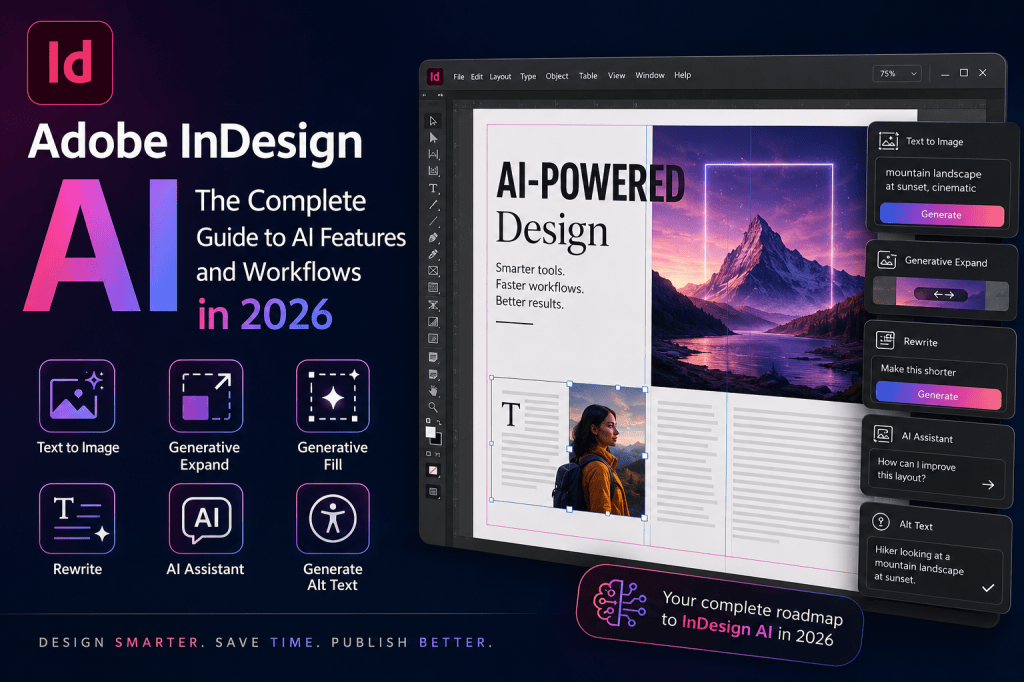
This guide provides an overview of Adobe InDesign AI in 2026, including the major AI features available in and around InDesign, Adobe Firefly integration, AI-assisted text and image workflows, accessibility, automation, external AI tools such as ChatGPT, and what AI could mean for the future of professional publishing.
What Is Adobe InDesign AI?
“InDesign AI” is not one single feature.
It is better understood as a collection of artificial-intelligence capabilities that Adobe is integrating into InDesign and the wider Creative Cloud ecosystem.
These capabilities can assist with tasks such as:
- generating images;
- extending existing images;
- adding, removing, or replacing visual elements;
- rewriting copy;
- generating alternative text for accessibility;
- working with Adobe Firefly;
- interacting with documents through AI assistance;
- accelerating repetitive production tasks;
- generating scripts and GREP expressions with external AI tools;
- and connecting InDesign to broader AI-assisted creative workflows.
Adobe’s generative AI technology is largely built around Adobe Firefly.
Instead of requiring designers to leave their layout, generate something elsewhere, export it, and then return to InDesign, Adobe is increasingly bringing generative capabilities closer to the page-layout environment itself.
That distinction is important.
AI becomes most useful in InDesign when it reduces interruptions to the publishing workflow.
Why AI Matters for InDesign Users
Professional publishing involves much more than arranging text and images on pages.
A typical project may require:
- finding suitable imagery;
- resizing and cropping images;
- extending backgrounds;
- writing or editing copy;
- creating image descriptions;
- producing multiple document versions;
- correcting inconsistent content;
- preparing assets;
- translating text;
- building repetitive layouts;
- and performing quality-control checks.
Many of these activities can consume substantial production time.
AI can potentially reduce that workload.
Imagine designing a magazine spread and discovering that a photograph is too narrow for the layout.
Traditionally, you might need to:
- open the image in Photoshop;
- expand the canvas;
- reconstruct or generate the missing background;
- save another image;
- return to InDesign;
- update the link;
- reposition the image.
With Generative Expand, part of that workflow can potentially happen directly within InDesign.
That is the real value proposition of InDesign AI:
less interruption between creative decisions and production execution.
The Main Adobe InDesign AI Features
Several AI technologies now form the foundation of Adobe’s AI-assisted InDesign workflow.
Let’s examine the most important ones.
1. Text to Image
Text to Image allows you to generate visual content from a written prompt.
For example, you might enter a description such as:
Minimal editorial photograph of a modern workspace with natural window light and generous negative space for magazine typography.
AI interprets the prompt and generates visual options.
This can be useful when creating:
- concept layouts;
- editorial illustrations;
- marketing materials;
- brochure backgrounds;
- presentation graphics;
- placeholder imagery;
- social campaign assets;
- mood boards;
- experimental layouts;
- and early design prototypes.
Instead of searching stock libraries for an image that approximately matches the layout, designers can increasingly generate imagery around the layout itself.
That changes the relationship between page design and image sourcing.
Traditionally:
Find image → build layout around image
AI introduces another possibility:
Build layout → generate image for layout
That can be particularly valuable for editorial and conceptual work.
2. Generative Expand
Generative Expand solves one of the most common problems in layout design:
the image does not fit the frame.
Suppose you have a vertical photograph but need a wide horizontal image for a magazine spread.
Cropping may remove important content.
Scaling may reduce quality or create an undesirable composition.
Generative Expand can create additional visual content beyond the original boundaries of an image.
AI analyzes the existing image and generates plausible additional content.
This can help when:
- extending backgrounds;
- changing image proportions;
- filling empty frame areas;
- creating additional space for headlines;
- converting portrait compositions to landscape layouts;
- creating bleed;
- repositioning subjects within a layout;
- or adapting the same image to multiple page formats.
For publication designers, this is potentially one of InDesign’s most practical AI features.
3. Generative Fill
Generative Fill takes image manipulation further.
Instead of simply extending an image, generative AI can be used to modify selected portions of visual content.
Depending on the available InDesign version and feature status, this can enable workflows involving adding, replacing, or removing visual elements.
For example, imagine a travel brochure containing a photograph of a hotel terrace.
You may want to:
- remove a distracting object;
- replace an unwanted element;
- introduce additional decorative content;
- change part of the background;
- or adapt an image to better fit the publication.
Generative Fill can reduce the number of relatively simple image-editing operations that require moving between InDesign and another application.
Photoshop remains far more powerful for sophisticated image manipulation.
The goal is not necessarily to replace Photoshop.
The advantage is convenience.
If an image requires a relatively small generative adjustment, performing it without leaving the layout can save time.
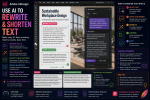
4. Rewrite
InDesign documents contain enormous amounts of text.
That makes text-oriented AI particularly interesting.
Adobe’s Rewrite functionality can help generate or modify copy while working within the design environment.
Potential applications include:
- rewriting awkward sentences;
- shortening text;
- expanding copy;
- adjusting tone;
- creating alternatives;
- improving clarity;
- creating headlines;
- generating supporting copy;
- and adapting text to available layout space.
Consider a brochure where a paragraph is approximately 15 percent too long for its text frame.
Traditionally, the designer might send the copy back to an editor or manually reduce it.
AI introduces another possibility:
Ask AI to produce a shorter version while preserving the meaning.
The result still needs human review.
But the process can be considerably faster.
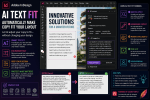
5. AI-Assisted Text Fitting
One of the oldest challenges in page layout is making copy fit the available space.
Designers constantly encounter:
- overset text;
- headlines that wrap badly;
- captions that are too long;
- descriptions that do not fit;
- uneven columns;
- and last-minute editorial changes.
AI-assisted rewriting can become especially powerful when combined with layout constraints.
Instead of arbitrarily reducing font size or tracking, designers can potentially modify the content itself.
For example:
Original text: 120 words
Available layout: approximately 95 words
AI can help create a shorter version while maintaining the original message.
This represents an important shift.
Rather than making the design accommodate the text, AI can sometimes help make the text accommodate the design.
6. Generate Alt Text
Accessibility has become increasingly important in digital publishing.
Images in accessible PDFs and EPUB publications should include meaningful alternative text when appropriate.
Writing descriptions for dozens or hundreds of images can be time-consuming.
AI can assist by analyzing images and generating suggested alternative text.
For example, an image containing a person working at a laptop might produce a description along the lines of:
Person working on a laptop at a desk in a modern office.
The designer or accessibility specialist should then review the description and adjust it for context.
This last point is critical.
Good alt text is not simply a literal description of pixels.
The correct description depends on why the image exists in the document.
AI therefore works best as a starting point rather than an unquestioned final answer.
Adobe Firefly and InDesign
Adobe Firefly is central to Adobe’s generative AI strategy.
Firefly provides generative models that can create and manipulate creative content from prompts and other inputs.
Within the InDesign ecosystem, Firefly-powered capabilities can support tasks such as:
- image generation;
- generative expansion;
- generative editing;
- and other AI-assisted creative operations.
This creates a broader Creative Cloud workflow.
A designer might:
- generate an initial visual concept;
- refine imagery;
- place or generate the asset within an InDesign workflow;
- build the publication;
- rewrite supporting copy;
- generate accessibility descriptions;
- export the final publication.
AI therefore becomes part of the creative production chain rather than a completely separate tool.
Adobe InDesign AI Assistant
Another important development is the movement toward conversational interaction with creative applications.
Instead of remembering exactly where a feature exists or which menu command performs a task, users can increasingly describe what they want to accomplish.
For example:
Create a new text frame.
Or:
Change the selected text to a different font.
Or:
Help me understand how to perform this task.
The long-term significance of this approach is substantial.
Traditional creative software requires users to learn the application’s interface.
Conversational AI introduces another model:
Tell the application what you want to accomplish.
This does not eliminate the need to understand design.
Knowing how to operate software and knowing what constitutes good design are very different skills.
AI may reduce the first requirement.
It cannot automatically replace the second.
AI Does Not Replace InDesign’s Core Design System
Despite all these developments, the core strengths of InDesign remain largely unchanged.
Professional publications still depend on features such as:
- paragraph styles;
- character styles;
- object styles;
- parent pages;
- grids;
- baseline grids;
- master document structures;
- tables;
- anchored objects;
- cross-references;
- indexes;
- tables of contents;
- GREP;
- data merge;
- preflight;
- color management;
- PDF export;
- EPUB export;
- and print-production controls.
AI sits on top of this professional publishing architecture.
That is an important distinction between InDesign and many AI-first design applications.
InDesign remains fundamentally a professional document-production system.
AI enhances parts of that system.
Using ChatGPT with Adobe InDesign
Adobe’s built-in AI tools are only one part of the story.
External AI assistants such as ChatGPT can also be useful for InDesign users.
For example, ChatGPT can help with:
Writing
You can use AI to generate:
- headlines;
- captions;
- introductions;
- product descriptions;
- summaries;
- callouts;
- editorial ideas;
- and placeholder copy.
GREP
GREP is extremely powerful but can be difficult to learn.
AI can help generate or explain GREP expressions for tasks such as:
- finding phone numbers;
- identifying URLs;
- formatting prices;
- detecting repeated spaces;
- locating specific text patterns;
- or automatically applying styles.
Scripting
InDesign supports scripting, which opens substantial automation possibilities.
AI coding assistants can help users develop scripts for repetitive tasks.
For example:
Write an InDesign script that creates a new document, adds ten pages, and places a text frame on each page.
More sophisticated scripts can automate production processes involving hundreds or thousands of documents.
This means AI can make InDesign automation accessible to designers who are not experienced programmers.
AI + InDesign Data Merge
Data Merge is another area where AI can add value.
Suppose you need to create a 500-product catalog.
Your source spreadsheet contains:
- inconsistent product names;
- incomplete descriptions;
- irregular capitalization;
- inconsistent categories;
- missing short descriptions;
- and text that is too long for the layout.
AI can help clean and standardize the data before it reaches InDesign.
A workflow might look like:
Spreadsheet → AI cleanup → structured CSV → InDesign Data Merge → finished catalog
This combination can be extremely powerful for:
- catalogs;
- price lists;
- directories;
- certificates;
- business cards;
- personalized marketing;
- property listings;
- event programs;
- and other data-driven publications.
AI and InDesign Accessibility
AI may also become increasingly important for accessibility workflows.
Potential applications include:
- generating initial alt text;
- identifying images without descriptions;
- simplifying complex text;
- checking heading structures;
- reviewing link descriptions;
- assisting with accessible table descriptions;
- evaluating reading order;
- generating accessibility metadata;
- and explaining accessibility problems.
However, accessibility should never become a “press the AI button” exercise.
Human verification remains essential.
AI can accelerate accessibility work.
It does not remove responsibility for producing an accessible document.
InDesign AI vs Canva AI
Canva has invested heavily in AI-assisted content creation.
However, Canva and InDesign occupy somewhat different positions.
Canva emphasizes speed, templates, collaboration, and easy content creation.
InDesign emphasizes professional page layout and publishing.
For simple social media graphics, Canva may be faster.
For a 300-page professionally typeset book, InDesign is in an entirely different category.
The interesting development is that AI is reducing some of the convenience gap.
InDesign increasingly combines professional publishing capabilities with easier generative workflows.
InDesign AI vs Photoshop AI
Photoshop remains Adobe’s specialist application for image manipulation.
InDesign remains the specialist application for page layout.
Therefore:
Photoshop AI
Best suited for sophisticated image editing and compositing.
InDesign AI
Best suited for AI operations that support the page-layout workflow.
If an image requires extensive manipulation, Photoshop remains the logical environment.
If you simply need to extend an image to fit a frame, doing it directly from InDesign can be considerably more efficient.
InDesign AI vs Adobe Express
Adobe Express targets rapid content creation.
InDesign targets professional publishing.
Express is excellent for:
- social posts;
- quick promotional graphics;
- simple marketing content;
- templates;
- and rapid content production.
InDesign excels at:
- books;
- magazines;
- catalogs;
- brochures;
- reports;
- interactive documents;
- EPUB;
- accessible PDFs;
- and sophisticated multi-page publications.
Increasing integration between Adobe applications means designers do not necessarily need to choose only one.
A workflow might involve:
Firefly → Adobe Express → Photoshop → InDesign
Each application handles the part of the workflow for which it is best suited.
AI for Magazine Design
Magazine production is particularly well suited to AI-assisted workflows.
AI can help with:
- editorial brainstorming;
- headline generation;
- image generation;
- image expansion;
- caption writing;
- article summaries;
- pull quotes;
- accessibility descriptions;
- proofreading;
- and content repurposing.
InDesign then provides the professional layout environment where those components become a finished publication.
AI for Book Production
Book designers can also incorporate AI into several stages of production.
Potential applications include:
- manuscript cleanup;
- chapter summaries;
- illustration concepts;
- cover concepts;
- image descriptions;
- metadata;
- indexing assistance;
- proofreading;
- EPUB accessibility;
- and marketing copy.
However, AI should be used carefully with author-created material, copyrighted manuscripts, and confidential publishing projects.
Publishers should establish clear policies regarding what content can be submitted to external AI systems.
AI for Catalog Production
Catalog production may ultimately become one of the most compelling applications of AI-assisted InDesign.
Catalogs often involve large volumes of structured information.
AI can help:
- normalize product data;
- generate short descriptions;
- classify products;
- create missing copy;
- translate descriptions;
- standardize terminology;
- detect inconsistencies;
- and prepare data for automated layout.
Combine that with InDesign Data Merge and scripting, and highly automated publishing workflows become possible.
AI for Translation and Localization
InDesign is frequently used for documents that must be produced in multiple languages.
AI translation tools can accelerate this process considerably.
A workflow could involve:
English InDesign document
↓
Export text/content
↓
AI-assisted translation
↓
Human translation review
↓
Import localized content
↓
InDesign layout adjustment
Translation is only one part of localization.
Different languages change:
- text length;
- line breaks;
- hyphenation;
- fonts;
- cultural references;
- date formats;
- currencies;
- and page composition.
AI can assist with translation, but professional localization still requires human and design oversight.
Prompt Engineering for InDesign
As generative functionality expands, prompt-writing becomes another useful creative skill.
A weak prompt might be:
Office.
A stronger prompt might be:
Editorial photograph of a modern Scandinavian office, natural morning light, minimalist interior, professional atmosphere, wide composition with negative space on the left for magazine headline typography.
The second prompt provides information about:
- subject;
- style;
- lighting;
- composition;
- atmosphere;
- intended use;
- and available typography space.
For publication designers, composition-related prompt instructions are especially important.
You are not simply generating a beautiful image.
You are generating an image that needs to work inside a layout.
Generative Credits and InDesign AI
Some Adobe generative AI operations use generative credits.
The exact availability and credit requirements can depend on:
- Adobe plan;
- feature;
- model;
- region;
- application version;
- and Adobe’s current generative AI policies.
For designers using generative functionality heavily, understanding generative-credit consumption becomes part of planning an AI-assisted workflow.
Always check Adobe’s current plan information before making purchasing or production decisions because these policies can change.
Is Adobe InDesign AI Free?
AI functionality should be considered within the context of your Adobe subscription.
Some generative capabilities are included as part of eligible Adobe plans, while usage allowances and generative-credit policies can vary.
Therefore, the more useful question is often not simply:
“Is InDesign AI free?”
but:
“Which AI features and how much generative usage are included with my Adobe plan?”
Adobe changes plans and generative AI allowances periodically, so users should verify the current terms directly with Adobe.
Ready to Try Adobe InDesign?
Explore the latest Adobe InDesign features, including its growing collection of AI-assisted design and publishing tools.
→ View Adobe InDesign plans and current offers
Is AI-Generated Content Safe for Commercial Projects?
This is an important consideration for professional designers.
Adobe has positioned Firefly around commercially useful creative workflows and has taken a different training approach from some other generative AI platforms.
Nevertheless, professional users should still consider:
- copyright;
- trademarks;
- recognizable people;
- client policies;
- licensing requirements;
- AI disclosure;
- model-specific terms;
- and applicable local legislation.
Never assume that the presence of an AI-generation button automatically resolves every intellectual-property issue.
For commercial projects, always review Adobe’s current generative AI terms.
Will AI Replace InDesign Designers?
Probably the more useful question is:
Which parts of an InDesign designer’s job will AI automate?
AI is increasingly capable of helping with repetitive or preparatory work.
But professional design involves much more than executing commands.
Designers make decisions involving:
- visual hierarchy;
- typography;
- brand identity;
- audience;
- emotion;
- composition;
- readability;
- accessibility;
- production requirements;
- client objectives;
- and communication.
AI can generate alternatives.
Someone still needs to determine whether those alternatives are good.
In many professional environments, the designer’s role may therefore shift from manually producing every component toward:
directing, evaluating, refining, and integrating AI-assisted output.
From Generative AI to Agentic InDesign
The next major evolution could be even more significant.
Today’s AI primarily generates or modifies content.
Future AI systems may be capable of performing multi-step tasks.
Instead of saying:
Generate an image.
you might eventually say:
Create a 12-page product brochure using our brand guidelines, product database, existing image library, and previous brochure as a reference. Highlight the five new products and prepare an accessible PDF for review.
An AI agent could potentially:
- analyze the source material;
- create document structure;
- retrieve assets;
- generate missing content;
- build pages;
- apply styles;
- identify problems;
- request approval;
- make corrections;
- prepare output.
That would move InDesign from AI-assisted content generation toward AI-assisted publishing orchestration.
We are not fully there yet.
But the direction is important.
The Best Way to Start Using InDesign AI
You do not need to redesign your entire workflow.
Start with one repetitive task.
For example:
If you frequently work with images
Experiment with Generative Expand.
If you create conceptual layouts
Try Text to Image.
If your copy frequently doesn’t fit
Experiment with Rewrite.
If you produce accessible documents
Test AI-generated alt text.
If you perform repetitive operations
Explore AI-generated InDesign scripts.
If you struggle with GREP
Use an AI assistant to explain and generate expressions.
The objective should not be:
Use AI everywhere.
The objective should be:
Use AI where it removes unnecessary work without reducing quality.
A Practical AI-Powered InDesign Workflow
A modern publication workflow might look something like this:
Step 1 — Planning
Use AI to brainstorm:
- document structure;
- content ideas;
- headlines;
- visual themes;
- and information architecture.
Step 2 — Content preparation
Use AI to:
- summarize material;
- rewrite copy;
- standardize text;
- prepare structured data;
- and generate draft descriptions.
Step 3 — Visual development
Use Firefly or other tools to:
- generate concepts;
- create illustrations;
- develop backgrounds;
- or explore visual directions.
Step 4 — InDesign production
Build the professional document using:
- styles;
- grids;
- parent pages;
- templates;
- data merge;
- and traditional InDesign tools.
Step 5 — AI-assisted refinement
Use AI to:
- extend images;
- modify artwork;
- shorten text;
- generate missing descriptions;
- or solve production problems.
Step 6 — Accessibility
Review:
- alt text;
- reading order;
- document structure;
- hyperlinks;
- metadata;
- and export settings.
Step 7 — Quality control
Check:
- typography;
- image resolution;
- overset text;
- links;
- colors;
- accessibility;
- and preflight results.
Step 8 — Human approval
A designer, editor, or production specialist reviews the final output.
AI assists the workflow.
Humans remain responsible for the finished publication.
Adobe InDesign AI FAQ
Does Adobe InDesign have AI?
Yes. Adobe has introduced multiple AI-assisted and generative capabilities into InDesign and its surrounding Creative Cloud workflow.
Does InDesign use Adobe Firefly?
Adobe Firefly technology powers a number of Adobe’s generative AI experiences, including capabilities that are increasingly integrated into InDesign workflows.
Can InDesign generate images with AI?
Yes. Text-to-image functionality allows designers to generate visual content from text prompts.
Can AI extend an image in InDesign?
Yes. Generative Expand can create additional image content beyond the original boundaries to help an image fit a layout.
Can AI edit images in InDesign?
Generative functionality increasingly allows certain image modifications to be performed without leaving the layout workflow, although Photoshop remains the more comprehensive application for advanced image editing.
Can InDesign generate alt text?
AI-assisted functionality can generate suggested image descriptions that can then be reviewed and edited by the designer.
Can AI rewrite InDesign text?
AI-assisted rewriting can help create, shorten, expand, or modify copy depending on the available functionality.
Can ChatGPT work with Adobe InDesign?
ChatGPT is not a replacement for InDesign, but it can support InDesign workflows by generating copy, explaining features, creating GREP expressions, assisting with scripts, troubleshooting problems, and helping plan document structures.
Can AI create an entire InDesign document?
AI can assist with many components of document production, but professional InDesign documents still require layout structure, styling, production decisions, quality control, and human oversight.
Will Adobe add more AI features to InDesign?
Adobe is investing heavily in generative and conversational AI throughout Creative Cloud, making further AI-assisted InDesign capabilities a reasonable area to watch.
The Future of InDesign Is AI-Assisted Publishing
Adobe InDesign has evolved repeatedly throughout its history.
Desktop publishing changed how documents were produced.
Digital publishing expanded InDesign beyond print.
EPUB and interactive documents expanded the types of publications designers could create.
Cloud workflows changed collaboration.
AI represents another major transition.
But InDesign’s fundamental purpose remains the same:
turning content into professionally designed publications.
Artificial intelligence changes how some of the individual tasks are performed.
Images can be generated instead of searched for.
Backgrounds can be extended instead of manually reconstructed.
Copy can be rewritten instead of repeatedly edited.
Alt text can be suggested instead of always starting from a blank field.
Scripts can be generated with AI assistance instead of written entirely from scratch.
And increasingly, designers may be able to tell creative applications what they want to accomplish rather than manually executing every individual operation.
The most productive InDesign users will probably not be those who use AI for everything.
They will be the designers who understand when AI improves the workflow and when traditional design skills produce the better result.
That combination—professional InDesign knowledge plus intelligent AI assistance—is likely to define the next generation of digital publishing.
Explore Adobe InDesign
Want to experiment with the latest InDesign design, publishing, and AI-assisted capabilities yourself?
→ Get Adobe InDesign and view the latest Adobe offer
Continue Exploring InDesign AI
This article is the main guide in our Adobe InDesign AI series.
Continue with:
- Adobe InDesign AI Features: Everything You Can Do with Generative AI
- Adobe Firefly in InDesign: How the Integration Works
- Adobe InDesign AI Assistant: A Complete Guide
- Adobe InDesign Text to Image: A Complete Guide
- Adobe InDesign Generative Expand: A Complete Guide
- Adobe InDesign Generative Fill: A Complete Guide
- Adobe InDesign Rewrite: How to Generate and Rewrite Text with AI
- InDesign AI Alt Text: How to Automatically Generate Image Descriptions
- Adobe InDesign Generative Credits Explained
- How to Use ChatGPT with Adobe InDesign
As the series expands, these guides will examine each InDesign AI capability individually with practical workflows, examples, prompts, troubleshooting advice, and step-by-step tutorials.