Adobe InDesign has accumulated an enormous collection of tools, panels, menus, and commands over the years.
That power is one of its greatest strengths.
It can also create friction.
A designer may know exactly what they want to accomplish but still need to remember which menu contains the relevant command or which panel needs to be opened.
Adobe’s Contextual Task Bar is designed to reduce that friction.
Instead of requiring you to constantly search through menus and panels, the Contextual Task Bar presents relevant actions close to the object or content you’re currently working with.
Select something.
InDesign evaluates the context.
The available actions change accordingly.
It sounds like a relatively small interface improvement, but it represents an important shift in how Adobe is approaching InDesign: bringing the next useful action closer to the designer instead of making the designer hunt through the interface.
In this guide, we’ll look at what the Contextual Task Bar is, how it works, why Adobe introduced it, and how it can make everyday InDesign production faster.
What Is the Contextual Task Bar?
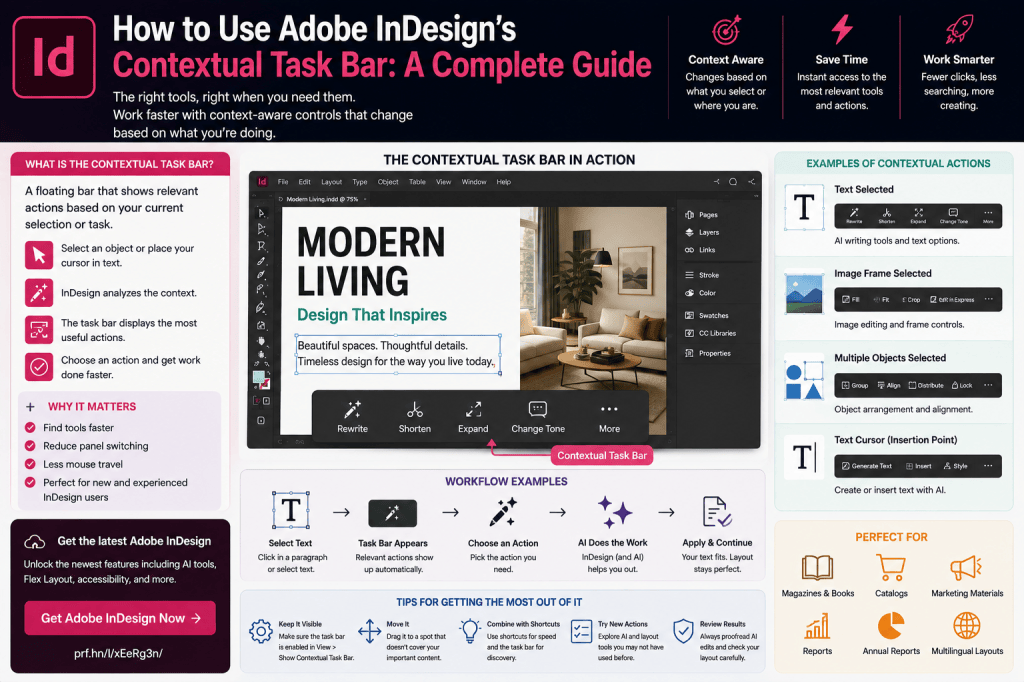
The Contextual Task Bar is a floating interface element that displays actions relevant to what you’re currently doing.
The key word is contextual.
The available options aren’t necessarily static.
They can change depending on:
- what you’ve selected
- what kind of object you’re editing
- what stage of a workflow you’re in
- which features are available for that content
This means the interface can surface useful commands without requiring you to remember exactly where they live elsewhere in InDesign.
Why Does InDesign Need It?
InDesign is a mature professional application.
That means it has decades of functionality.
Open the Window menu and you’ll find access to numerous panels.
Then there are:
- Object commands
- Type commands
- Layout commands
- Table commands
- Edit commands
- contextual menus
- Control panel options
- Properties
- panel menus
Experienced designers develop muscle memory.
Beginners don’t.
Even experienced users may forget where less frequently used commands are located.
The Contextual Task Bar helps reduce that cognitive load.
The Traditional InDesign Workflow
Suppose you select an object and want to perform a related operation.
Traditionally, the process might be:
Select object
↓
Remember which panel contains the command
↓
Open panel
↓
Find the setting
↓
Perform the action
The Contextual Task Bar aims to shorten that process:
Select object
↓
Relevant actions appear nearby
↓
Choose action
That reduction may only save a few seconds.
But designers perform hundreds or thousands of small operations during a project.
Small savings accumulate.
How to Show the Contextual Task Bar
In current InDesign versions that support the feature, the Contextual Task Bar can be displayed through the application’s interface controls.
If it isn’t visible, check the relevant workspace or Window menu options available in your version of InDesign.
Once enabled, the bar appears over or near the document area.
The exact commands displayed depend on what you’re doing.
The Bar Changes with Your Selection
This is the fundamental concept.
Imagine selecting a text-related object.
InDesign can present actions relevant to text.
Now select an image or graphic frame.
The available actions can change.
Deselect everything.
The bar may offer a different set of starting actions.
Instead of displaying every possible command simultaneously, the interface tries to surface the actions most likely to matter at that moment.
Why Context Matters
Consider Photoshop.
If you’re editing text, you want text-related options.
If you’re selecting an image, you want image-related options.
If you’re removing a background, you want selection and masking tools.
Modern Adobe applications increasingly use contextual interfaces to reduce unnecessary searching.
InDesign is adopting the same philosophy.
Contextual Task Bar vs Properties Panel
At first, the Contextual Task Bar may sound similar to the Properties panel.
There is some conceptual overlap, but their roles are different.
The Properties panel provides a broader collection of properties and controls for the selected content.
The Contextual Task Bar focuses on immediate actions.
Think of it this way:
Properties panel
What can I configure about this object?
Contextual Task Bar
What am I likely to want to do next?
Both can coexist.
Contextual Task Bar vs Control Panel
Long-time InDesign users may also compare it with the Control panel.
The Control panel has traditionally exposed many settings according to the selected object.
It remains extremely powerful.
The Contextual Task Bar is designed to be more focused and visually closer to your work.
For experienced users, it may supplement existing habits.
For newer users, it can make feature discovery easier.
Moving the Contextual Task Bar
A floating interface should help your workflow—not cover your design.
If the bar appears over an important area, reposition it.
Move it somewhere that doesn’t interfere with:
- text
- image details
- handles
- guides
- selection edges
On large monitors, you may find a preferred position that keeps the controls nearby without obstructing the page.
Working with Text
Text is one of the most important areas where contextual controls can reduce friction.
InDesign’s modern text workflow increasingly includes not only traditional typography but also AI-assisted functionality.
Depending on your current version and feature availability, contextual interfaces may provide easier access to relevant text actions.
This becomes particularly useful as InDesign adds more capabilities.
AI Makes Contextual Interfaces More Important
Consider how many new text operations are appearing in modern InDesign workflows:
- Generate Text
- Rewrite
- shorten content
- adapt text
- generate alternatives
If every new AI feature required another permanent panel, the interface would become increasingly crowded.
Contextual controls provide a cleaner alternative.
Show an AI action when it is relevant.
Hide it when it isn’t.
This is likely to become increasingly important as Adobe adds more intelligent features.
Example: Working with a Text Frame
Imagine you’re designing a product brochure.
You select a text frame containing:
The new Aurora chair combines ergonomic engineering with premium materials.
At that moment, the relevant workflow is about text.
You may want to:
- edit the copy
- rewrite it
- adjust its formatting
- make it fit better
Contextual actions can place appropriate options closer to the content.
You spend less time navigating the application chrome and more time working directly on the page.
Example: Working with an Image
Now select the product photograph.
Your intentions are different.
You may want to:
- adjust the graphic
- work with the frame
- perform an image-related action
- access an integrated editing workflow
A contextual interface can respond to that selection.
The commands you needed for the paragraph no longer dominate the immediate workspace.
Why This Helps Beginners
InDesign has a reputation for having a steep learning curve.
Part of that difficulty comes from the fact that beginners don’t know where features are located.
Suppose a tutorial says:
Select the frame and choose the appropriate fitting option.
An experienced designer immediately knows where to look.
A beginner may not.
Contextual controls can make features more discoverable.
The application effectively provides hints about what you can do next.
Why This Helps Experienced Designers
Experienced designers don’t necessarily need help finding basic commands.
But they do benefit from speed.
If a commonly used action is available immediately beside the selected object, using it may be faster than moving the pointer across a large monitor to a panel.
This becomes especially noticeable on modern high-resolution displays.
Less Mouse Travel
Mouse travel is an underrated productivity issue.
Imagine working on a 32-inch monitor.
Your document occupies the center.
Your panels sit on the far right.
Repeatedly moving between them creates unnecessary physical movement.
A contextual control near the selected object reduces that distance.
For a single operation, the difference is trivial.
Across an eight-hour production day, it can become meaningful.
Contextual Task Bar and Laptop Workflows
The feature may be particularly useful on laptops.
Smaller screens force designers to make tradeoffs.
Keep too many panels open and the document area becomes cramped.
Close the panels and you constantly reopen them.
Contextual controls can expose useful actions without requiring large permanent panels to occupy screen space.
A Cleaner Workspace
Experienced InDesign users often customize workspaces heavily.
For example, a designer may keep only these panels visible:
- Pages
- Layers
- Paragraph Styles
- Character Styles
- Links
Everything else stays hidden until needed.
The Contextual Task Bar can complement this minimalist approach.
Rather than displaying dozens of controls permanently, you expose relevant actions dynamically.
Contextual Task Bar and Adobe Express
Adobe’s growing integration between InDesign and Adobe Express also makes contextual interfaces increasingly valuable.
Suppose you select an image and want to perform a quick creative edit.
Rather than navigating through several menus, Adobe can surface the appropriate connected workflow when it makes sense.
This helps make Creative Cloud applications feel less isolated from one another.
Contextual Task Bar and Generative AI
The same principle applies to Firefly and generative functionality.
Generative features are most useful when they appear at the point where you need them.
For example:
Select text.
Get text-related AI options.
Select imagery.
Get relevant image-editing possibilities.
Context becomes the mechanism for deciding which AI tools to expose.
The Interface Is Becoming Intent-Aware
Traditional application interfaces are organized primarily around software architecture.
You want typography?
Open the Type menu.
You want objects?
Open the Object menu.
You want styles?
Open the Styles panel.
Contextual interfaces are organized more around user intent.
The software asks:
What are you working on right now?
and then presents relevant possibilities.
That is a significant UX change.
Does the Contextual Task Bar Replace Panels?
No.
Professional InDesign work still requires panels.
You will continue using:
- Paragraph Styles
- Character Styles
- Object Styles
- Layers
- Pages
- Links
- Preflight
- Swatches
- Align
- Table controls
The Contextual Task Bar isn’t intended to reproduce every option from every panel.
It provides quick access to relevant actions.
For detailed configuration, traditional panels remain essential.
Does It Replace Keyboard Shortcuts?
Definitely not.
Keyboard shortcuts remain one of the fastest ways to work in InDesign.
Experienced designers often perform common operations without touching menus at all.
The strongest workflow may therefore combine:
Keyboard shortcuts
for frequent commands.
Contextual Task Bar
for relevant visual actions.
Panels
for detailed settings.
Menus
for less frequently used commands.
There is no need to choose one interface model exclusively.
Should Experienced Users Keep It Enabled?
Try it before deciding.
Long-time InDesign users sometimes disable new interface elements immediately because they interrupt familiar habits.
But give the Contextual Task Bar a genuine production test.
Use it for several days.
Ask:
- Does it reduce panel switching?
- Does it expose useful commands?
- Does it cover important content?
- Does it speed up repetitive tasks?
Then decide.
If it improves your workflow, keep it.
If not, use the interface configuration that makes you most productive.
Avoid Clicking Suggested Actions Automatically
Contextual doesn’t mean mandatory.
The bar may suggest an action because it is relevant.
That doesn’t mean it is the correct design decision.
This becomes especially important with AI features.
A visible Rewrite option doesn’t mean every paragraph should be rewritten.
A generative option doesn’t mean every image needs AI.
Use the task bar as a shortcut, not as creative direction.
Keep Using Styles
A quick contextual formatting option can be convenient.
But don’t let convenience destroy document consistency.
For recurring typography, continue using:
- Paragraph Styles
- Character Styles
- Object Styles
Styles define systems.
Contextual controls help execute actions.
They solve different problems.
Contextual Task Bar and Long Documents
For books and reports, consistency is more important than speed on individual objects.
Use contextual actions for tasks such as:
- editing
- reviewing
- generating or adapting content
But use styles and document structure for recurring formatting.
A 300-page book shouldn’t become a collection of individually formatted objects simply because quick controls are available.
Contextual Task Bar for Marketing Design
Marketing documents are a particularly good fit.
These projects often require fast iteration.
A brochure might go through dozens of small changes involving:
- headlines
- product descriptions
- images
- callouts
- buttons
- promotional messages
Contextual actions can reduce the time required to move between these different content types.
Contextual Task Bar for Social Campaigns
Modern campaigns often move between InDesign and other Adobe tools.
You might create:
Print brochure
in InDesign.
Image variations
through Adobe Express or Photoshop.
AI assets
with Firefly.
Social graphics
in Adobe Express.
Contextual integrations can help make those transitions feel more direct.
Contextual Task Bar for New InDesign Users
If you’re learning InDesign in 2026, don’t ignore the Contextual Task Bar.
It can help you discover what the application can do.
But also learn where the underlying controls live.
Understanding:
- menus
- panels
- styles
- shortcuts
remains essential.
The Contextual Task Bar should accelerate learning, not replace it.
Build Your Own Efficient Workspace
A productive modern InDesign workspace might contain:
Always visible
Pages
Paragraph Styles
Character Styles
Links
Layers
Available contextually
Common object and AI actions.
Keyboard shortcuts
Selection, type, zoom, fitting, navigation.
Opened when needed
Preflight, tables, effects, advanced panels.
This gives you both speed and control.
The Bigger Trend Across Adobe Applications
Adobe isn’t introducing contextual interfaces only in InDesign.
Similar concepts have appeared throughout Creative Cloud.
The reason is straightforward.
Applications are gaining more features.
AI is adding even more.
Simply adding another permanent toolbar for every capability doesn’t scale.
Contextual interfaces provide a way to increase functionality without permanently increasing visible complexity.
From Tool-Based Interfaces to Task-Based Interfaces
This may be the most interesting aspect of the Contextual Task Bar.
Traditional software asks:
Which tool do you want?
Modern software increasingly asks:
What are you trying to accomplish?
That distinction becomes even more important as AI develops.
An AI-powered application can increasingly infer likely actions from:
- selection
- content
- document state
- workflow context
The Contextual Task Bar is an early example of that direction.
Contextual Task Bar and the Future of AI
Imagine how this could evolve.
You select an overset text frame.
InDesign could recognize:
This text doesn’t fit.
Then surface:
Shorten with AI
or:
Adjust frame
or:
Use Flex Layout
Select an image with insufficient bleed.
The application might suggest:
Generative Expand
Select an image without alt text.
It might suggest:
Generate Alt Text
The interface becomes not merely contextual but increasingly problem-aware.
That is where contextual design and AI begin to converge.
Don’t Confuse Assistance with Automation
There is an important distinction.
A contextual interface suggests or exposes an action.
It doesn’t necessarily perform that action automatically.
This is good.
Professional designers need control.
The ideal workflow is:
Software recognizes context
↓
Software presents relevant options
↓
Designer chooses
rather than:
Software changes design automatically
The designer remains responsible for the final result.
Five Ways to Get More Value from the Contextual Task Bar
1. Leave It Enabled While Learning New Features
It can expose commands you may otherwise miss.
2. Move It Away from Important Content
Don’t allow it to obstruct your page.
3. Combine It with Shortcuts
Use whichever interaction is fastest.
4. Keep Your Workspace Clean
Let contextual controls reduce the need for unnecessary permanent panels.
5. Pay Attention After Updates
Adobe can add new contextual actions as InDesign evolves.
The bar may become more useful over time.
When You Might Want to Hide It
There are situations where a floating bar may become distracting.
For example:
- precision typography
- detailed vector positioning
- small laptop displays
- complex layouts with little empty workspace
- workflows based heavily on shortcuts
If it interrupts your concentration, hide it temporarily.
Good software adapts to the user—not the other way around.
Contextual Task Bar vs Traditional InDesign Workflow
The difference can be summarized simply.
Traditional workflow
Select content.
↓
Find command.
↓
Perform action.
Contextual workflow
Select content.
↓
Relevant command appears.
↓
Perform action.
The operation hasn’t necessarily changed.
The distance between intention and action has.
Why Small Workflow Improvements Matter
Design productivity isn’t usually transformed by one enormous shortcut.
It improves through hundreds of small efficiencies.
Saving three seconds here.
Avoiding a menu there.
Reducing mouse travel.
Finding a feature immediately.
Avoiding unnecessary application switching.
Over thousands of actions, these improvements matter.
That is where the Contextual Task Bar can provide real value.
How It Fits with InDesign’s Other Recent Changes
The Contextual Task Bar makes even more sense when viewed alongside Adobe’s other InDesign developments.
Generate Text
Adds new writing functionality.
Rewrite
Adds AI-assisted editing.
AI Text Fit
Helps content adapt to available space.
Flex Layout
Helps layouts adapt to content.
Adobe Express integration
Connects quick creative editing.
AI alt text
Supports accessibility.
As capabilities increase, InDesign needs a smarter way to expose them.
Contextual controls help solve that interface problem.
Is the Contextual Task Bar a Major InDesign Feature?
It depends on how you define “major.”
It doesn’t transform page layout in the way Flex Layout potentially does.
It doesn’t generate content like AI.
It doesn’t recover old documents like PDF conversion.
But it changes how you interact with all those capabilities.
That makes it strategically important.
The more complex InDesign becomes, the more valuable intelligent interface simplification becomes.
Final Thoughts
Adobe InDesign’s Contextual Task Bar is fundamentally about reducing the distance between what you’re working on and what you want to do next.
Select text and relevant text actions can become easier to reach.
Select an image and the available workflow can change.
Move to another task and the interface adapts again.
For beginners, this makes InDesign’s enormous feature set easier to discover.
For experienced designers, it can reduce mouse travel and panel switching.
And for Adobe, it provides an increasingly important place to surface new AI and Creative Cloud capabilities without permanently cluttering the interface.
The Contextual Task Bar doesn’t replace panels.
It doesn’t replace styles.
It doesn’t replace shortcuts.
And it certainly doesn’t replace design judgment.
Instead, it adds another interaction layer—one built around context rather than navigation.
That may become increasingly important as InDesign continues to evolve.
The InDesign of the past required designers to know where every tool lived.
The InDesign of the future may increasingly understand what you’re doing and bring the right tools to you.