Adobe InDesign has traditionally been built around files.
Create an INDD document.
Save it to your computer.
Store linked assets in folders.
Package the project.
Copy it to a server, external drive, or cloud-storage service when another designer needs access.
That workflow remains important, particularly for established print-production environments. But Adobe is also moving InDesign toward a more cloud-connected model through InDesign Cloud Documents.
Cloud documents change something fundamental about the workflow.
Instead of thinking primarily about:
Where is the latest copy of the InDesign file?
you can increasingly think:
Who has access to the current cloud document?
That distinction becomes particularly important for freelancers, agencies, distributed creative teams, and designers who work across multiple computers.
In this guide, we’ll look at what InDesign Cloud Documents are, how to create them, how sharing and collaboration work, what version history can do for you, and when a traditional local INDD file may still be the better choice.
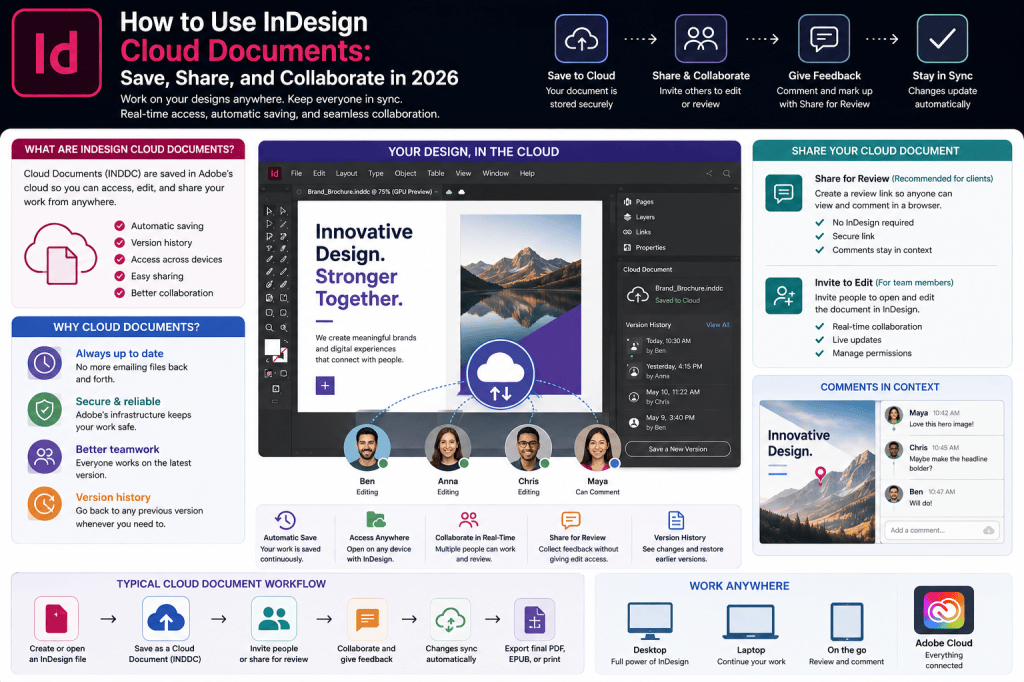
What Is an InDesign Cloud Document?
A traditional InDesign document is normally stored as an .indd file.
A cloud document uses Adobe’s cloud-document infrastructure and is associated with the .inddc format.
Instead of treating the document only as a file sitting in a particular local folder, the document is stored through Adobe’s cloud environment.
This provides capabilities such as:
- cloud-based storage
- automatic saving
- access from supported environments
- version history
- collaboration
- sharing workflows
The result is a more cloud-native approach to InDesign production.
Local InDesign Documents vs Cloud Documents
The easiest way to understand cloud documents is to compare the two approaches.
Traditional document
Computer
↓
Project folder
↓
MyBrochure.indd
The document’s location is fundamentally a file-system location.
Cloud document
Adobe account
↓
Cloud document
↓
Authorized access
The document becomes associated with Adobe’s cloud environment rather than one specific folder on one computer.
That changes how designers think about storage, access, and collaboration.
Why Adobe Is Moving InDesign Toward the Cloud
Creative production has changed.
A design team may no longer work in one studio using one local server.
The designer could be in Amsterdam.
The editor could be in London.
The marketing manager could be in New York.
Another designer could be working from home.
The client could be reviewing the publication from Singapore.
Moving files manually between all these people creates unnecessary friction.
Cloud documents provide a foundation for more connected workflows.
How to Create an InDesign Cloud Document
Start by creating or opening a document in a current version of InDesign that supports cloud documents.
When saving the document, choose the available cloud-document option rather than saving only as a traditional local INDD file.
The exact interface may change as Adobe develops the feature, but conceptually the workflow is:
Create document
↓
Choose cloud storage
↓
Name document
↓
Save
↓
Document becomes available through your Adobe cloud environment
Once saved as a cloud document, InDesign can manage synchronization and cloud versions as you work.
Converting an Existing Project to a Cloud Workflow
You don’t necessarily need to begin with a completely new publication.
You may have an existing local InDesign document that you want to move into a cloud-based workflow.
Before doing so, check the project carefully.
Complex professional InDesign projects can depend on:
- linked images
- fonts
- plugins
- scripts
- external data
- specialized workflows
Cloud documents solve the document-storage problem.
They do not automatically eliminate every dependency surrounding the document.
Understand Your Linked Assets
An InDesign publication isn’t always one self-contained file.
A brochure might reference:
cover-photo.psd
product-image-01.tif
company-logo.ai
chart-final.ai
map.eps
The InDesign document knows where those assets are located.
Moving the INDD document into the cloud doesn’t necessarily mean every external production dependency magically disappears.
Before adopting a cloud workflow for an important project, understand how your linked assets will be managed.
Fonts Matter Too
The same principle applies to fonts.
A collaborator needs access to the appropriate fonts to reproduce the design correctly.
Adobe Fonts can simplify this when the publication uses fonts available through Adobe’s service.
But organizations also use:
- licensed commercial fonts
- corporate fonts
- custom fonts
- local font families
Cloud storage doesn’t remove font licensing or availability requirements.
Automatic Saving
One of the most convenient aspects of cloud documents is automatic saving.
Traditional InDesign habits often include:
Ctrl+S
or:
Cmd+S
every few minutes.
Cloud-document workflows can save changes automatically.
This reduces the chance of losing substantial work because you forgot to save manually.
Automatic Save Is Not the Same as Backup
This distinction is extremely important.
If a document automatically saves after you make an unwanted change, that unwanted change can also become part of the saved document state.
Automatic saving protects against unsaved work.
Backups protect against other types of loss or corruption.
Professional publishing environments should continue to maintain appropriate backup and archival strategies.
Version History Changes the Workflow
Cloud documents can maintain previous versions or states.
This becomes valuable when someone says:
I preferred yesterday’s version.
In a traditional workflow, you might search for:
Brochure_v12.indd
Brochure_v13.indd
Brochure_v14.indd
With cloud version history, previous states can be available through the document’s history.
This creates another route to recovering earlier work.
Why Version History Is So Useful
Imagine you’re redesigning a product brochure.
At 10:00, the client asks you to replace the hero photograph.
At 11:00, they ask you to change the headline.
At 14:00, they decide the original photograph was better.
Without version history, you may need to reconstruct the previous layout manually or retrieve an older file.
With a useful version history, returning to an earlier state becomes much easier.
Name Important Versions
Where the workflow allows it, use meaningful version markers or names for important milestones.
For example:
Client Review 1
Legal Review
Approved Photography
Final Content
Prepress Candidate
This is much more useful than trying to remember what the document looked like at 14:37 last Tuesday.
Version history becomes more valuable when combined with production discipline.
Cloud Documents and Collaboration
Cloud documents become particularly interesting when another person needs to work with the publication.
Instead of emailing an INDD file, you can use Adobe’s collaboration capabilities to provide appropriate access.
This reduces the need to create duplicate master documents.
Review Access and Edit Access Are Different
This is one of the most important rules of cloud collaboration.
Not everyone who needs to see a publication needs permission to edit it.
There are two fundamentally different roles.
Reviewer
Needs to:
- inspect the layout
- leave feedback
- request changes
- approve work
Collaborator
Needs to:
- open the source document
- change content
- adjust layout
- perform actual production work
Don’t confuse the two.
Use Share for Review for Clients
Most clients should probably not receive source-document editing access.
They need to say:
Change this image.
or:
Please update this headline.
For that workflow, Share for Review is often the better choice.
The client can review the publication through a browser-based experience and provide comments without needing to work directly inside the production document.
This protects the source while still allowing collaboration.
Use Editing Access for Actual Designers
Suppose another designer is helping you finish the publication.
They may genuinely need source-level access.
That’s where editing collaboration becomes more appropriate.
Examples include:
- another graphic designer
- production designer
- art director
- layout specialist
Grant editing rights according to actual responsibilities.
Don’t Give Everyone Editing Permission
Cloud collaboration can tempt teams into making every participant an editor.
That is usually a mistake.
A publication can become chaotic when too many people are free to modify it.
Instead, establish roles.
For example:
Designer
Layout authority.
Editor
Editorial responsibility.
Marketing
Review and approval.
Legal
Compliance review.
Client
Final approval.
The technology should reinforce the workflow—not replace it.
Affiliate Recommendation: Try the Latest Adobe InDesign
Cloud documents are part of Adobe’s broader effort to connect InDesign with modern Creative Cloud workflows, including collaboration, online review, AI-assisted features, and integrated creative tools.
Explore Adobe InDesign and the latest Creative Cloud publishing features →
Affiliate disclosure: InDesignPerfect may receive a commission from qualifying purchases through this link, at no additional cost to you.
Cloud Documents for Freelancers
Cloud documents can be especially useful for freelance designers.
A freelancer may work from:
- desktop workstation
- laptop
- home office
- client location
- coworking space
Keeping the working document in a cloud-based environment can make moving between supported systems easier.
It also provides a more modern foundation for client review.
Cloud Documents for Agencies
Agency projects frequently involve several internal roles.
For example:
Creative Director
↓
Designer
↓
Copywriter
↓
Account Manager
↓
Client
Cloud-based collaboration can reduce unnecessary file transfers between those stages.
The document remains central while different people interact with it according to their roles.
Cloud Documents for Remote Teams
Remote work is perhaps the most obvious use case.
Traditional file workflows often create problems such as:
- duplicate files
- stale copies
- conflicting versions
- missing assets
- uncertainty about the master
Cloud documents can reduce some of those issues by providing a clearer central document.
Cloud Documents for Corporate Design Teams
Corporate design departments often produce recurring materials such as:
- annual reports
- brochures
- sales documents
- internal publications
- sustainability reports
- product sheets
A cloud-based document model can help teams centralize ongoing work.
This is especially useful when multiple offices participate in production.
One Source of Truth
The phrase single source of truth is frequently used in software and content-management systems.
It applies equally well to design production.
The ideal situation is:
Everyone knows which document is authoritative.
Traditional file systems often fail here.
Someone has:
Report_FINAL.indd
Someone else has:
Report_FINAL_NEW.indd
Another person has:
Report_FINAL_Approved2.indd
Cloud documents can reduce this ambiguity.
But Cloud Documents Don’t Eliminate Workflow Conflicts
Technology cannot compensate for poor communication.
Suppose Designer A changes the introduction while Designer B is making structural changes to the same area.
Even sophisticated collaboration systems need clear ownership and coordination.
Define who is responsible for what.
Divide Large Projects Logically
For complex publications, assign responsibilities.
For example:
Designer A
Cover and front matter.
Designer B
Feature articles.
Designer C
Data pages and charts.
Production Designer
Final consistency and preflight.
Clear responsibility reduces accidental overlap.
Cloud Documents and InCopy
InCopy remains relevant for professional editorial workflows.
InDesign and InCopy were designed around controlled collaboration between designers and editors.
A publishing organization with an established InCopy workflow shouldn’t automatically abandon it simply because cloud documents exist.
The technologies solve different collaboration problems.
Test which model best fits your production environment.
Cloud Documents and Share for Review
These two features work conceptually well together.
Cloud Document
The working publication.
↓
Share for Review
The stakeholder review layer.
↓
Comments
Feedback.
↓
InDesign
Designer makes changes.
↓
Updated review
Stakeholders see the revision.
This creates a cleaner review cycle.
Cloud Documents and Adobe Projects
Adobe Projects adds another level above individual documents.
A project may contain creative work spanning:
- InDesign
- Photoshop
- Illustrator
- Adobe Express
This is useful because a publication rarely consists only of the InDesign document.
It may also contain photography, logos, diagrams, social assets, and supporting graphics.
Projects help organize the broader creative effort.
Cloud Documents and Adobe Express
Adobe Express is becoming increasingly connected with professional Creative Cloud workflows.
Imagine a marketing campaign.
The designer creates the primary brochure in InDesign.
Supporting imagery is modified or adapted through Adobe Express.
Social variations are created.
Stakeholders review the publication online.
The project increasingly becomes a connected creative system rather than a collection of unrelated application files.
Cloud Documents and AI
AI also makes cloud-connected workflows more interesting.
Modern InDesign development increasingly includes capabilities around:
- Generate Text
- Rewrite
- AI-assisted text fitting
- AI-generated alt text
- Firefly-powered visual workflows
Cloud infrastructure provides a natural foundation for many connected services.
This is another reason Adobe’s move toward cloud documents matters beyond simple storage.
Local Documents Still Have Advantages
Cloud documents aren’t automatically the best solution for every publication.
Traditional local documents remain extremely useful.
You may prefer them when:
- working completely offline
- using established file-server workflows
- depending on specialized plugins
- operating automated production systems
- following strict archival requirements
- managing complex packaged projects
Professional designers should choose based on workflow requirements rather than novelty.
When Local INDD Files Make Sense
Suppose you’re producing a 500-page technical catalog through an automated publishing system.
The workflow depends on:
- scripts
- server folders
- database exports
- automated image processing
- custom plugins
- prepress automation
Moving that workflow to cloud documents without extensive testing would be risky.
The existing system may already be excellent.
Don’t change production architecture merely because another option exists.
When Cloud Documents Make Sense
Now imagine a small creative agency producing a 24-page marketing brochure.
Three designers work remotely.
The client needs regular review access.
The project changes rapidly.
Cloud documents and online review may be an excellent fit.
Different projects justify different approaches.
Internet Connectivity Matters
Cloud workflows depend more heavily on connectivity.
If you’re frequently working in locations with unreliable internet access, investigate the offline behavior of your specific InDesign version and workflow before depending entirely on cloud documents.
Never discover a limitation for the first time during a deadline.
Test beforehand.
Test Your Plugins
Professional InDesign users frequently rely on third-party plugins.
Before moving an important workflow to a new InDesign version or cloud-document architecture, test those plugins.
Check:
- compatibility
- saving behavior
- collaboration behavior
- export behavior
Plugins are often deeply integrated into publishing pipelines.
Test Your Scripts
The same applies to scripts.
InDesign automation can be extremely sophisticated.
A script may expect a traditional local file path.
Cloud-document behavior may not match those assumptions.
Test:
- file references
- linked assets
- export destinations
- batch processing
- naming logic
Automation should be validated before production migration.
Don’t Forget Packaging
Packaging remains important in traditional InDesign production.
A package can collect:
- document
- linked graphics
- fonts where licensing permits
- instructions
Cloud documents change some aspects of collaboration but don’t automatically eliminate the need for deliverable packaging and archival workflows.
Your printer or external production partner may still require a conventional package.
Cloud Collaboration Doesn’t Replace Final PDF
Even if your entire creative workflow moves to the cloud, the final output may still be:
PDF/X
for commercial printing.
Accessible PDF
for distribution.
EPUB
for digital reading.
Interactive PDF
for another use case.
Cloud documents change how the publication is created and managed.
They don’t necessarily change the final format.
Create a Cloud Document Naming Standard
Even cloud documents need clear names.
Avoid:
New Document
New Document 2
Copy of New Document
Use something meaningful:
Annual Report 2026
Spring Product Catalog 2027
Corporate Brochure – Global
If your organization manages many documents, naming discipline remains essential.
Establish an Archival Policy
What happens when the project finishes?
Do you:
- leave the document in the cloud?
- export a local INDD copy?
- create a package?
- archive a final PDF?
- preserve linked assets separately?
Decide before the project begins.
A working environment and an archival environment serve different purposes.
A Professional Hybrid Workflow
For many organizations, the best answer may not be cloud or local.
It may be both.
For example:
Active production
Cloud document.
↓
Client review
Share for Review.
↓
Approval
Final production.
↓
Archive
Local package + final PDF + required assets.
This provides cloud convenience during production while retaining conventional archival control.
Protect Sensitive Content
Before putting confidential material into any cloud-based production environment, ensure that the workflow complies with your organization’s policies.
This is particularly important for:
- confidential financial reports
- unreleased products
- legal documents
- sensitive corporate information
- regulated data
Cloud convenience doesn’t override information-security requirements.
Cloud Documents and Accessibility Review
Cloud review can also help accessibility workflows.
Different stakeholders may review different aspects of the publication.
For example:
Designer
Visual design.
Editor
Content.
Accessibility specialist
Structure and usability.
Legal reviewer
Compliance.
A shared review workflow can make multidisciplinary publishing easier.
Affiliate Recommendation: Upgrade Your InDesign Workflow
If you’re still using an older InDesign release, Adobe’s current versions bring together a growing collection of modern publishing capabilities—from cloud documents and online review to Flex Layout, AI-assisted writing, accessibility features, and Adobe Express integration.
Get the latest Adobe InDesign from Adobe →
Affiliate link: InDesignPerfect may earn a commission if you purchase through this link.
Five Best Practices for InDesign Cloud Documents
1. Decide Who Can Edit
Don’t automatically make every stakeholder an editor.
2. Use Review Links for Feedback
Keep clients away from the production document when they only need to comment.
3. Maintain Backups
Automatic saving and backup are not the same thing.
4. Test Complex Workflows
Especially plugins, scripts, fonts, and linked assets.
5. Create an Archival Strategy
Know what happens to the project after final delivery.
These simple rules prevent many collaboration problems.
Common Mistake #1: Assuming Everything Is Embedded
A cloud document doesn’t automatically mean every external dependency is contained inside one magical file.
Understand your assets.
Common Mistake #2: Giving Clients Edit Access
Most clients need review access, not production access.
Use the right permission for the right role.
Common Mistake #3: Treating Version History as Backup
Version history is useful.
It isn’t necessarily your entire disaster-recovery strategy.
Maintain appropriate archives.
Common Mistake #4: Migrating a Critical Project Without Testing
Never introduce a major workflow change during final production.
Test cloud documents on a smaller project first.
Learn their behavior.
Then decide whether they fit your larger workflow.
Common Mistake #5: Assuming Cloud Means No Project Management
Cloud collaboration doesn’t decide:
- who approves
- who edits
- when feedback closes
- which version is final
Those remain human workflow decisions.
Are Cloud Documents Better Than Traditional INDD Files?
Neither format is universally better.
The correct question is:
Which workflow is better for this project?
Choose traditional local files when you need maximum control over conventional file-based production.
Choose cloud documents when centralized access, collaboration, and version history provide meaningful benefits.
Use a hybrid workflow when that gives you the advantages of both.
The Bigger Change: From Files to Access
Cloud documents represent a deeper change in publishing.
Traditional production revolves around files.
Send me the latest file.
Cloud collaboration revolves increasingly around access.
Open the current document.
Traditional workflow:
Copy → Transfer → Open → Edit → Save → Send
Cloud workflow:
Access → Edit → Save automatically → Collaborate
That is a substantial change.
Where InDesign Is Heading
Cloud documents fit into a much larger Adobe strategy.
Modern InDesign increasingly combines:
Cloud Documents
Centralized working files.
Share for Review
Browser-based feedback.
Adobe Projects
Shared creative workspaces.
Adobe Express
Quick creative production.
Firefly
Generative AI.
Flex Layout
Adaptive design.
AI writing
Content generation and rewriting.
The result is an increasingly connected publishing environment.
Final Thoughts
InDesign Cloud Documents aren’t simply another place to save an INDD file.
They represent a different way of thinking about creative production.
Instead of constantly transferring copies between people and computers, teams can increasingly work around a shared cloud document.
Automatic saving helps protect ongoing work.
Version history makes earlier states easier to recover.
Collaboration tools make source-level teamwork possible when required.
Share for Review gives clients and stakeholders a cleaner way to provide feedback without giving them unnecessary editing access.
For freelancers and distributed creative teams, these capabilities can remove significant friction.
But cloud documents aren’t automatically appropriate for every workflow.
Large automated publishing systems, specialized plugins, strict archival processes, confidential projects, and complex file dependencies may still favor traditional local documents—or a hybrid approach.
The smartest strategy is therefore not:
Move everything to the cloud.
It is:
Use the cloud where it makes the publishing workflow better.
For many InDesign users in 2026, that will increasingly mean combining cloud documents, browser-based review, traditional production practices, and careful archival into one connected workflow.