Adobe InDesign is no longer simply a traditional page-layout application.
Adobe is steadily introducing artificial intelligence into the InDesign workflow, giving designers new ways to generate images, modify existing artwork, rewrite text, create accessibility descriptions, and interact with documents using natural language.
For professional designers, this represents an important change.
Instead of treating AI as a separate application that sits outside the publishing workflow, Adobe is bringing generative AI closer to the actual InDesign document.
That can reduce the need to constantly switch between applications when performing relatively simple creative tasks.
But what AI features does Adobe InDesign actually have in 2026?
This guide examines the major InDesign AI capabilities, what each feature does, where it fits into a professional workflow, and which tasks still require traditional InDesign or other Creative Cloud applications.
What AI Features Are Available in Adobe InDesign?
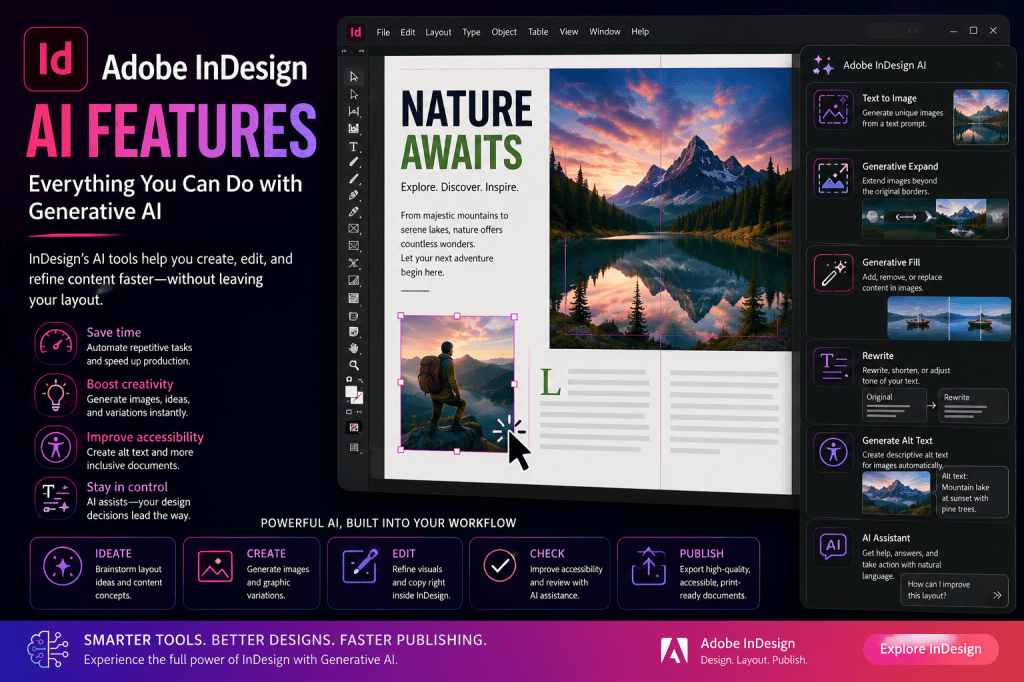
Adobe’s current AI direction for InDesign includes several major capabilities:
- Text to Image
- Generative Expand
- Generative Fill
- Rewrite
- Generate Alt Text
- AI Assistant
- Adobe Firefly integration
- AI-assisted Creative Cloud workflows
Each addresses a different part of document production.
Some generate content.
Some modify existing content.
Others assist with accessibility or application interaction.
The easiest way to understand them is to divide InDesign AI into four categories:
Generative image AI
Creates or modifies visual content.
Generative text AI
Creates or rewrites copy.
Accessibility AI
Helps create descriptions and accessible content.
Conversational AI
Allows users to increasingly interact with InDesign through natural-language instructions.
Let’s examine each capability individually.
1. Text to Image
Text to Image allows you to generate images using written descriptions.
Instead of searching for an existing photograph or illustration, you describe what you want.
For example:
Modern sustainable office building surrounded by trees, architectural photography, warm afternoon light, wide editorial composition.
The generative AI system interprets the prompt and creates visual alternatives.
This introduces an entirely different image-sourcing workflow for publication designers.
Traditionally:
Search → license → download → import → crop
With generative AI:
Describe → generate → select → place
Neither workflow completely replaces the other.
Stock photography remains extremely useful when you need:
- real people;
- real places;
- specific products;
- historical events;
- factual accuracy;
- or documented situations.
Generative imagery becomes useful when you need:
- conceptual imagery;
- abstract visuals;
- decorative artwork;
- fictional scenes;
- backgrounds;
- visual experimentation;
- or placeholder content.
2. Generate Images Around Your Layout
One of the most interesting consequences of Text to Image is that imagery can be created specifically for a layout.
Consider a magazine page containing a headline on the left.
You need an image with the subject positioned on the right.
Traditional stock-image searching can become frustrating because you may find the right subject but the wrong composition.
AI prompts allow you to specify composition.
For example:
Professional chef preparing food in a modern restaurant kitchen, editorial photography, subject positioned on the right side of the image, negative space on the left for magazine headline.
This is an important concept for InDesign users.
You are not simply prompting for an attractive image.
You are prompting for an image that works within a page composition.
3. Generative Expand
Generative Expand extends an image beyond its existing boundaries.
Imagine placing a photograph inside a wide InDesign frame.
The photograph is too narrow.
You have several traditional options:
- crop more aggressively;
- enlarge the image;
- choose another image;
- open Photoshop;
- manually extend the background.
Generative Expand introduces another option.
AI analyzes the existing visual content and generates additional material around it.
This can make an image fit the required composition while preserving more of the original photograph.
4. Create More Space for Typography
Generative Expand is particularly valuable when typography needs more room.
Suppose your magazine cover contains a photograph where the subject fills almost the entire image.
There is nowhere to place the title.
You may be able to extend one side of the photograph and create additional visual space.
That new area can then hold:
- headlines;
- captions;
- pull quotes;
- logos;
- page furniture;
- or promotional copy.
This is one of the best examples of AI solving a genuine page-layout problem rather than simply generating something visually impressive.
5. Change Image Proportions with AI
Publication designers frequently need the same image in different formats.
For example:
- portrait magazine page;
- landscape spread;
- square social graphic;
- horizontal banner;
- vertical advertisement.
Generative Expand can help adapt imagery to different aspect ratios.
Instead of aggressively cropping the original photograph, AI can create additional content around it.
This potentially makes one visual asset more adaptable across multiple publishing formats.
6. Generative Fill
Generative Fill allows AI to modify selected portions of visual content.
Rather than generating an entirely new image, you can work with an existing image and change part of it.
Potential uses include:
- removing unwanted objects;
- adding objects;
- replacing visual elements;
- modifying backgrounds;
- repairing distracting areas;
- or adapting imagery to better suit the design.
The precise capabilities can depend on the InDesign version and whether a feature is still in Beta.
However, the general direction is clear:
basic generative image manipulation is moving closer to the InDesign layout itself.
7. Remove Distracting Objects
Imagine designing a travel brochure.
The perfect photograph contains a small distracting object near the edge.
Previously, you might open Photoshop, remove the object, save the image, and return to InDesign.
Generative Fill can potentially shorten that workflow.
For relatively straightforward edits, the designer may be able to remain within the publication-production environment.
For advanced retouching, Photoshop remains the stronger application.
8. Add Visual Elements
Generative Fill can also introduce new content.
For example, you might want to add:
- decorative plants;
- clouds;
- environmental elements;
- small background objects;
- or other visual details.
This should be used carefully.
Adding generated content to documentary, journalistic, scientific, or factual imagery can change the meaning of the image.
For conceptual and marketing imagery, however, generative editing can provide significant creative flexibility.
9. Replace Image Elements
Another potential use is replacing an existing element.
For example, you may want to change an object in a conceptual marketing photograph.
Instead of regenerating the entire image, you can potentially modify only the relevant area.
This allows the overall composition to remain intact.
10. Rewrite
InDesign is fundamentally a text-heavy application.
Books, brochures, magazines, reports, catalogs, and corporate documents can contain thousands or even millions of words.
That makes generative text capabilities particularly relevant.
Rewrite can help modify existing copy.
Possible operations include:
- shortening;
- expanding;
- simplifying;
- rephrasing;
- changing tone;
- improving readability;
- and generating alternative wording.
11. Shorten Copy to Fit a Layout
This is one of the most practical uses of generative text in InDesign.
Suppose a product description contains 110 words.
Your layout comfortably fits 85.
You could change the design.
Or you could modify the copy.
AI can help produce a shorter version while attempting to preserve the original meaning.
This can be useful for:
- product descriptions;
- captions;
- marketing blocks;
- biographies;
- summaries;
- callouts;
- and short editorial sections.
Human review remains essential.
12. Expand Short Copy
The reverse problem also occurs.
Sometimes a text frame contains too little content.
AI can help expand short copy by adding:
- explanation;
- context;
- supporting information;
- transitions;
- or alternative wording.
This can be useful during early mockup development when final editorial copy is not yet available.
However, AI-generated factual statements should always be verified.
13. Change Writing Tone
Different publications require different voices.
A sentence might need to sound:
- professional;
- friendly;
- concise;
- persuasive;
- conversational;
- formal;
- or approachable.
Generative rewriting can help create alternatives.
This can be especially useful for marketing materials where the same core message is adapted to different audiences.
14. Generate Alternative Copy
Designers often need several headline or caption options.
AI can rapidly generate alternatives.
For example:
Original:
Discover Amsterdam This Summer
Alternatives might include:
Experience Amsterdam This Summer
Your Summer Guide to Amsterdam
Explore Amsterdam: A Summer Adventure
The designer or editor can then select the version that best fits both the message and the available space.
15. Generate Alt Text
Generate Alt Text is an important AI-assisted accessibility capability.
Alternative text describes meaningful images for people who cannot see them or who use assistive technologies.
AI can analyze an image and suggest a description.
For example:
Cyclist riding beside a canal lined with historic buildings.
This can save considerable time in publications containing large numbers of images.
But the generated description should always be reviewed.
16. AI-Assisted Accessibility
AI-generated alt text is only one part of accessibility.
A professional accessible document may also require attention to:
- reading order;
- heading structure;
- document tags;
- table structure;
- link descriptions;
- language metadata;
- form fields;
- color contrast;
- and export configuration.
AI can accelerate certain tasks.
It does not automatically make a document accessible.
That distinction is essential.
17. AI Assistant
AI Assistant represents a different type of artificial intelligence.
Instead of primarily generating content, it moves toward conversational interaction with InDesign.
Users can describe what they want to accomplish in natural language.
This is particularly interesting for beginners.
InDesign contains a large number of:
- menus;
- panels;
- preferences;
- commands;
- shortcuts;
- and specialist publishing features.
Finding the right command can sometimes be more difficult than understanding the desired result.
Conversational AI can help bridge that gap.
18. Ask Questions About InDesign
An AI assistant can potentially help answer questions such as:
How do I add page numbers?
How do I create a paragraph style?
Why is my text overset?
How do I export an accessible PDF?
This transforms AI into an application-learning tool.
Instead of constantly leaving InDesign to search documentation, users may increasingly receive contextual assistance while working.
19. Perform Tasks with Natural Language
The more significant evolution is moving from:
Ask AI how to perform a task
to:
Ask AI to perform the task.
For example:
Create a text frame.
Make the selected heading larger.
Apply this formatting to similar text.
This points toward a future where some application commands become conversational.
20. Adobe Firefly Integration
Many Adobe generative AI capabilities are connected to Adobe Firefly.
Firefly is Adobe’s family of generative AI models and creative AI services.
Within the broader InDesign workflow, Firefly can support:
- image generation;
- image expansion;
- image modification;
- visual ideation;
- and other generative operations.
This creates an increasingly connected Creative Cloud AI ecosystem.
21. InDesign + Photoshop AI
InDesign AI does not eliminate the need for Photoshop.
Instead, the two applications can complement each other.
Use InDesign when the task relates primarily to the layout.
Use Photoshop when the task requires sophisticated image manipulation.
For example:
Simple image extension: InDesign may be sufficient.
Complex compositing and retouching: Photoshop is likely better.
This keeps AI functionality aligned with the specialist role of each application.
22. InDesign + Adobe Express AI
Adobe Express can also become part of the workflow.
Express focuses on rapid content creation and repurposing.
A marketing team might create:
InDesign annual report
↓
Extract campaign assets
↓
Adapt content in Adobe Express
↓
Create social graphics
AI can help accelerate the transition between formats.
23. AI-Assisted Brainstorming
Not every AI feature needs to produce final content.
AI can be extremely useful during planning.
Designers can use AI to brainstorm:
- document structures;
- visual directions;
- headline concepts;
- image ideas;
- article structures;
- cover concepts;
- marketing messages;
- and layout variations.
This makes AI useful before the InDesign document is even created.
24. AI for Publication Prototyping
AI-generated images and copy can accelerate prototyping.
Suppose a client wants to see what a proposed magazine might look like.
You do not yet have:
- final photography;
- finished articles;
- captions;
- headlines;
- or illustrations.
AI can generate temporary content that more closely resembles the intended publication than traditional Lorem Ipsum and generic placeholder images.
That can make prototypes more realistic.
25. AI for Magazine Production
AI can assist magazine workflows with:
- image concepts;
- image expansion;
- headlines;
- summaries;
- captions;
- pull quotes;
- copy shortening;
- accessibility descriptions;
- and proofreading.
InDesign then handles the professional layout and publication structure.
26. AI for Book Production
For book workflows, AI can potentially assist with:
- manuscript analysis;
- summaries;
- illustration concepts;
- cover ideas;
- accessibility descriptions;
- metadata;
- promotional copy;
- and production automation.
Publishers should be particularly careful when submitting unpublished or copyrighted manuscripts to external AI services.
27. AI for Catalog Production
Catalogs are highly structured documents.
That makes them excellent candidates for AI-assisted workflows.
AI can help:
- standardize product descriptions;
- shorten copy;
- classify products;
- translate descriptions;
- identify inconsistent data;
- generate missing text;
- and prepare structured data.
InDesign Data Merge or scripting can then automate much of the layout.
28. AI for Translation and Localization
AI translation can accelerate multilingual publishing.
However, translated text frequently changes length.
That affects the layout.
For example, a translated paragraph may be significantly longer than the English original.
AI-assisted rewriting can potentially help create appropriately sized translated copy while preserving meaning.
Human translation review remains important for professional publications.
29. AI for GREP
GREP is not itself an AI feature.
However, external AI assistants can make GREP much easier to use.
You can describe the pattern you want to find.
For example:
Create an InDesign GREP expression that finds all email addresses.
AI can generate an expression and explain how it works.
This can dramatically lower the barrier to advanced InDesign text automation.
30. AI for InDesign Scripting
The same principle applies to scripting.
InDesign scripting can automate repetitive production tasks, but many designers are not programmers.
AI coding assistants can help create scripts from natural-language requirements.
For example:
Create an InDesign script that adds a text frame to every page.
This opens advanced automation to a much larger group of users.
What InDesign AI Cannot Do Reliably
AI is powerful, but it has important limitations.
You should not assume AI output is:
- factually correct;
- visually accurate;
- legally safe;
- accessible;
- grammatically perfect;
- brand compliant;
- production ready;
- or appropriate for the audience.
AI output should be treated as generated material requiring professional review.
Human Review Remains Essential
Professional designers should check AI-generated content for:
Accuracy
Are names, facts, numbers, and claims correct?
Visual quality
Does the generated image contain strange details or artifacts?
Typography
Does the content work within the typographic system?
Accessibility
Does generated alt text communicate the image’s actual purpose?
Brand consistency
Does the result match the client’s visual and verbal identity?
Copyright and licensing
Is the content appropriate for the intended commercial use?
Production quality
Will the document export and print correctly?
AI can generate.
The designer remains responsible for the result.
Which InDesign AI Feature Should You Learn First?
If you work primarily with images, start with Generative Expand.
If you frequently need new visual concepts, start with Text to Image.
If you constantly struggle with copy fitting, explore Rewrite.
If you produce accessible PDFs or EPUBs, investigate Generate Alt Text.
If you are learning InDesign, explore AI Assistant.
If you perform repetitive production work, investigate external AI combined with GREP and scripting.
There is no need to learn every AI feature at once.
Start with the one that solves your most frequent production problem.
Are InDesign AI Features Included in Your Subscription?
Adobe’s AI capabilities are increasingly integrated into its Creative Cloud products, although availability can depend on:
- your subscription;
- application version;
- feature status;
- region;
- language;
- and generative-credit policies.
Some generative operations may consume Adobe generative credits.
Because Adobe continues to develop its AI plans and services, always verify current plan details directly with Adobe.
Explore Adobe InDesign and Its Latest AI Features
Want to try InDesign’s professional page-layout tools together with Adobe’s growing collection of generative AI capabilities?
→ View Adobe InDesign plans and current offers
The Bigger Picture: AI Is Becoming Part of the Publishing Workflow
The most significant change is not any individual feature.
It is the gradual integration of AI across the publication-production process.
A modern workflow might increasingly look like:
Plan
↓
Generate
↓
Design
↓
Rewrite
↓
Adapt
↓
Check accessibility
↓
Automate
↓
Review
↓
Publish
InDesign remains the environment responsible for professional document structure and layout.
AI assists at different points around that structure.
InDesign AI Features FAQ
Does Adobe InDesign have generative AI?
Yes. Adobe has been introducing generative AI capabilities into InDesign, including image-generation, image-expansion, generative editing, text-related functionality, and accessibility assistance.
Can InDesign generate AI images?
Text to Image allows visual content to be generated from written prompts.
Can InDesign extend an image with AI?
Generative Expand can create additional image content outside the original image boundaries, which can help an image fit a different frame or aspect ratio.
Can InDesign remove objects with AI?
Generative Fill can support generative modifications to selected image areas, depending on the currently available InDesign release and feature status.
Can InDesign rewrite text with AI?
Adobe’s Rewrite capabilities can help modify existing copy, including producing alternative versions.
Can InDesign generate alt text automatically?
Generate Alt Text can provide AI-generated image descriptions that designers can review and refine.
Does InDesign have an AI assistant?
Adobe has been developing conversational AI assistance for InDesign, including experiences introduced through Beta releases.
Does InDesign AI replace Photoshop?
No. InDesign remains a page-layout application, while Photoshop provides much deeper image-editing functionality. AI allows some common image adjustments to happen closer to the layout workflow.
Does InDesign AI replace graphic designers?
AI automates or accelerates individual tasks. Professional design still requires decisions involving typography, communication, hierarchy, branding, accessibility, composition, and production.
Final Thoughts
Adobe InDesign AI is best understood not as one revolutionary button, but as a growing collection of intelligent capabilities embedded throughout the publishing workflow.
Text to Image can create new visual material.
Generative Expand can make existing imagery fit layouts more effectively.
Generative Fill can modify visual content.
Rewrite can help adapt copy.
Generate Alt Text can accelerate accessibility work.
AI Assistant introduces conversational interaction.
Firefly connects InDesign to Adobe’s broader generative AI ecosystem.
And external AI tools can extend InDesign even further through GREP, scripting, automation, translation, and content preparation.
The important question for designers is therefore no longer simply:
“Does InDesign have AI?”
A more useful question is:
“Which parts of my InDesign workflow can AI improve?”
That is where the real productivity gains begin.
Try Adobe InDesign
Explore professional page layout, publishing, typography, automation, and Adobe’s expanding collection of AI-assisted creative capabilities.
→ Get Adobe InDesign and view the latest Adobe offer
Continue the InDesign AI Series
Next:
Adobe Firefly in InDesign: How the Integration Works
Also explore:
- Adobe InDesign AI: The Complete Guide to AI Features and Workflows in 2026
- How to Use AI in Adobe InDesign: A Beginner’s Guide
- Adobe InDesign AI Assistant: A Complete Guide
- Adobe InDesign Text to Image: A Complete Guide
- Adobe InDesign Generative Expand: A Complete Guide
- Adobe InDesign Generative Fill: A Complete Guide
- Adobe InDesign Rewrite: How to Generate and Rewrite Text with AI
- InDesign AI Alt Text: How to Automatically Generate Image Descriptions