Adobe InDesign has traditionally required designers to understand a large collection of menus, panels, tools, shortcuts, and professional publishing concepts.
AI Assistant introduces a different way of working.
Instead of always finding the correct command yourself, conversational AI can help you understand InDesign and, as Adobe develops the technology further, increasingly interact with documents using natural-language instructions.
That could make InDesign easier to learn and faster to operate.
For beginners, AI Assistant can provide contextual guidance without constantly leaving the application to search for tutorials.
For experienced designers, the more interesting possibility is using natural language to accelerate repetitive actions and complex workflows.
In this guide, we’ll examine what Adobe InDesign AI Assistant is, how it differs from Adobe Firefly, what it can potentially do, how designers can use it, its limitations, and why conversational AI could become an important part of the future of professional publishing.
What Is Adobe InDesign AI Assistant?
Adobe InDesign AI Assistant is Adobe’s move toward conversational AI inside the InDesign environment.
The basic concept is straightforward.
Instead of interacting with InDesign only through:
- menus;
- panels;
- keyboard shortcuts;
- toolbars;
- dialog boxes;
- and commands,
you can increasingly describe what you want using ordinary language.
For example:
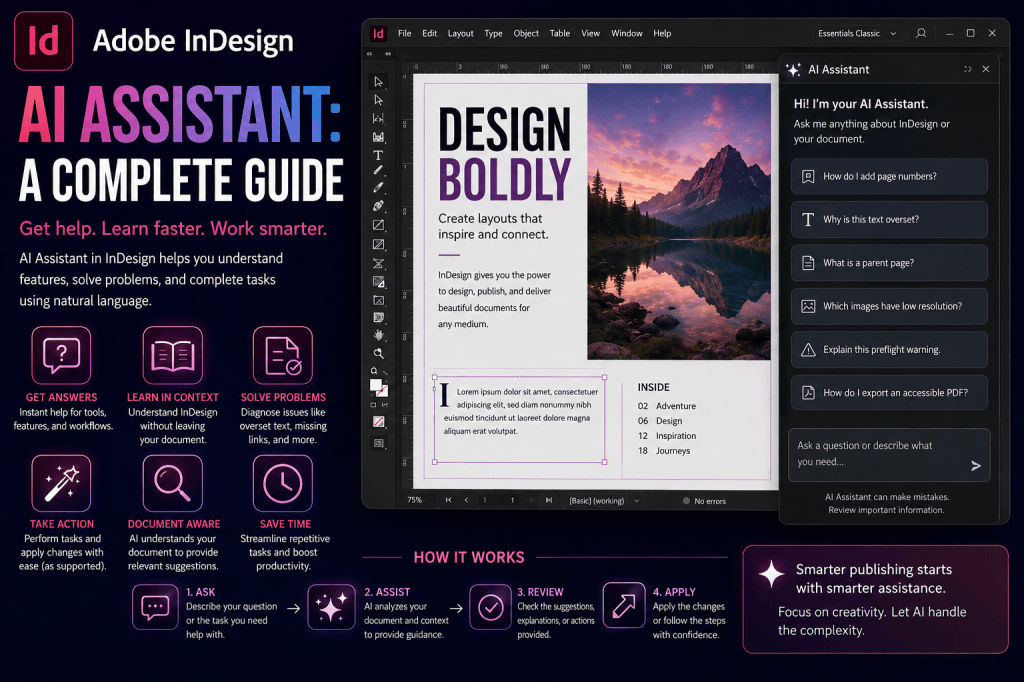
How do I add page numbers to this document?
Or:
Help me understand why this text is overset.
Or potentially:
Create a text frame on this page.
The AI interprets the request and provides assistance based on the available capabilities.
This changes the relationship between the user and the application.
Traditional software requires you to understand how the application works.
Conversational software increasingly allows you to describe what you want to accomplish.
Is InDesign AI Assistant the Same as Adobe Firefly?
No.
This distinction is important.
Adobe Firefly is primarily associated with generative creative capabilities.
For an InDesign user, Firefly-powered workflows can include things such as:
- generating images;
- extending imagery;
- creating visual variations;
- and generatively modifying visual content.
AI Assistant has a different role.
It focuses more on interaction, assistance, understanding, and task execution.
A simple way to think about the difference is:
Firefly: “Create this content.”
AI Assistant: “Help me work with this document.”
The technologies may increasingly overlap as Adobe expands its AI ecosystem, but their primary purposes are different.
Why Does InDesign Need an AI Assistant?
InDesign is extremely powerful.
That power also creates complexity.
A professional InDesign user may need to understand:
- paragraph styles;
- character styles;
- object styles;
- parent pages;
- sections;
- automatic page numbering;
- text threading;
- anchored objects;
- GREP;
- tables;
- Data Merge;
- cross-references;
- indexes;
- books;
- preflight;
- PDF standards;
- accessibility;
- EPUB;
- scripting;
- and dozens of other specialist features.
For an experienced production designer, this is manageable.
For a new user, it can be intimidating.
AI Assistant can potentially provide a conversational layer between the user and all that functionality.
Instead of asking:
Where is that command?
you ask:
How do I accomplish this?
AI Assistant as an InDesign Learning Tool
One of the most immediate uses of AI Assistant is education.
Imagine you have just started learning InDesign.
You see a red plus symbol on a text frame.
You do not know what it means.
Instead of searching the web, you could ask:
What does the red plus symbol on my text frame mean?
The assistant could explain that the frame contains overset text and help you understand possible solutions.
This type of contextual learning is powerful because the explanation happens close to the task.
Questions Beginners Could Ask
Examples might include:
What is a parent page?
What is the difference between a paragraph style and a character style?
How do I add automatic page numbers?
How do I place an image?
Why does my image look blurry?
How do I make text flow from one frame to another?
What does preflight mean?
How do I export a PDF for print?
How do I create a table of contents?
How do I add bleed?
These are ordinary beginner questions.
An AI assistant can make discovering the answers more conversational.
AI Assistant for Experienced Designers
The long-term potential goes much further than answering beginner questions.
Experienced users already know what they want to accomplish.
Their problem is often the number of steps required.
Imagine a production designer who needs to:
- create 20 pages;
- apply a particular parent page;
- modify several text frames;
- standardize object formatting;
- identify overset text;
- check missing links;
- and prepare the document for review.
If conversational AI eventually performs multi-step actions safely, many repetitive operations could be expressed as instructions.
For example:
Find all overset text in this document.
Or:
Show me which images have an effective resolution below 300 PPI.
Or:
Apply this paragraph style to all matching headings.
The value for experienced users would therefore be less about learning InDesign and more about reducing operational friction.
Natural-Language Interaction
Traditional creative applications are command-driven.
You need to know which command performs which action.
Conversational AI introduces an intent-driven model.
You express the desired result.
For example:
Traditional workflow:
Window → Styles → Paragraph Styles → select style → apply
Conversational concept:
Apply the Body Text paragraph style to this paragraph.
The underlying InDesign feature remains the same.
What changes is how you access it.
AI Assistant and Document Context
An especially important capability for creative AI assistants is context.
A generic chatbot can answer:
What is a paragraph style?
An application-integrated assistant can potentially understand more about the document you’re working on.
For example:
Why doesn’t this paragraph match the others?
A context-aware assistant could potentially examine:
- the selected paragraph;
- applied style;
- local overrides;
- font;
- size;
- leading;
- spacing;
- and document styles.
That is far more useful than a generic explanation.
Context Could Make AI More Useful
Consider another question:
Why won’t this image print correctly?
A generic AI assistant might provide a long list of possibilities.
A document-aware assistant could potentially identify:
- low effective resolution;
- RGB versus CMYK concerns;
- missing links;
- transparency;
- color-profile issues;
- or export settings.
This is where application-integrated AI becomes significantly more powerful than a general chatbot.
AI Assistant vs Traditional Adobe Help
Adobe Help provides detailed documentation.
That remains valuable.
But documentation generally requires the user to know what to search for.
Suppose a beginner sees an unfamiliar icon.
They may not know the correct terminology.
AI allows the user to describe the problem naturally.
For example:
Why is there a small red box with a plus sign on the bottom of my text frame?
The assistant can interpret the description and connect it with the correct InDesign concept.
That can make documentation more accessible.
AI Assistant vs Searching Google
Designers frequently search Google for answers to InDesign problems.
That will not disappear.
Search engines remain useful for:
- detailed tutorials;
- community discussions;
- troubleshooting;
- videos;
- alternative workflows;
- and expert explanations.
AI Assistant has a different advantage:
context and convenience.
You may not need to leave your document for simple questions.
For complex problems, external tutorials will still be valuable.
AI Assistant vs ChatGPT
ChatGPT can already help with many InDesign tasks.
For example, you can ask ChatGPT to:
- explain InDesign features;
- generate GREP expressions;
- write scripts;
- troubleshoot errors;
- suggest workflows;
- explain PDF settings;
- generate copy;
- and teach publishing concepts.
The key difference is application context.
A standalone AI assistant generally does not automatically know what is happening inside your InDesign document.
An integrated AI assistant potentially can.
This creates an important distinction:
ChatGPT: broad external AI assistance.
InDesign AI Assistant: application-specific, potentially document-aware assistance.
Both can be useful.
AI Assistant and InDesign Styles
Styles are fundamental to professional InDesign workflows.
AI could make them easier to understand and manage.
For example:
Explain why this paragraph looks different from the Body Text style.
Or:
Which paragraph style is applied here?
Or potentially:
Create a paragraph style based on this selected heading.
This could reduce the learning curve for one of InDesign’s most important professional features.
AI Assistant and Parent Pages
Parent pages are another concept that beginners sometimes struggle with.
A user might ask:
Why can’t I select this object on the page?
AI Assistant could explain that the object originates from a parent page.
It could then explain how parent-page items work.
In the future, task-oriented assistance might go further:
Apply Parent B to pages 12 through 20.
That turns a conceptual question into an operational command.
AI Assistant and Overset Text
Overset text is an ideal use case for contextual AI assistance.
The user might ask:
Why can’t I see the rest of my text?
The assistant could identify overset text and explain possible solutions:
- enlarge the frame;
- thread the text;
- reduce the copy;
- modify typography;
- or add pages.
Combined with generative rewriting, an even more sophisticated workflow could eventually become possible:
Shorten this paragraph enough to remove the overset text without changing its main meaning.
That combines document awareness with generative AI.
AI Assistant and Images
AI Assistant could also help users understand image-related problems.
Questions might include:
Why is this image blurry?
What is the effective resolution of this image?
Is this image linked or embedded?
Where is the original image stored?
Why is there a warning symbol in the Links panel?
These are common production questions.
Contextual AI could make them easier to diagnose.
AI Assistant and Preflight
Preflight is essential for professional production.
However, beginners may not understand the errors that InDesign reports.
An AI assistant could potentially translate technical preflight warnings into plain language.
For example:
This image has an effective resolution of 96 PPI, which may be too low for high-quality printing.
The assistant could then suggest possible solutions.
This is an excellent example of AI acting as an interpreter between professional production terminology and the user.
AI Assistant and PDF Export
PDF export contains many options.
Users may need to choose between requirements such as:
- print PDF;
- screen PDF;
- accessible PDF;
- PDF/X;
- bleed;
- crop marks;
- spreads versus pages;
- compression;
- color conversion;
- and font embedding.
A beginner might ask:
Which settings should I use for a PDF that will be professionally printed?
An AI assistant could explain the relevant options.
However, final specifications should still come from the printer or production provider.
AI Assistant and Accessibility
Accessibility is another area where contextual assistance could be valuable.
Users might ask:
Which images are missing alt text?
What is reading order?
How do I make this table more accessible?
What accessibility information should I add before exporting?
AI can help explain requirements and potentially identify problems.
However, accessibility still requires human review.
A technically complete document is not necessarily a genuinely accessible document.
AI Assistant and GREP
GREP is one of InDesign’s most powerful advanced features.
It is also intimidating for many users.
A conversational assistant could make GREP more approachable.
Instead of manually constructing a regular expression, a user could describe the requirement:
Find every price beginning with a euro symbol.
Or:
Find all email addresses.
Or:
Find multiple spaces and replace them with one space.
AI can translate natural-language intent into a GREP expression.
This could bring advanced text automation to many more InDesign users.
AI Assistant and Scripting
Scripting is another major opportunity.
InDesign has extensive automation capabilities, but scripting traditionally requires programming knowledge.
AI can help bridge that gap.
A user could describe a repetitive task:
Create a script that adds a 20 mm text frame to the bottom of every page.
AI could help generate the code.
The user would still need to test it carefully.
But the barrier to entry becomes much lower.
AI Assistant and Data Merge
Data Merge is widely used for:
- catalogs;
- certificates;
- business cards;
- labels;
- directories;
- personalized documents;
- and product sheets.
An AI assistant could help users understand:
- CSV preparation;
- field names;
- image paths;
- multiple-record layouts;
- encoding problems;
- and merge errors.
This could make one of InDesign’s most useful automation tools easier to learn.
AI Assistant for Troubleshooting
Troubleshooting may become one of AI Assistant’s most valuable applications.
Common InDesign problems include:
- missing fonts;
- missing links;
- overset text;
- slow documents;
- failed exports;
- low-resolution images;
- incorrect colors;
- inaccessible PDFs;
- corrupted preferences;
- and unexpected formatting.
Instead of searching for the right terminology, users can describe what they see.
For example:
My PDF export stops halfway through. What should I check?
Contextual assistance could then guide troubleshooting.
The Importance of Asking Good Questions
Even conversational AI works better when given clear instructions.
Compare:
Fix this.
with:
Explain why the selected paragraph has different spacing from the other paragraphs using the Body Text style.
The second request contains:
- the object;
- the problem;
- the comparison;
- and the desired action.
Clear instructions reduce ambiguity.
A Simple Prompt Formula for AI Assistant
Use:
Action + object + desired result + constraint
For example:
Shorten this selected paragraph so it fits the existing text frame while preserving the main message.
Or:
Explain why this image appears blurry and tell me whether its resolution is suitable for printing.
Or:
Find the cause of the overset text without changing the font size.
This structure can produce more useful assistance.
Can AI Assistant Make Mistakes?
Yes.
AI assistants can misunderstand:
- user intent;
- document context;
- design requirements;
- technical specifications;
- or production constraints.
They can also provide incomplete or incorrect information.
Therefore, professional users should verify important actions.
This is particularly important for:
- print production;
- accessibility;
- legal documents;
- financial documents;
- technical publications;
- brand-critical work;
- and automated bulk operations.
Human Control Remains Essential
The ideal AI assistant should not simply make unrestricted changes.
Professional creative workflows benefit from:
- previews;
- undo;
- confirmations;
- explanations;
- change summaries;
- and user approval.
For example, before changing 300 paragraphs, the assistant should ideally make the intended operation clear.
AI can accelerate work.
The designer should remain in control.
Is InDesign AI Assistant Available to Everyone?
Adobe introduces AI capabilities progressively.
Some functionality may initially appear in Beta releases before becoming part of the standard InDesign application.
Availability can also depend on:
- application version;
- Adobe account;
- region;
- language;
- subscription;
- and rollout status.
Therefore, if you do not see AI Assistant in your current version of InDesign, that does not necessarily mean something is wrong.
Check Adobe’s current InDesign release and Beta information.
How to Prepare for AI Assistant
Even if a particular AI Assistant capability is not yet available in your installation, you can prepare for conversational workflows by learning how to describe design tasks clearly.
Instead of thinking only in commands, think in outcomes.
For example:
Traditional thinking:
Object → Text Frame Options → Inset Spacing.
Intent-based thinking:
Add more space between the text and the inside edge of this frame.
Both describe the same objective.
Conversational AI increasingly works with the second form.
Will AI Assistant Make Learning InDesign Unnecessary?
No.
It may make learning easier.
There is a major difference between:
knowing how to operate InDesign
and:
knowing how to design.
AI can help with the first.
Professional design still requires understanding:
- typography;
- hierarchy;
- grids;
- composition;
- branding;
- readability;
- color;
- accessibility;
- editorial structure;
- and production.
An AI assistant can tell you how to change the leading.
It cannot automatically guarantee that the new leading produces good typography.
AI Assistant Could Change InDesign Training
Traditionally, learning InDesign means memorizing where features are located.
Future training may focus more heavily on:
- understanding design concepts;
- understanding publishing systems;
- describing desired outcomes;
- evaluating AI actions;
- and correcting generated results.
This could make advanced InDesign capabilities accessible to more people.
But expertise will still matter.
In fact, experienced designers may benefit disproportionately because they can recognize when the AI’s recommendation is wrong.
A Practical AI Assistant Workflow
Imagine you are creating a 24-page company report.
During production, you encounter several problems.
Problem 1
A paragraph is overset.
Ask:
Why is this paragraph overset and what are my options for fixing it?
Problem 2
A photograph looks soft.
Ask:
Is this image resolution sufficient for professional printing?
Problem 3
Several headings look inconsistent.
Ask:
Explain why these headings do not match the Heading 2 paragraph style.
Problem 4
You need page numbers.
Ask:
How do I add automatic page numbers using a parent page?
Problem 5
Preflight reports errors.
Ask:
Explain these preflight errors and tell me which ones I should fix before exporting.
The assistant becomes a contextual guide throughout the production process.
AI Assistant vs Traditional InDesign Workflow
Traditional workflow:
Identify problem
↓
Know terminology
↓
Find menu or documentation
↓
Understand instructions
↓
Perform action
Conversational workflow:
Describe desired result
↓
AI interprets intent
↓
AI explains or assists
↓
User reviews
↓
Action completed
The reduction in friction could be substantial.
Is InDesign AI Assistant Free?
AI Assistant availability should be considered within Adobe’s broader InDesign and Creative Cloud subscription structure.
Specific availability, Beta access, usage limits, and AI-related entitlements can change as Adobe develops the feature.
Always verify current Adobe plan information rather than assuming that every AI capability is available with every plan.
Explore Adobe InDesign
Want to use professional page-layout tools while following Adobe’s expanding AI-assisted publishing capabilities?
→ View Adobe InDesign plans and current offers
InDesign AI Assistant FAQ
What is Adobe InDesign AI Assistant?
It is Adobe’s conversational AI direction for InDesign, designed to help users understand the application and increasingly interact with documents using natural language.
Is AI Assistant the same as Adobe Firefly?
No. Firefly primarily provides generative creative capabilities, while AI Assistant focuses on conversational assistance and application interaction.
Can AI Assistant teach me InDesign?
It can potentially explain features, workflows, terminology, and document problems, making it useful as a contextual learning tool.
Can AI Assistant edit an InDesign document?
Adobe’s direction includes natural-language interaction with creative applications, but the exact actions available depend on the current implementation and release.
Can AI Assistant detect InDesign problems?
Context-aware AI has the potential to assist with problems involving text, images, formatting, accessibility, preflight, and other document elements, depending on the capabilities Adobe exposes.
Does AI Assistant replace Adobe Help?
No. Adobe documentation remains an authoritative source for detailed product information. AI Assistant provides a more conversational way to access assistance.
Is InDesign AI Assistant better than ChatGPT?
They serve different purposes. ChatGPT offers broad AI assistance, while an integrated InDesign assistant can potentially work with application and document context.
Can AI Assistant generate GREP?
Conversational AI can help translate natural-language pattern requirements into GREP expressions, although generated expressions should always be tested.
Can AI help write InDesign scripts?
Yes. AI coding assistants can help generate and explain InDesign scripts, but scripts should be reviewed and tested before being used on important documents.
Will AI Assistant replace InDesign designers?
No. It can reduce the effort required to operate software, but professional design still depends on human decisions about communication, typography, hierarchy, composition, accessibility, and production.
The Future: From Assistant to Design Agent
AI Assistant becomes particularly interesting when we look beyond individual commands.
Today’s assistant might answer:
How do I create a paragraph style?
A more advanced assistant could potentially execute:
Create a paragraph style based on this selected text.
The next stage could be:
Find all visually similar headings in this document and apply the new style after showing me a preview.
Eventually, a design agent might handle a broader objective:
Review this document for formatting inconsistencies, accessibility problems, missing links, overset text, and low-resolution images. Create a report and ask before making any changes.
That is no longer simply a chatbot.
It is an AI publishing agent.
Such a system could understand:
- the document;
- design system;
- assets;
- styles;
- production requirements;
- and user intent.
The designer would move from executing every individual command toward supervising higher-level operations.
Final Thoughts
Adobe InDesign AI Assistant represents a potentially significant change in how designers interact with professional creative software.
For decades, using InDesign has meant learning the application’s interface.
You learn which panel contains which option.
You memorize shortcuts.
You learn specialist terminology.
You understand the sequence of commands required to accomplish a task.
Conversational AI introduces another interface:
language.
Instead of always knowing where a feature is located, you can increasingly describe what you want.
For beginners, this can make InDesign easier to learn.
For experienced designers, it could make repetitive workflows faster.
For production teams, it could eventually provide intelligent document analysis and automation.
But the most important principle remains unchanged:
AI can help operate the tool. The designer remains responsible for the design.
That distinction will become increasingly important as InDesign evolves from traditional desktop-publishing software into a more intelligent, conversational publishing environment.
Try Adobe InDesign
Explore Adobe InDesign’s professional publishing environment and follow the development of its expanding AI-assisted creative workflows.
→ Get Adobe InDesign and view the latest Adobe offer
Continue the InDesign AI Series
Next:
How to Use InDesign AI Assistant to Edit Documents with Natural-Language Prompts
Also explore:
- Adobe InDesign AI: The Complete Guide to AI Features and Workflows in 2026
- How to Use AI in Adobe InDesign: A Beginner’s Guide
- Adobe InDesign AI Features: Everything You Can Do with Generative AI
- Adobe Firefly in InDesign: How the Integration Works
- Adobe InDesign Text to Image: A Complete Guide
- Adobe InDesign Generative Expand: A Complete Guide
- Adobe InDesign Generative Fill: A Complete Guide
- Adobe InDesign Rewrite: How to Generate and Rewrite Text with AI