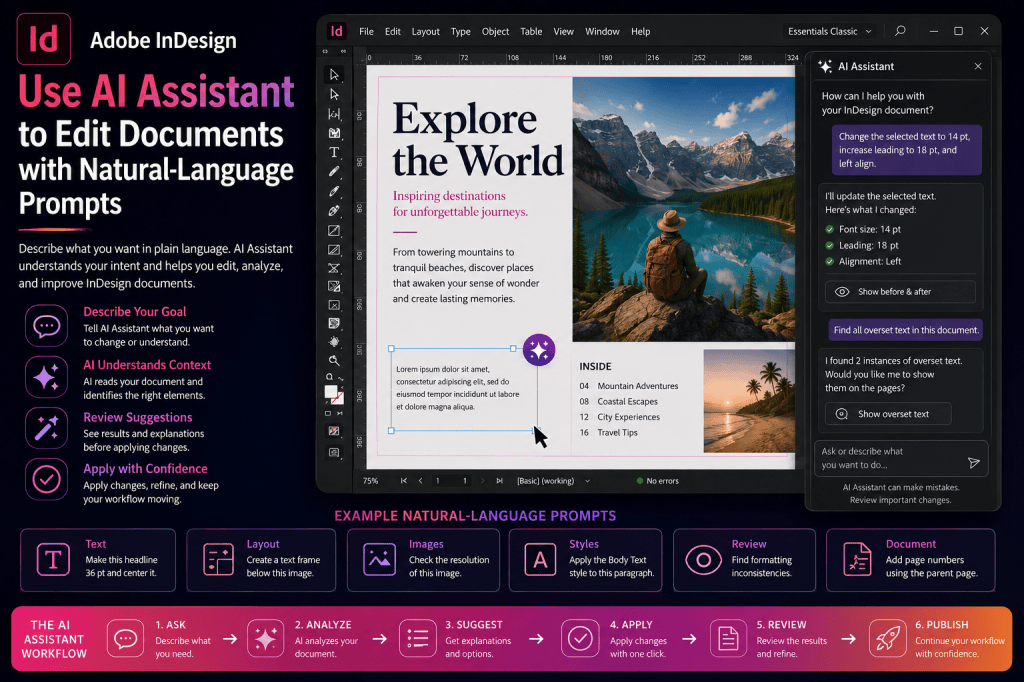
Adobe InDesign is moving toward a new way of interacting with professional design software: describing what you want in ordinary language.
Instead of relying exclusively on menus, panels, dialog boxes, and keyboard shortcuts, AI Assistant introduces the possibility of asking InDesign for help and performing supported tasks through natural-language prompts.
For example, instead of searching through menus, you might ask:
Create a text frame on this page.
Or:
Change the selected text to 24 pt.
Or:
Explain why this text is overset.
This represents an important shift from command-based software toward intent-based software.
You describe the result you want. AI interprets the request and helps translate that intent into an InDesign action or workflow.
In this guide, we’ll look specifically at how to write effective natural-language prompts for InDesign AI Assistant, what types of tasks are suitable, how to review AI-assisted changes, and how conversational workflows could make document production faster.
What Is a Natural-Language Prompt in InDesign?
A natural-language prompt is simply an instruction written the way you would explain a task to another person.
Traditional InDesign interaction might look like this:
Select text → open Paragraph Styles → locate style → click style.
A conversational instruction might be:
Apply the Body Text paragraph style to the selected paragraph.
The underlying design operation is not necessarily different.
What changes is the interface used to request it.
You describe the intended outcome rather than manually navigating every step.
Why Natural-Language Editing Matters
InDesign is a professional publishing application with hundreds of commands and options.
That power creates a learning curve.
A user may know exactly what they want visually but not know:
- which panel contains the option;
- what Adobe calls the feature;
- which menu command to use;
- which keyboard shortcut applies;
- or how several commands fit together.
Natural-language interaction can reduce that gap.
You can describe the objective first.
The assistant can then help determine how to accomplish it.
Before You Start: Understand Feature Availability
Adobe develops AI functionality progressively.
AI Assistant capabilities may initially appear in InDesign Beta or roll out gradually before becoming available more broadly.
The exact commands and actions supported can therefore depend on:
- your InDesign version;
- Beta versus standard release;
- Adobe account;
- language;
- region;
- and Adobe’s current rollout.
If a prompt described in this guide cannot be executed directly in your version, the assistant may still be able to explain how to perform the task manually.
Always check Adobe’s current documentation for the capabilities available in your installation.
The Basic InDesign AI Prompt Formula
One of the easiest ways to improve AI instructions is to structure them clearly.
A useful formula is:
Action + object + result + constraint
Let’s break that down.
Action
What should happen?
Examples:
- create;
- change;
- move;
- explain;
- find;
- apply;
- resize;
- align.
Object
What should the action affect?
Examples:
- selected paragraph;
- text frame;
- image;
- page;
- heading;
- document;
- selected object.
Result
What do you want afterward?
For example:
Change the selected headline to 36 pt.
Constraint
What must remain unchanged?
For example:
Shorten this paragraph so it fits the frame without changing the main meaning.
Constraints can make prompts substantially more useful.
1. Selecting the Correct Object First
Whenever possible, select the object you want to work with before prompting AI Assistant.
For example, select:
- a text frame;
- paragraph;
- image;
- graphic frame;
- page item;
- or other relevant element.
Then write:
Explain why this text is overset.
The selection provides useful context.
Compare that with:
Why is my text wrong?
The second prompt is much more ambiguous.
2. Use Specific Instructions
Avoid prompts such as:
Make this better.
“Better” could mean:
- larger;
- smaller;
- more readable;
- more attractive;
- better aligned;
- more concise;
- more accessible;
- or more consistent.
Instead, state the desired outcome.
For example:
Increase the selected headline to 36 pt without changing its font.
That instruction is measurable.
3. Ask AI Assistant to Explain Before Changing
One of the safest approaches is to ask for an explanation before requesting an edit.
For example:
Explain why this paragraph looks different from the other Body Text paragraphs.
The assistant might identify:
- a local formatting override;
- different font;
- different leading;
- different paragraph spacing;
- or another formatting difference.
You can then decide whether to make a change.
This approach is particularly useful for unfamiliar documents.
4. Formatting Text with Natural Language
Text formatting is an obvious application for conversational interaction.
Potential prompts include:
Make the selected text 18 pt.
Apply the Heading 2 paragraph style to this paragraph.
Change the selected text to bold.
Center this heading.
Increase the leading of this paragraph.
Remove the local formatting overrides from this paragraph.
Make this caption match the other captions in the document.
The exact actions AI Assistant can execute depend on the current implementation.
If direct execution is unavailable, the assistant may still explain the required steps.
5. Working with Paragraph Styles
Paragraph styles are essential for professional InDesign documents.
Instead of manually finding a style, you might ask:
Apply the Body Text style to the selected paragraphs.
Or:
Which paragraph style is applied to this text?
Or:
Explain why this paragraph does not match its paragraph style.
This could make styles more accessible to beginners while also speeding up repetitive operations for experienced users.
6. Working with Character Styles
Character styles apply formatting to smaller text ranges.
Potential prompts include:
Apply the Emphasis character style to the selected words.
Which character style is applied here?
Remove the character style from the selected text.
Conversational interaction can be particularly helpful when documents contain many similarly named styles.
7. Creating Text Frames
Natural-language instructions can potentially simplify object creation.
For example:
Create a text frame on this page.
A more precise request would be:
Create a text frame below the image and align it with the left and right margins.
Or:
Create a caption text frame underneath the selected image.
Notice how the second versions include spatial context.
8. Resizing Text Frames
Instead of manually adjusting frame dimensions, you might describe the desired result:
Make this text frame wider while keeping its left edge in the same position.
Or:
Increase the height of this text frame so all text becomes visible.
These instructions communicate not only what should change but also what should remain fixed.
9. Fixing Overset Text
Overset text is an excellent conversational use case.
Start with:
Explain why this text is overset.
Then consider:
Show me ways to fix the overset text without reducing the font size.
That constraint matters.
Possible solutions could include:
- enlarging the frame;
- adjusting paragraph spacing;
- threading the text;
- adding another page;
- or shortening copy.
If generative text functionality is available in the workflow, you might also consider:
Shorten this paragraph enough to fit the existing frame while preserving its meaning.
Always review rewritten copy carefully.
10. Working with Images
Image-related prompts could include:
Explain why this image looks blurry.
What is the effective resolution of this image?
Is this image suitable for professional printing?
Help me fit this image inside the frame.
Fill the frame proportionally without distorting the image.
These prompts are especially useful because image terminology can be confusing for beginners.
11. Image Resolution Prompts
One common InDesign question is:
Why does my image look pixelated?
A useful prompt would be:
Check the selected image’s effective resolution and explain whether it is suitable for print.
This is better than:
Is this image good?
The first prompt identifies a specific production criterion.
12. Working with Alignment
Instead of manually opening the Align panel, you might describe the desired relationship.
Examples:
Center this object horizontally on the page.
Align these selected objects along their left edges.
Distribute these objects evenly.
Center this image frame within the margins.
Spatial language can make common layout tasks more intuitive.
13. Working with Pages
Potential page-related instructions include:
Add two pages after page 10.
Apply Parent B to pages 12 through 20.
Explain why page 5 looks different from the other pages.
Add automatic page numbers.
Start a new section on page 7.
Again, the exact executable commands depend on current AI Assistant capabilities.
14. Parent Page Prompts
Parent pages are powerful but sometimes confusing.
Useful questions include:
Which parent is applied to this page?
Why can’t I select this object?
How do I override this parent-page item?
Explain how automatic page numbers work on parent pages.
A contextual assistant can potentially explain these concepts while you work with the actual document.
15. Working with Document Styles
A large publication might contain dozens or hundreds of styles.
AI could help answer questions such as:
Which styles are used in this document?
Which paragraph styles are not being used?
Find text with local formatting overrides.
Explain the difference between Body Text and Body Text First Paragraph.
This type of document analysis could become particularly valuable in inherited or poorly organized files.
16. Find Formatting Inconsistencies
Imagine receiving a 100-page report created by several designers.
You could ask:
Find headings that do not use the approved heading styles.
Or:
Identify body paragraphs containing local formatting overrides.
Or:
Find captions that use a different font size from the Caption style.
This moves AI beyond individual editing toward document quality control.
17. Working with Tables
Tables can be time-consuming to format manually.
Potential prompts might include:
Apply the Product Table style to this table.
Make the first row a header row.
Explain why this table extends beyond the page margins.
Make the columns equal width.
Increase the cell inset spacing.
Conversational assistance can make table terminology easier to understand.
18. Working with Colors
Possible prompts include:
Apply the Brand Blue swatch to this object.
Which color is applied to the selected text?
Find objects using this swatch.
Explain the difference between RGB and CMYK in this document.
For professional printing, color decisions should still follow actual production requirements.
19. Working with Links
The Links panel is another area where AI assistance can simplify troubleshooting.
Ask:
Why does this image have a warning icon?
Which images are missing?
Which linked images have been modified?
Explain how to relink this image.
Future document-aware assistance could make link management significantly easier.
20. Preflight Prompts
Preflight can identify production problems, but the warnings are not always obvious to inexperienced users.
Useful prompts include:
Explain the current preflight errors.
Which errors could cause problems when printing?
Show me images below the required resolution.
Find missing fonts.
Explain what I should fix before exporting this document.
AI can translate technical warnings into understandable actions.
21. PDF Export Prompts
PDF export contains many settings.
Instead of guessing, you might ask:
Which PDF export settings should I use for professional printing?
Or:
How do I export this document with 3 mm bleed?
Or:
How do I create a smaller PDF for email?
Or:
How do I export an accessible PDF?
For commercial printing, always follow the printer’s actual specifications rather than relying exclusively on AI advice.
22. Accessibility Prompts
Accessibility provides another strong use case.
Potential prompts include:
Which images are missing alt text?
Explain the reading order of this page.
What accessibility issues should I check before export?
How do I add alt text to this image?
Explain how heading structure works in an accessible PDF.
AI can help explain accessibility.
Human verification remains essential.
23. Ask for Instructions Instead of Automatic Changes
You do not always want AI to change the document.
Sometimes you want guidance.
Use prompts such as:
Explain how to create a table of contents. Do not change the document.
Or:
Tell me how to fix this problem without making any changes.
This gives you greater control.
24. Ask for a Preview
For larger changes, ask to review the intended operation first.
For example:
Show me which paragraphs would be affected before applying the change.
Or:
Explain what you intend to change before making any edits.
This is particularly important for:
- bulk formatting;
- style changes;
- multi-page edits;
- accessibility changes;
- and production documents.
25. Break Complex Tasks into Smaller Prompts
Avoid:
Fix my entire document.
Instead, break the task down.
For example:
Prompt 1
Identify formatting inconsistencies in this document.
Prompt 2
Show me the paragraphs containing local formatting overrides.
Prompt 3
Explain which overrides appear accidental.
Prompt 4
Remove the overrides from these selected paragraphs.
Smaller tasks are easier to review and safer to execute.
30 Useful InDesign AI Assistant Prompts
Here are practical prompts you can experiment with as the relevant capabilities become available:
- Explain why this text is overset.
- Apply the Body Text style to this paragraph.
- Which paragraph style is applied here?
- Remove local formatting overrides from this paragraph.
- Make this headline 32 pt.
- Center this heading.
- Increase the leading of this paragraph.
- Create a caption frame below this image.
- Center this object on the page.
- Align these objects along their left edges.
- Distribute these objects evenly.
- Which parent page is applied here?
- Explain why I cannot select this object.
- Add automatic page numbers.
- Add two pages after this page.
- Explain why this image looks blurry.
- Check the effective resolution of this image.
- Is this image suitable for print?
- Explain the warning icon in the Links panel.
- Find missing image links.
- Explain the current preflight errors.
- Find low-resolution images.
- Find missing fonts.
- Which images are missing alt text?
- Explain how to export an accessible PDF.
- Explain how to export a print-ready PDF.
- Find text with local formatting overrides.
- Explain how to create a table of contents.
- Show me how to create a paragraph style.
- Explain how to fix this layout without changing the document.
Prompts for Beginners
Beginners should focus on explanatory prompts.
For example:
What does this icon mean?
Explain this error in simple language.
Show me how to perform this task.
What is the difference between these two options?
Why is this happening?
These prompts turn AI Assistant into a contextual InDesign tutor.
Prompts for Professional Designers
Experienced users can focus on analysis and efficiency.
Examples:
Identify all text containing local style overrides.
Find low-resolution images in this document.
Identify inconsistent heading formatting.
Show me unused paragraph styles.
Find pages containing overset text.
Explain the preflight issues that could prevent professional printing.
The more document context AI can access, the more valuable these workflows become.
Prompts for Production Teams
Production workflows often involve checking rather than creating.
Useful instructions might include:
Review this document for missing links, overset text, missing fonts, and low-resolution images.
Or:
Identify potential production problems without changing the document.
Or:
Create a list of issues that need human review before PDF export.
This points toward AI-assisted document QA.
Prompts for Accessibility Work
Examples include:
Find images without alt text.
Explain whether this image needs alt text.
Help me write appropriate alt text for the selected image.
Explain the reading order of this page.
Show me what I should check before exporting an accessible PDF.
Do not assume AI-generated accessibility information is automatically correct.
Review everything in context.
Prompts for Troubleshooting
A good troubleshooting prompt describes:
symptom + object + expected result
For example:
This image looks pixelated in the document. Check its effective resolution and explain whether it is suitable for a 300 PPI print workflow.
This is much better than:
Fix image.
Another example:
The text ends before the rest of the article appears. Explain whether this is overset text or a text-threading problem.
Specificity produces better diagnostic assistance.
Natural-Language Editing Best Practices
To get better results:
Select the relevant object
Give AI clear context.
State the action
Use verbs such as create, apply, find, explain, resize, or align.
Define the desired result
Avoid vague words such as “better.”
Include constraints
Say what should not change.
Ask for explanation when uncertain
Understand the problem before modifying the document.
Preview bulk operations
Avoid uncontrolled document-wide changes.
Review results
Never assume AI is correct.
What Not to Ask AI Assistant to Do Blindly
Be especially careful with:
- hundreds of document-wide replacements;
- legally approved copy;
- financial data;
- technical specifications;
- accessibility decisions;
- brand-critical changes;
- print-production settings;
- and scripts that modify many objects.
For high-impact operations, use:
Analyze → Explain → Preview → Approve → Apply
rather than:
Apply immediately.
AI Assistant Can Make Mistakes
Natural language makes software easier to use, but it also introduces ambiguity.
Consider:
Make all headings bigger.
Which headings?
How much bigger?
Should paragraph styles change?
Should local formatting be applied?
Should all levels increase equally?
A better prompt is:
Increase the Heading 1 paragraph style from 30 pt to 34 pt without changing Heading 2 or Heading 3.
Precision matters.
Use Undo and Versioning
Before experimenting with AI-driven document changes:
- save the document;
- consider creating a copy;
- use versioning where appropriate;
- review changes;
- and understand how to undo them.
This becomes increasingly important as AI starts performing multi-step operations.
Is Natural-Language Editing Faster?
For simple tasks that you already know well, perhaps not.
An experienced InDesign user can press a keyboard shortcut faster than typing:
Create a new text frame.
Conversational interaction becomes more valuable when:
- the command is unfamiliar;
- the workflow involves several steps;
- the task requires analysis;
- you do not know the terminology;
- or multiple objects need to be examined.
AI does not necessarily replace shortcuts.
It complements them.
AI Assistant vs Keyboard Shortcuts
The fastest future workflow may combine both.
Use keyboard shortcuts for actions you perform constantly.
Use AI Assistant for:
- unfamiliar tasks;
- complex instructions;
- troubleshooting;
- analysis;
- bulk operations;
- and contextual questions.
Professional users are unlikely to abandon efficient traditional controls.
Instead, AI becomes another interface.
Is InDesign AI Assistant Included with InDesign?
Adobe’s AI capabilities continue to evolve, and availability can vary by application version, Beta status, account, region, and plan.
Therefore, check Adobe’s current InDesign and Creative Cloud information for the precise availability of AI Assistant and individual actions.
Explore the Latest Adobe InDesign
Want to follow Adobe’s transition toward AI-assisted professional publishing while using InDesign’s established layout and typography tools?
→ View Adobe InDesign plans and current offers
InDesign Natural-Language Editing FAQ
What is natural-language editing in InDesign?
It means describing a task in ordinary language rather than manually navigating every command required to perform it.
Can AI Assistant edit an InDesign document?
Adobe is developing AI-assisted and conversational workflows for InDesign. The precise actions available depend on the current version and feature implementation.
Can I ask InDesign AI Assistant questions?
Conversational assistance is designed to help users understand features and workflows using natural-language questions.
Can AI Assistant fix overset text?
It can potentially help identify and explain overset-text problems, while the exact automatic editing capabilities depend on the current implementation.
Can AI Assistant format text?
Natural-language interaction can potentially assist with formatting operations, subject to the commands currently supported.
Can AI Assistant work with images?
Contextual AI can help with image-related questions and supported actions, with capabilities varying by release.
Can AI Assistant check a document for problems?
Document-aware AI has significant potential for identifying issues involving formatting, links, resolution, accessibility, and preflight, although users should verify what the current release actually supports.
Should I trust AI Assistant with automatic document changes?
Review important changes before accepting them, especially document-wide edits and production-critical operations.
The Future: From Commands to Intent
For decades, software interaction has been based on commands.
To use InDesign efficiently, you learn:
- menus;
- panels;
- tools;
- shortcuts;
- and terminology.
Natural-language AI adds a second layer.
Instead of asking:
Which command do I need?
you can increasingly state:
This is what I want to accomplish.
That is a fundamental change.
Eventually, a prompt could become much more sophisticated:
Review this 80-page report. Identify inconsistent heading styles, overset text, low-resolution images, missing links, and images without alt text. Do not make changes. Give me a prioritized list of issues.
That instruction contains an entire quality-control workflow.
The next step might be:
Fix the formatting inconsistencies, but ask for approval before changing any text or images.
At that point, AI Assistant begins evolving into an InDesign production agent.
Final Thoughts
Natural-language interaction could become one of the most important changes to the InDesign interface in years.
It does not eliminate traditional tools.
It adds another way to access them.
Beginners can describe problems without knowing the correct terminology.
Experienced designers can potentially express complex operations more quickly.
Production teams can use conversational AI for analysis and quality control.
Accessibility specialists can receive contextual assistance.
And repetitive tasks may increasingly become instructions rather than sequences of manual commands.
The key to using this effectively is precision.
Instead of:
Fix this.
say:
Explain why this selected paragraph is overset and suggest solutions that do not reduce the font size.
Instead of:
Make this look better.
say:
Align these three objects along their left edges and distribute them evenly vertically.
The clearer the intent, the more useful conversational AI becomes.
InDesign may still be a professional page-layout application.
But the interface between the designer and that application is beginning to change.
Try Adobe InDesign
Explore professional page layout, typography, publishing, and Adobe’s expanding AI-assisted workflows.
→ Get Adobe InDesign and view the latest Adobe offer
Continue the InDesign AI Series
Next:
50 Useful Prompts for Adobe InDesign AI Assistant
Also explore:
- Adobe InDesign AI: The Complete Guide to AI Features and Workflows in 2026
- Adobe InDesign AI Features: Everything You Can Do with Generative AI
- Adobe Firefly in InDesign: How the Integration Works
- Adobe InDesign AI Assistant: A Complete Guide
- Adobe InDesign Text to Image: A Complete Guide
- Adobe InDesign Generative Expand: A Complete Guide
- Adobe InDesign Generative Fill: A Complete Guide
 IndesignPerfect