Generating an attractive AI image is relatively easy.
Generating an AI image that actually works inside an Adobe InDesign layout is considerably more difficult.
A beautiful image can still be useless for publication design if the subject appears exactly where your headline needs to go, the composition does not match the image frame, the background is too busy for typography, or the visual style does not match the rest of the publication.
That is why prompting for InDesign requires a slightly different approach.
Instead of asking:
What image do I want?
ask:
What image does this layout need?
That small change in thinking can dramatically improve the usefulness of AI-generated imagery.
In this guide, we’ll explore how to write better AI image prompts for Adobe InDesign and Adobe Firefly, with a particular focus on professional publication design.
AI Prompting for InDesign Is Layout Prompting
Most general AI image-prompt tutorials focus on creating beautiful pictures.
They discuss:
- subject;
- artistic style;
- lighting;
- camera angle;
- atmosphere;
- detail;
- and realism.
Those things matter.
But an InDesign designer has additional requirements.
The image has to work with:
- headlines;
- body copy;
- captions;
- margins;
- columns;
- page geometry;
- branding;
- other images;
- and the publication’s visual hierarchy.
Your prompt therefore needs to describe not only the image but also its function inside the layout.
Start with the Layout, Not the Prompt
Before typing anything into an AI image generator, examine your InDesign page.
Ask yourself:
- Where will the image appear?
- What is the frame’s orientation?
- Where is the headline?
- Where is the body copy?
- Should text overlap the image?
- Where should the main subject appear?
- How much negative space is required?
- Is the image decorative or informative?
- Does it need to match other images?
These questions should determine your prompt.
The InDesign AI Image Prompt Formula
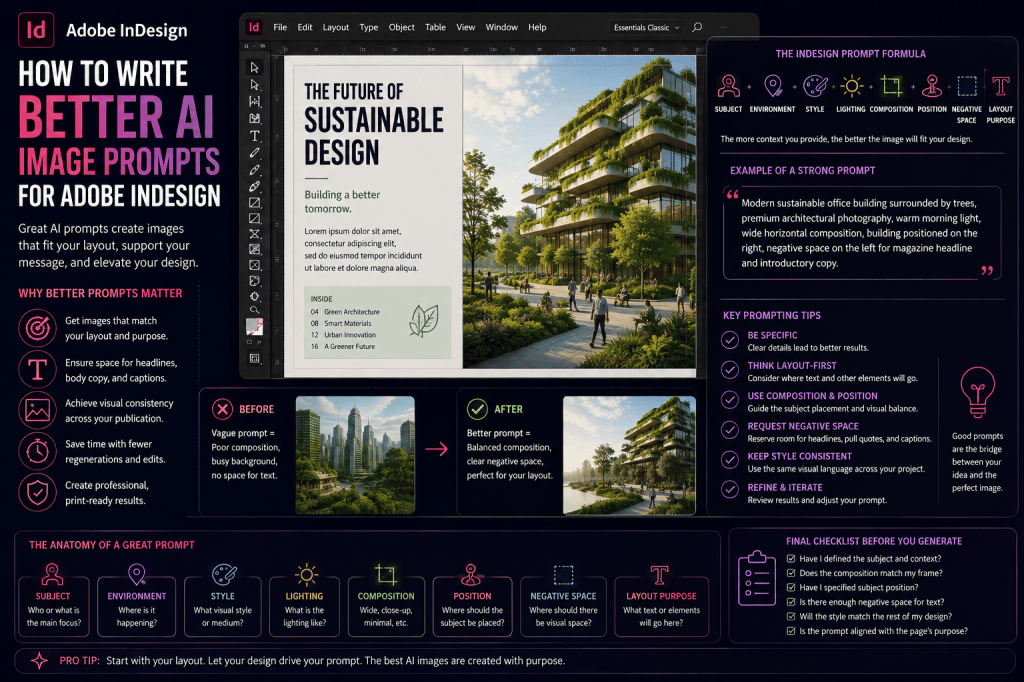
A useful formula for publication design is:
Subject + environment + visual style + lighting + composition + subject position + negative space + layout purpose
For example:
Female architect reviewing building plans in a contemporary studio, premium editorial photography, soft natural daylight, wide horizontal composition, architect positioned on the right, generous uncluttered negative space on the left for magazine headline and introductory copy.
This prompt communicates much more than:
Female architect in an office.
It describes an image designed for a specific page.
Part 1: Define the Subject Clearly
Begin with the main subject.
Avoid unnecessarily vague descriptions.
Instead of:
Business person.
try:
Female technology entrepreneur presenting a new product.
Instead of:
Building.
try:
Contemporary sustainable office building with timber architecture and integrated greenery.
Instead of:
Computer.
try:
Modern laptop displaying abstract data analytics in a minimalist workspace.
The subject anchors the image.
Don’t Overdescribe the Subject
More detail is not always better.
If you add too many requirements, the model may struggle to prioritize them.
For example:
42-year-old female architect with short dark hair wearing a beige linen jacket and black trousers holding a blue pencil and a rolled architectural plan while standing next to a wooden desk with a laptop…
Unless those details are important to the publication, they may distract from the main composition.
Focus on what matters to the reader.
Part 2: Describe the Environment
The environment provides context.
Compare:
Software developer.
with:
Software developer working in a contemporary technology office.
Or:
Software developer working remotely from a minimalist home office.
Or:
Software developer working inside a large enterprise data center.
The subject is similar.
The editorial meaning is completely different.
Useful Environment Descriptions
Depending on your publication, you might use:
- contemporary office;
- minimalist studio;
- modern factory;
- luxury hotel lobby;
- Scandinavian interior;
- urban street;
- tropical coastline;
- mountain landscape;
- university laboratory;
- data center;
- renewable-energy facility;
- restaurant kitchen;
- architectural studio.
Choose an environment that supports the article.
Part 3: Define the Visual Style
Visual style determines how the generated image should look.
For publication work, useful descriptions include:
- premium editorial photography;
- documentary photography;
- commercial lifestyle photography;
- architectural photography;
- luxury advertising photography;
- minimalist vector illustration;
- editorial illustration;
- watercolor illustration;
- technical illustration;
- sophisticated 3D visualization;
- abstract geometric artwork.
Editorial Photography Is a Useful Starting Point
For magazine-style layouts, try phrases such as:
premium editorial photography
or:
sophisticated magazine editorial photography
This can produce a visual direction more suitable for publication than simply asking for:
photorealistic image.
“Photorealistic” describes realism.
“Editorial photography” also suggests a context and visual purpose.
Part 4: Specify Lighting
Lighting strongly influences mood.
Compare:
Modern office interior.
with:
Modern office interior, bright natural morning light.
and:
Modern office interior, dramatic low-key evening lighting.
The architecture may remain similar, but the emotional effect changes substantially.
Useful Lighting Terms
Try:
- soft natural daylight;
- warm morning light;
- golden-hour sunlight;
- diffused window light;
- dramatic side lighting;
- subtle studio lighting;
- bright commercial lighting;
- overcast natural light;
- cinematic evening lighting.
For many editorial layouts, natural-looking light tends to work well.
Part 5: Specify the Composition
Composition is where InDesign prompting becomes especially important.
Useful phrases include:
- wide horizontal composition;
- vertical portrait composition;
- panoramic composition;
- centered composition;
- minimal composition;
- close-up composition;
- environmental portrait;
- overhead composition;
- eye-level perspective;
- symmetrical composition.
Match the composition to the frame.
Match Your Prompt to the Image Frame
If your InDesign frame is a wide banner, ask for:
wide horizontal composition.
If you are designing a book cover, ask for:
vertical book-cover composition.
For a double-page spread:
panoramic editorial composition.
For a square social-media advertisement:
balanced square composition.
The closer the generated composition matches the intended frame, the less aggressive cropping you will need later.
Part 6: Control Subject Position
This is one of the most valuable prompting techniques for InDesign.
Tell the AI where the main subject should appear.
For example:
subject positioned on the right side.
or:
main subject concentrated in the lower-left third.
or:
building positioned slightly right of center.
This allows you to reserve other areas for typography.
Example: Headline on the Left
Suppose your magazine headline is on the left.
Your prompt might include:
main subject positioned on the right, uncluttered negative space on the left for headline typography.
This is far more useful than generating a centered subject and trying to force the headline around it.
Example: Headline on the Right
Reverse the instruction:
subject positioned on the left, clean negative space on the right for headline and introductory copy.
The page design determines the composition.
Part 7: Ask for Negative Space
Negative space is one of the most important concepts in AI prompting for publication design.
Negative space is the relatively uncluttered area around visual elements.
Designers use it for:
- headlines;
- cover lines;
- body copy;
- pull quotes;
- logos;
- captions;
- and visual breathing room.
AI generators often want to fill the entire image with detail.
You need to tell them not to.
Useful Negative-Space Instructions
Try:
generous negative space on the left.
uncluttered area in the upper third.
clean open sky for typography.
minimal background on the right.
large quiet area around the subject.
clean central area for title text.
low-detail background behind typography.
These phrases can make generated imagery much easier to use.
Negative Space Is Not Necessarily Empty Space
You do not always need a blank wall or plain background.
Negative space can contain:
- sky;
- water;
- blurred landscape;
- subtle wall texture;
- soft gradient;
- out-of-focus environment;
- low-detail architecture.
The key is low visual competition.
For example:
open blue sky with minimal cloud detail in the upper half for cover typography.
Part 8: Tell AI About the Typography
The AI does not need to generate the text.
But it should understand where your text will appear.
For example:
clear area at top for magazine masthead.
negative space on left for headline and standfirst.
uncluttered lower third for caption.
clean center area for report title.
This makes the image more layout-aware.
Do Not Ask AI to Generate Your InDesign Headline
Suppose your cover title is:
THE FUTURE OF AI
It may be tempting to prompt:
Create a magazine cover with the words “THE FUTURE OF AI.”
Usually, that is unnecessary.
Generate the image without typography.
Then create the title in InDesign.
That gives you precise control over:
- typeface;
- font weight;
- tracking;
- kerning;
- alignment;
- hierarchy;
- accessibility;
- editing;
- and print quality.
Let AI generate imagery.
Let InDesign handle typography.
Part 9: Describe the Mood
Mood helps align the image with editorial intent.
Useful terms include:
- optimistic;
- sophisticated;
- trustworthy;
- energetic;
- calm;
- futuristic;
- elegant;
- adventurous;
- premium;
- understated;
- professional;
- approachable.
For example:
Renewable-energy infrastructure, sophisticated optimistic editorial photography, warm morning light.
This feels different from:
Renewable-energy infrastructure, dramatic futuristic cinematic atmosphere.
Choose the mood that supports the content.
Part 10: Control Visual Complexity
Busy images can be difficult to combine with typography.
If the AI generates too much detail, add instructions such as:
minimalist composition.
uncluttered background.
restrained visual detail.
simple geometric structure.
clean editorial aesthetic.
low-detail background.
This is particularly useful for:
- covers;
- advertisements;
- report openers;
- chapter pages;
- and hero images.
A Complete Prompt Example
Suppose you are designing an article titled:
How AI Is Changing Modern Architecture
Your layout has the headline on the left and a large image on the right.
A useful prompt might be:
Architect working with advanced digital building models in a contemporary architectural studio, premium editorial photography, sophisticated professional atmosphere, soft natural daylight, realistic materials and environment, wide horizontal composition, architect positioned on the right side, generous uncluttered negative space on the left for magazine headline and introductory copy.
This prompt contains:
- subject;
- context;
- style;
- mood;
- lighting;
- realism;
- orientation;
- subject position;
- negative space;
- typography requirement.
That is a layout-aware prompt.
Prompting for Magazine Covers
Magazine covers require special consideration.
You usually need space for:
- masthead;
- main headline;
- cover lines;
- issue information;
- barcode;
- and other elements.
A cover prompt could be:
Confident technology entrepreneur in a contemporary innovation lab, premium magazine editorial portrait photography, sophisticated realistic lighting, vertical composition, subject centered slightly below the middle, generous clean space above the subject for masthead, uncluttered areas along both sides for cover lines.
The composition is being designed around the future typography.
Prompting for Book Covers
A book-cover prompt should consider:
- title;
- author name;
- subtitle;
- spine relationship;
- genre;
- mood.
For example:
Solitary lighthouse on a rugged Atlantic coastline during an approaching storm, cinematic literary atmosphere, muted blue-gray palette, dramatic natural lighting, vertical book-cover composition, lighthouse positioned in lower-right third, expansive cloudy sky in upper half with low visual detail for title typography.
The image already anticipates the title placement.
Prompting for Brochures
Suppose you are designing an electric-vehicle brochure.
Try:
Premium electric vehicle parked outside a contemporary sustainable office building, sophisticated commercial photography, warm early-morning light, vehicle positioned on the left, wide horizontal composition, clean architectural negative space on the right for brochure headline and product copy.
Again:
layout first.
Prompting for Annual Reports
Annual reports often benefit from conceptual corporate imagery.
For example:
Diverse business team collaborating around digital data visualization in a contemporary office, premium corporate editorial photography, sophisticated natural lighting, realistic professional atmosphere, people concentrated on lower-right side, wide composition, clean negative space across upper-left area for annual report title.
This can work well for section openers.
Prompting for Technology Articles
Technology topics often require conceptual imagery because the subject itself may be abstract.
For example:
Abstract visualization of interconnected AI agents exchanging information across a secure enterprise network, sophisticated editorial technology illustration, dark professional background, subtle luminous data connections, wide horizontal composition, visual activity concentrated on the right, low-detail negative space on the left for headline.
This is much more publication-oriented than:
Cool AI network.
Prompting for Travel Articles
For a travel spread:
Hiker overlooking a dramatic Norwegian fjord at sunrise, premium travel editorial photography, realistic natural landscape, warm golden morning light, wide panoramic composition, hiker positioned on the right, open fjord and sky on the left with generous negative space for feature headline.
The typography requirement becomes part of the landscape composition.
Prompting for Food Articles
For a recipe opener:
Mediterranean vegetable dishes arranged on rustic ceramic plates on a light wooden table, premium editorial food photography, soft natural window light, overhead composition, food concentrated on the lower-right side, clean table surface on the upper-left for recipe title and introduction.
This works better for a designed page than a tightly cropped food photograph.
Prompting for Portraits
Editorial portraits often need space for headlines or quotes.
Instead of:
Portrait of CEO.
try:
Professional editorial portrait of technology company CEO in a modern office, natural confident expression, premium magazine photography, soft window lighting, subject positioned on the left third, wide composition, softly blurred uncluttered office background on the right for pull quote.
Now the portrait has a publishing purpose.
Prompting for Background Images
Sometimes you need atmosphere rather than a main subject.
For example:
Subtle abstract paper texture with warm neutral tones, sophisticated editorial background, minimal visual detail, soft organic variation, no text, no objects.
Or:
Abstract digital network background, sophisticated enterprise technology aesthetic, subtle geometric connections, dark low-contrast design, minimal visual detail in center for white typography.
Background prompts should usually be simpler.
Prompting for Illustrations
For editorial illustration:
Minimalist editorial illustration representing human collaboration with artificial intelligence, clean geometric forms, sophisticated contemporary magazine style, restrained visual palette, human figure and AI elements on the right, generous negative space on the left for headline.
You can apply the same layout principles to illustrations as photography.
Use Consistent Prompt Language Across a Publication
Imagine a 60-page annual report containing eight generated images.
If every prompt uses completely different style instructions, the publication may feel inconsistent.
Instead, establish a common prompt vocabulary.
For example:
premium corporate editorial photography, soft natural daylight, realistic professional environment, sophisticated understated aesthetic.
Reuse that phrase across the series.
Change only:
- subject;
- environment;
- composition;
- and layout requirements.
This creates greater visual consistency.
Build an InDesign AI Prompt Style Guide
For recurring publications, create a simple AI image style guide.
For example:
Visual style: premium editorial photography
Lighting: soft natural daylight
Mood: optimistic, sophisticated, human
Color direction: neutral, restrained
People: natural expressions, realistic environments
Composition: generous negative space
Typography: never generated inside image
Avoid: exaggerated futuristic effects, excessive visual clutter
Then incorporate these rules into prompts.
This can be especially valuable for teams.
Create Reusable Prompt Templates
You do not need to write every prompt from scratch.
Create templates.
Editorial Photo Template
[SUBJECT] in [ENVIRONMENT], premium editorial photography, soft natural daylight, sophisticated realistic atmosphere, [SUBJECT POSITION], [ORIENTATION], generous negative space [LOCATION] for [TYPOGRAPHY PURPOSE].
Technology Illustration Template
[TECHNOLOGY CONCEPT], sophisticated editorial technology illustration, clean modern visual language, subtle luminous details, [ORIENTATION], visual activity concentrated [POSITION], low-detail negative space [LOCATION] for typography.
Book Cover Template
[SUBJECT/SCENE], [GENRE/MOOD], sophisticated [STYLE], dramatic but realistic lighting, vertical book-cover composition, [SUBJECT POSITION], generous low-detail space [LOCATION] for title and author typography.
Templates improve both speed and consistency.
Use Iterative Prompting
The first prompt is rarely perfect.
A professional workflow looks more like this:
Generate
↓
Place in layout
↓
Evaluate
↓
Identify problem
↓
Modify prompt
↓
Regenerate
↓
Compare
This is very similar to traditional art direction.
Example of Iterative Refinement
Initial prompt:
Modern sustainable city.
Problem:
The image is attractive but too busy.
Refinement:
Modern sustainable city, premium architectural editorial photography, realistic near-future design, minimalist composition.
Problem:
Still no room for the headline.
Refinement:
Modern sustainable city, premium architectural editorial photography, realistic near-future design, buildings concentrated on the right side, wide horizontal composition, open sky and generous negative space on the left for magazine headline.
Now the prompt solves a specific layout problem.
Prompt for the Crop You Need
Suppose your frame is extremely wide.
Do not generate a conventional composition and hope cropping works.
Ask for:
panoramic wide composition.
Or:
ultra-wide editorial composition with subject concentrated in the right third.
For a narrow vertical frame:
tall vertical composition with full subject visible.
Prompting for the expected crop can save time.
Think About the Fold and Gutter
For double-page spreads, remember the center gutter.
Avoid placing important details directly across the fold.
You might prompt:
main subject positioned on the right page area, center of composition relatively uncluttered to accommodate magazine gutter.
This is a distinctly publication-specific prompt.
Think About Bleed
Full-bleed images require enough visual material around the edges.
Avoid placing essential details too close to the boundary.
You can request:
generous environmental space around the subject suitable for full-bleed cropping.
This gives you more flexibility during production.
Prompting for Text Wrap
If body text will wrap around an image or isolated subject, you may want a simple background.
For example:
Minimalist isolated botanical illustration on clean plain background, clear silhouette, no surrounding objects.
This makes the image easier to integrate into a text-heavy layout.
Avoid Important Details at the Edge
Generative AI may place important objects close to the boundary.
That can create problems when:
- adding bleed;
- cropping;
- resizing;
- or changing the layout.
Use:
main subject comfortably inside the composition with generous surrounding space.
This creates production flexibility.
Use Generative Expand When Prompting Isn’t Enough
You do not need to solve every composition problem during initial generation.
If the image is excellent but slightly too narrow, Generative Expand may be the better solution.
A practical workflow could be:
Text to Image → choose best result → place in layout → Generative Expand → refine composition.
This can be more efficient than repeatedly regenerating the entire image.
Use Photoshop for Precision
AI generation is not a replacement for detailed image editing.
If you need:
- precise masking;
- color correction;
- detailed retouching;
- complex compositing;
- exact object removal;
- or pixel-level control,
Photoshop remains the appropriate tool.
Think of the workflow as:
Firefly generates → InDesign evaluates in context → Photoshop refines when necessary.
Common Prompting Mistakes
1. Prompting Without Looking at the Layout
The biggest mistake.
Design the image requirement before generating.
2. Forgetting Subject Position
Centered subjects frequently conflict with headlines.
Specify position.
3. Forgetting Negative Space
Ask explicitly for quiet areas.
4. Generating Typography
Keep actual typography in InDesign.
5. Overloading the Prompt
Prioritize the requirements that affect the layout.
6. Ignoring Orientation
Match the prompt to the frame.
7. Accepting the First Generation
Generate and compare alternatives.
8. Ignoring Consistency
Use shared style language throughout the publication.
Review the Image at Full Size
AI imagery can look excellent as a thumbnail.
Zoom in before publication.
Inspect:
- hands;
- eyes;
- reflections;
- shadows;
- architecture;
- vehicles;
- furniture;
- repeated patterns;
- signs;
- pseudo-text;
- equipment;
- and background people.
Small AI errors become much more visible in high-resolution print.
Factual Accuracy Still Matters
A visually successful prompt can produce factually incorrect content.
This matters particularly for:
- architecture;
- machinery;
- healthcare;
- science;
- products;
- historical subjects;
- geography;
- uniforms;
- technical equipment.
If accuracy is important, verify the content or use authentic imagery.
When AI Prompting Is the Wrong Solution
Do not assume every visual should be generated.
Real photography or licensed imagery is often preferable for:
- journalism;
- documentary content;
- real products;
- real employees;
- customer case studies;
- actual locations;
- historical events;
- technical instructions;
- scientific documentation.
Prompt engineering improves generated imagery.
It does not make fictional imagery factual.
Commercial and Ethical Considerations
Before publishing AI-generated imagery, consider:
- client policies;
- publisher policies;
- disclosure requirements;
- trademarks;
- recognizable individuals;
- intellectual property;
- factual representation;
- and Adobe’s current terms.
Professional publishing requires more than visual quality.
10 Ready-to-Adapt InDesign Image Prompts
Here are ten templates you can customize.
1. Magazine Feature
[SUBJECT], premium magazine editorial photography, soft natural lighting, wide horizontal composition, subject positioned on the right, generous negative space on the left for headline and introduction.
2. Magazine Cover
[PERSON/SUBJECT], premium editorial portrait photography, sophisticated lighting, vertical cover composition, subject slightly below center, clean upper area for masthead, uncluttered side areas for cover lines.
3. Annual Report
[BUSINESS THEME], sophisticated corporate editorial photography, natural realistic environment, wide composition, visual activity concentrated on the lower-right, clean upper-left area for report title.
4. Technology Article
[TECH CONCEPT], sophisticated editorial technology illustration, modern enterprise aesthetic, subtle luminous details, wide composition, detailed visual elements on the right, low-detail negative space on the left for headline.
5. Travel Feature
[DESTINATION/SCENE], premium travel editorial photography, realistic natural lighting, panoramic composition, focal subject on the right, open landscape and sky on the left for feature typography.
6. Book Cover
[SCENE], cinematic literary atmosphere, sophisticated realistic visual style, vertical composition, focal subject in lower third, expansive low-detail upper area for book title.
7. Brochure
[PRODUCT/CONCEPT], premium commercial photography, clean sophisticated environment, wide composition, subject on the left, uncluttered right side for headline, copy, and call to action.
8. Food Article
[FOOD], premium editorial food photography, soft window light, overhead composition, food arranged on the right, clean table area on the left for recipe title.
9. Portrait
[PERSON], professional editorial portrait photography, natural confident expression, soft window lighting, subject positioned in left third, blurred uncluttered background on right for pull quote.
10. Background
[THEME] abstract background, sophisticated minimal editorial aesthetic, restrained visual detail, low contrast, no text, generous quiet central area for typography.
AI Image Prompt FAQ
What makes a good InDesign AI image prompt?
A good prompt describes not only the subject and style but also composition, orientation, subject position, negative space, and where typography will appear.
Should I include the page layout in my prompt?
Yes. Layout information is one of the most useful additions you can make.
Can I ask AI to leave space for text?
Yes. Use instructions such as “negative space on the left for headline typography.”
Should I ask AI to generate the headline?
Usually not. Generate the image and create editable typography in InDesign.
Can I control where the subject appears?
Prompt for positions such as left, right, center, upper third, or lower third. Results can vary, so generate alternatives.
How do I make multiple generated images look consistent?
Reuse the same style, lighting, mood, and visual-language descriptors across prompts.
What if the image is too narrow?
Consider Generative Expand instead of regenerating an otherwise successful image.
Should I use very long prompts?
Only when the details are relevant. Prioritize subject, style, composition, and layout requirements rather than adding unnecessary descriptors.
The Most Important Prompting Principle
If you remember only one idea from this guide, make it this:
Do not prompt for an image. Prompt for an image’s role in the layout.
Instead of:
Woman working in office.
write:
Female entrepreneur working in a contemporary office, premium editorial photography, soft natural daylight, subject positioned on the right, wide horizontal composition, uncluttered negative space on the left for headline and introductory copy.
The difference is not simply more detail.
The second prompt understands publication design.
Final Thoughts
AI image prompting for Adobe InDesign is fundamentally an art-direction skill.
The objective is not to write the longest prompt.
It is to communicate the right visual requirements.
Think about:
- subject;
- environment;
- style;
- lighting;
- orientation;
- subject placement;
- negative space;
- typography;
- crop;
- bleed;
- gutter;
- consistency;
- and editorial purpose.
Most importantly, start with the page.
Look at the layout.
Determine what the image needs to accomplish.
Then write the prompt.
The strongest InDesign AI workflow is therefore not:
Prompt → image → page.
It is:
Page → visual requirement → prompt → image → page refinement.
That approach turns generative AI from a novelty into a practical publication-design tool.
Explore Adobe InDesign
Combine professional page layout and typography with Adobe’s expanding Firefly-powered generative workflows.
→ View Adobe InDesign plans and current offers
Try Adobe InDesign for Your Next Publishing Project
Build magazines, books, brochures, reports, and other professional layouts while exploring Adobe’s growing collection of AI-assisted creative tools.
→ Get Adobe InDesign and view the latest Adobe offer
Continue the InDesign AI Series
Next:
Adobe InDesign Generative Expand: How to Extend Images with AI
Also explore:
- Adobe InDesign AI: The Complete Guide to AI Features and Workflows in 2026
- Adobe Firefly in InDesign: How the Integration Works
- Adobe InDesign AI Assistant: A Complete Guide
- 50 Useful Prompts for Adobe InDesign AI Assistant
- Adobe InDesign Text to Image: A Complete Guide
- Adobe InDesign Generative Expand: A Complete Guide
- Adobe InDesign Generative Fill: A Complete Guide