One of the most common problems in Adobe InDesign is surprisingly simple: you have the right image, but it does not fit the layout.
Perhaps a portrait photograph needs to fill a landscape frame.
Maybe a magazine cover needs more sky above the subject for the masthead.
A brochure image might need additional background on the right so there is room for a headline.
Traditionally, solving these problems could require aggressive cropping, changing the layout, finding another photograph, or opening the image in Adobe Photoshop and manually extending it.
Adobe’s generative AI technology introduces another possibility: Generative Expand.
Generative Expand uses AI to create new visual content beyond the existing boundaries of an image. Instead of stretching the photograph or leaving empty space, generative AI attempts to create additional scenery that blends naturally with the original.
For InDesign users, this can be extremely useful because it allows an existing image to adapt to the layout rather than forcing the layout to adapt to the image.
In this guide, we’ll explore how Generative Expand works, when to use it, how it fits into an InDesign workflow, its limitations, and how designers can use it responsibly.
What Is Generative Expand in Adobe InDesign?
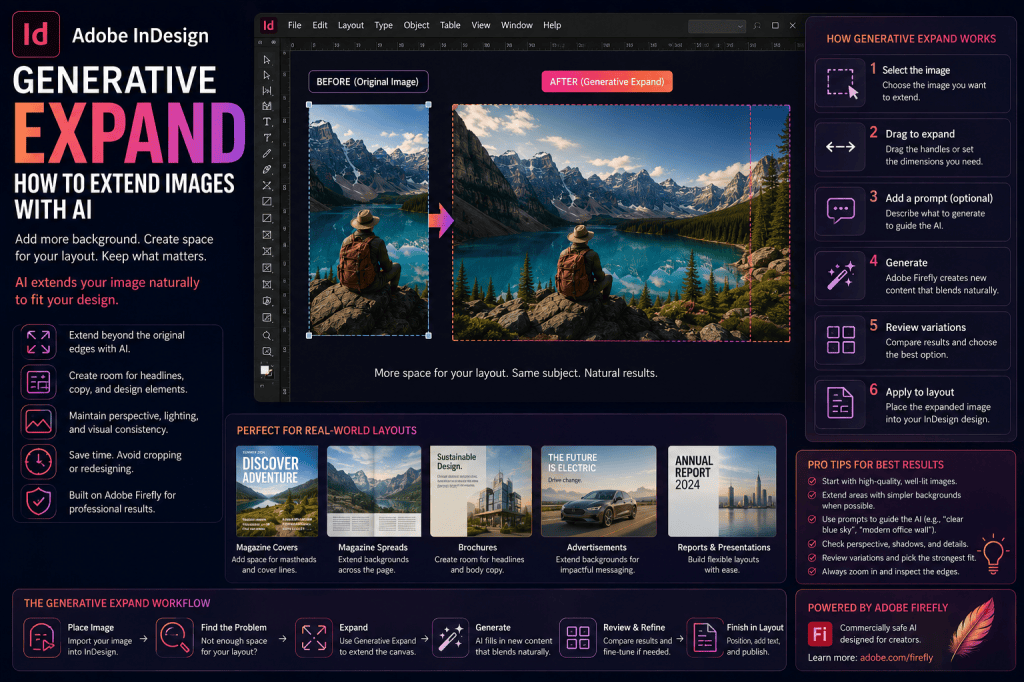
Generative Expand is an AI-assisted image workflow designed to extend an image beyond its original boundaries.
Imagine you have a photograph like this:
[Original image]
| Sky | Person | Building |
But your InDesign frame is considerably wider:
[Required layout]
| Additional background | Sky | Person | Building | Additional background |
Instead of enlarging the image until it fills the frame—and potentially cropping away important content—AI can generate plausible visual material around the original photograph.
The result is effectively a larger composition.
What Problem Does Generative Expand Solve?
The core problem is aspect-ratio mismatch.
A photographer might provide a portrait-oriented image.
Your layout might require a landscape image.
For example:
Original: 4:5 portrait
Required: 16:9 landscape
You have several traditional options:
- crop the image;
- enlarge it;
- redesign the page;
- find another photograph;
- manually extend the background;
- or ask the photographer for another composition.
Generative Expand adds:
extend the image with AI.
That can be significantly faster for suitable images.
Why Generative Expand Matters for InDesign Users
InDesign is built around frames.
You design:
- page geometry;
- columns;
- margins;
- grids;
- image areas;
- headlines;
- captions;
- and typography.
Images then need to fit those structures.
The problem is that photography is not always created for the exact dimensions of your layout.
Generative Expand can help bridge that gap.
Instead of:
Image determines layout
you increasingly have the option:
Layout determines image dimensions.
That is a significant change in publication workflows.
Common Uses for Generative Expand
Generative Expand can be useful for:
- magazine covers;
- magazine spreads;
- brochures;
- advertisements;
- annual reports;
- posters;
- newsletters;
- book covers;
- social-media graphics;
- presentation-style documents;
- and marketing materials.
Anywhere an image needs additional visual space, generative expansion may help.
Example: Magazine Cover
Imagine you have an excellent portrait photograph of a business executive.
Unfortunately, the photograph is cropped close to the person’s head.
Your magazine cover requires room for:
- masthead;
- issue date;
- main headline;
- cover lines.
If you simply enlarge the image, there is no room above the person’s head.
Generative Expand could potentially add more background above the subject.
That creates space for the masthead without changing the core photograph.
Example: Magazine Spread
Suppose you have a vertical photograph of an architect.
You want to use it across half of a horizontal two-page spread.
Cropping would remove too much of the person.
Generative Expand could create additional architectural background on either side.
The resulting composition may work much better with the spread.
Example: Brochure
Imagine a brochure with:
Image on left | Headline and copy on right
Your photograph fills the entire frame with visual detail.
There is nowhere to place the text.
Generative Expand could potentially extend the image toward the right using simpler background material.
You could then place typography over the generated area.
Example: Advertisement
Advertising layouts often require room for:
- logo;
- product name;
- headline;
- pricing;
- call to action;
- legal text.
A photograph that works beautifully by itself may leave no room for these elements.
Extending the image can create the visual breathing room required by the design.
Generative Expand vs Stretching an Image
These are completely different operations.
If you stretch an image horizontally, everything becomes distorted.
People become wider.
Buildings change proportions.
Circles become ovals.
Generative Expand does not simply stretch existing pixels.
Instead, AI generates new visual content around the existing image.
The original subject can therefore retain its proportions.
Generative Expand vs Cropping
Cropping removes visual information.
Generative Expand adds visual information.
Suppose a photograph contains a person standing in a room.
Cropping
You remove part of the room to make the image fit.
Generative Expand
You create additional room around the person.
Neither method is automatically better.
The correct choice depends on the layout.
Generative Expand vs Scaling
Scaling makes the entire image larger or smaller.
If you scale an image to fill a wider frame, you may lose content at the top and bottom.
Generative Expand can preserve more of the original image while creating additional width.
This is particularly useful when the original subject cannot be cropped safely.
Generative Expand vs Text to Image
These two AI features solve different problems.
Text to Image
Creates an entirely new image from a prompt.
Use it when you do not yet have the required visual.
Generative Expand
Extends an image you already have.
Use it when:
the image is right, but the composition is wrong.
This distinction is important.
Generative Expand vs Generative Fill
Generative Fill modifies or creates content within a selected region.
Generative Expand primarily creates additional visual material beyond the current image boundary.
Think of the three tools as:
Text to Image → Create
Generative Fill → Modify
Generative Expand → Extend
Together they provide different ways of adapting imagery to an InDesign layout.
A Typical Generative Expand Workflow
The exact controls can change as Adobe develops InDesign and Firefly, but conceptually the workflow looks like this.
Step 1 — Place the Image
Place your image in the InDesign document.
For example:
File → Place
Choose the photograph and position it inside the appropriate frame.
Step 2 — Evaluate the Composition
Look at how the image interacts with the page.
Ask:
- Is important content being cropped?
- Is there enough room for the headline?
- Does the image match the frame orientation?
- Is the subject too close to the edge?
- Is there sufficient bleed?
- Does the composition work with the page grid?
Do not expand an image simply because AI allows you to.
Identify the actual layout problem first.
Step 3 — Determine Where You Need More Image
Perhaps you need more:
- sky above;
- wall on the left;
- landscape on the right;
- floor below;
- background on both sides.
The layout should determine the direction of expansion.
Step 4 — Expand the Available Area
Increase the visual area needed for the composition.
For example, turn a narrow portrait image into a wider landscape composition.
The newly created area becomes the region where AI needs to generate additional content.
Step 5 — Generate the Extension
Generative AI analyzes the existing image and attempts to create content that continues it naturally.
It may consider:
- texture;
- lighting;
- perspective;
- colors;
- background;
- patterns;
- surrounding objects.
The goal is a visually plausible continuation.
Step 6 — Compare Variations
Do not automatically accept the first result.
Compare alternatives for:
- realism;
- perspective;
- lighting;
- texture continuity;
- repeated patterns;
- strange objects;
- architectural errors;
- and composition.
Some generations will be more convincing than others.
Step 7 — Review at High Magnification
This step is essential.
AI-generated extensions can look convincing at normal page size while containing errors.
Zoom in and inspect:
- edges;
- shadows;
- reflections;
- repeated textures;
- architecture;
- plants;
- furniture;
- people;
- text-like elements;
- straight lines.
Print exposes details that may be easy to miss on screen.
Step 8 — Evaluate the Full Layout
Zoom back out.
Now ask:
- Does the headline fit?
- Is the subject correctly positioned?
- Does the page feel balanced?
- Is the generated area visually distracting?
- Does the expansion actually improve the design?
Technical success does not guarantee design success.
Using Prompts with Generative Expand
Depending on the implementation, you may be able to guide generated content with a prompt.
When possible, keep the instruction focused.
For example:
Continue the blue sky naturally.
Or:
Extend the neutral office wall.
Or:
Continue the forest landscape with soft background detail.
Or:
Extend the studio background with minimal visual clutter.
The goal is usually not to reinvent the image.
It is to continue it.
When No Prompt May Be Better
Sometimes the best instruction is effectively:
continue the existing image naturally.
If you have a photograph containing:
- sky;
- ocean;
- grass;
- wall;
- studio background;
- blurred scenery,
the model may already have enough visual context.
Adding an overly detailed prompt could introduce unwanted objects.
For simple extensions, less can be more.
Creating Negative Space with Generative Expand
This is one of the most useful InDesign applications.
Suppose your photograph has a person on the right.
You need a headline on the left.
Extend the image to the left and generate relatively simple background content.
Now the composition becomes:
Headline space | Person
rather than:
Person filling entire image
This can transform an unusable photograph into a useful editorial layout.
Example Prompt for Typography Space
You might use:
Extend the existing office background naturally with minimal visual detail and clean negative space for typography.
Or:
Continue the wall with a simple uncluttered surface suitable for headline text.
This combines image expansion with layout intent.
Creating Space Above a Subject
This is particularly useful for magazine and book covers.
Suppose a portrait ends just above the person’s head.
Extend upward.
Request:
Continue the existing background naturally above the subject with minimal visual detail.
You now have room for:
- masthead;
- book title;
- headline;
- logo.
Creating Space Beside a Product
Suppose you have a product photograph centered in the frame.
Your advertisement requires:
Product | Headline | CTA
Expand the background toward the text area.
For example:
Extend the existing studio background to the right with clean minimal visual detail suitable for advertising copy.
This can preserve the original product while creating layout space.
Extending Landscapes
Landscapes are often good candidates for generative expansion.
AI may be able to continue:
- sky;
- mountains;
- forest;
- ocean;
- desert;
- fields;
- beaches.
For example:
Continue the coastline naturally toward the left, maintaining the same lighting and atmosphere.
However, remember that the generated geography is fictional.
Do not present generated extensions as accurate documentation of a real location when geographic accuracy matters.
Extending Architectural Images
Architecture requires more caution.
Buildings contain:
- straight lines;
- perspective;
- structural repetition;
- windows;
- doors;
- materials;
- geometric patterns.
AI may generate plausible-looking but architecturally impossible structures.
Inspect:
- perspective;
- window spacing;
- structural connections;
- reflections;
- repeated elements.
For architectural journalism or documentation, generative expansion may not be appropriate.
Extending Interiors
Interiors can work well, particularly when extending:
- walls;
- floors;
- ceilings;
- simple furniture areas;
- blurred backgrounds.
But AI can also generate:
- impossible furniture;
- inconsistent lighting;
- malformed chairs;
- incorrect reflections;
- nonsensical objects.
Always inspect carefully.
Extending Portraits
Portrait expansion can be useful when adding background around a person.
However, avoid asking AI to reconstruct important parts of the person’s body unless necessary.
Generating additional:
- wall;
- sky;
- office;
- landscape
is generally less risky than inventing:
- hands;
- clothing details;
- body position;
- accessories.
The farther the generation moves from simple background extension, the greater the chance of visual errors.
Full-Bleed Images
Generative Expand can also help with bleed.
Suppose a photograph is almost large enough for a full-bleed layout but lacks sufficient image area at one edge.
Instead of enlarging the entire image and changing the crop, AI may generate extra content.
This can preserve the intended composition.
However, always ensure the final file meets the actual bleed specification required by the printer.
Double-Page Spreads
A double-page spread presents special challenges.
You need to consider:
- gutter;
- subject position;
- headline;
- page fold;
- trimming.
Generative Expand can create additional composition around the original image.
For example, if the subject would otherwise fall into the gutter, you may expand one side of the image so the subject can be repositioned safely.
This is an excellent example of adapting imagery to publishing geometry.
Generative Expand for Social Media Variations
Although InDesign is primarily associated with publishing, designers also create campaign assets in multiple dimensions.
One photograph might need to become:
- landscape advertisement;
- portrait poster;
- square social graphic;
- vertical story graphic.
Generative Expand can help adapt the same source visual across formats.
This can improve campaign consistency.
Generative Expand for Responsive Campaign Design
Imagine a campaign with one hero image.
You need:
- A4 brochure;
- A3 poster;
- web banner;
- square social post;
- vertical advertisement.
Traditional cropping may work for some formats but fail for others.
Generative expansion creates more flexibility around the original subject.
The same core visual can potentially be adapted across multiple layouts.
Preserve the Original Image
Always keep the original image.
Do not treat the generated extension as a replacement for the source file.
A good workflow is:
Original asset
↓
AI-expanded derivative
↓
InDesign layout
This maintains provenance and makes it easier to revert if necessary.
Keep Track of What Was Generated
For professional workflows, it can be useful to document:
- original asset;
- generated version;
- date;
- AI tool used;
- prompt if applicable;
- approval status.
This is especially relevant for:
- agencies;
- publishers;
- corporate communications;
- regulated industries.
AI asset governance will become increasingly important.
When Generative Expand Works Best
The technology generally has an easier task when extending relatively predictable content such as:
- sky;
- water;
- grass;
- walls;
- simple interiors;
- blurred backgrounds;
- abstract textures;
- forests;
- beaches;
- gradients.
These areas contain visual patterns that can often be continued plausibly.
When Generative Expand Becomes More Difficult
Use greater caution with:
- crowds;
- hands;
- machinery;
- architecture;
- products;
- logos;
- text;
- technical equipment;
- scientific imagery;
- complex reflections;
- geometric structures.
AI may generate something visually plausible but factually wrong.
Never Assume Generated Content Is Real
This is a fundamental rule.
Generative Expand creates new pixels representing content that did not exist in the original photograph.
If AI adds:
- a building;
- a tree;
- a mountain;
- a person;
- a product;
- a road;
those elements are generated.
They are not documentary evidence.
This matters enormously in editorial publishing.
Generative Expand and Journalism
News organizations should use extreme caution.
Expanding a photograph can change what the image appears to document.
Suppose a news photograph shows a protest.
Generating additional people beyond the frame could fundamentally alter the perceived event.
Even apparently harmless background extension can raise authenticity concerns.
Follow the publication’s editorial and AI policies.
Generative Expand and Product Photography
Product imagery requires accuracy.
If AI expands only a simple studio background, that may be acceptable in some workflows.
If AI begins generating portions of the product itself, problems can arise.
It might alter:
- dimensions;
- ports;
- buttons;
- labels;
- materials;
- logos;
- packaging.
For catalogs and e-commerce, the actual product should remain accurate.
Generative Expand and Real Estate
Be cautious with property imagery.
Generating additional:
- rooms;
- windows;
- landscaping;
- views;
- architectural features
could misrepresent the actual property.
For property marketing, authenticity matters.
Generative Expand and Travel Publishing
A generated landscape extension may create:
- mountains that do not exist;
- altered coastlines;
- fictional buildings;
- additional vegetation.
If the image represents a real destination, consider whether the expansion could mislead the reader.
Common Generative Expand Mistakes
Mistake 1 — Expanding Too Much
The more AI must invent, the greater the risk of errors.
Extend only what you need.
Mistake 2 — Not Checking Perspective
Generated architecture can contain subtle geometric problems.
Mistake 3 — Ignoring Repetition
AI may duplicate:
- windows;
- plants;
- clouds;
- objects;
- textures.
Mistake 4 — Using Generated Text
AI-generated signs and labels may contain nonsense.
Mistake 5 — Treating Generated Areas as Documentary
Remember that the expanded content did not exist in the original photograph.
Mistake 6 — Skipping High-Resolution Inspection
Print requires careful quality control.
A Safer Generative Expand Workflow
For professional publishing, use:
1. Identify layout problem
↓
2. Preserve original
↓
3. Expand only required area
↓
4. Generate alternatives
↓
5. Inspect generated details
↓
6. Compare against original
↓
7. Test in layout
↓
8. Obtain approval where required
↓
9. Export
This maintains human control.
Generative Expand and Photoshop
Photoshop also provides powerful generative expansion workflows.
So when should you use Photoshop?
Use Photoshop when you require:
- detailed retouching;
- masking;
- compositing;
- exact selections;
- pixel-level correction;
- sophisticated color adjustment;
- manual cleanup.
Use an InDesign-integrated workflow when the primary problem is:
making an image work within a page layout.
The applications complement each other.
InDesign + Photoshop Workflow
A professional workflow might look like:
Place image in InDesign
↓
Discover composition problem
↓
Test generative expansion
↓
Evaluate layout
↓
Open/refine in Photoshop if necessary
↓
Return to InDesign
This lets InDesign remain the layout decision environment while Photoshop handles detailed image work.
Generative Expand and Adobe Firefly
Adobe’s generative creative workflows are built around the broader Firefly ecosystem.
For designers already working with Creative Cloud, the advantage is integration.
Instead of treating AI as a completely separate external process, generative functionality increasingly becomes part of the normal Adobe workflow.
This can reduce:
- exporting;
- uploading;
- downloading;
- switching applications;
- and asset-management friction.
Generative Credits
Adobe uses generative credits for certain Firefly-powered operations.
The exact number of credits available and how they are consumed can change depending on:
- subscription;
- feature;
- model;
- plan;
- and Adobe’s current policies.
Designers who use generative features frequently should review the current credit allocation associated with their Creative Cloud plan.
Is Generative Expand Available in Every InDesign Version?
Not necessarily.
Adobe introduces features progressively, and availability can depend on:
- InDesign version;
- Beta versus standard release;
- account;
- region;
- language;
- subscription.
Check Adobe’s current documentation for the exact availability in your installation.
Explore Adobe InDesign
Want to combine professional page layout with Adobe’s expanding Firefly-powered creative workflows?
→ View Adobe InDesign plans and current offers
Generative Expand FAQ
What is Generative Expand in Adobe InDesign?
Generative Expand uses AI to create additional visual content beyond an image’s existing boundaries, helping the image fit a different composition or frame.
Does Generative Expand stretch the image?
No. Instead of stretching existing pixels, generative AI creates new visual content around the original.
Can I turn a portrait image into a landscape image?
Generative Expand can potentially add content to the sides of a portrait-oriented image, making it more suitable for a landscape composition.
Can Generative Expand create room for a headline?
Yes. Creating negative space for typography is one of its most useful publication-design applications.
Can I extend the sky above a person?
This is a common potential use, particularly when a cover needs additional space for a masthead or title.
Is Generative Expand the same as Text to Image?
No. Text to Image creates a new image, while Generative Expand extends an existing image.
Is Generative Expand the same as Generative Fill?
No. Generative Fill generally modifies selected image areas, while Generative Expand extends beyond the existing image boundary.
Can I use Generative Expand for print?
Potentially, but inspect generated areas carefully and ensure the resulting image has sufficient quality for the intended output.
Does Generative Expand create real content?
No. The newly generated area is synthetic AI-generated content.
Should I use Generative Expand for news photography?
Use extreme caution. Altering or extending documentary imagery can change the perceived reality of an event and may violate editorial standards.
The Bigger Idea: Images That Adapt to Layouts
Generative Expand represents something larger than a convenient image-editing feature.
Traditional publishing often requires the designer to adapt the layout to the available photograph.
Suppose the subject is centered.
The headline needs to move.
Suppose the photograph is too narrow.
The image frame needs to shrink.
Suppose there is no space above the subject.
The masthead must overlap the face.
Generative AI changes the equation.
Now the designer can increasingly say:
This is the layout I need. Can the image adapt to it?
That creates a more flexible relationship between photography and page design.
Generative Expand Does Not Replace Art Direction
The ability to extend an image does not mean every photograph should be expanded.
Designers still need to decide:
- whether the image is appropriate;
- whether expansion improves the composition;
- whether the generated content is believable;
- whether modification is ethically acceptable;
- whether the image remains accurate;
- and whether another photograph would simply be better.
AI provides an option.
Art direction determines whether to use it.
Final Thoughts
Adobe InDesign Generative Expand addresses one of the oldest problems in page layout:
The right image in the wrong shape.
Instead of immediately:
- cropping aggressively;
- stretching;
- redesigning the page;
- or searching for another photograph,
designers can increasingly use AI to create additional visual space around an existing image.
The feature is particularly useful for:
- creating headline space;
- converting portrait compositions into landscape layouts;
- extending backgrounds;
- preparing cover images;
- adapting campaign imagery;
- creating bleed;
- and improving layout flexibility.
But generated content must be treated carefully.
AI-generated extensions are not part of the original photograph.
They can contain errors.
And in documentary, product, technical, property, travel, or news contexts, they can potentially mislead the viewer.
The best workflow therefore combines AI speed with professional judgment.
Use Generative Expand where it solves a genuine layout problem.
Inspect the result carefully.
Preserve the original.
And remember:
AI can extend the image. The designer still decides whether the expanded image belongs in the publication.
Try Adobe InDesign
Create professional magazines, books, brochures, reports, and marketing materials while exploring Adobe’s expanding AI-assisted publishing workflows.
→ Get Adobe InDesign and view the latest Adobe offer
Continue the InDesign AI Series
Next:
Adobe InDesign Generative Fill: How to Add, Remove, and Replace Image Content with AI
Also explore:
- Adobe InDesign AI: The Complete Guide to AI Features and Workflows in 2026
- Adobe Firefly in InDesign: How the Integration Works
- Adobe InDesign Text to Image: A Complete Guide
- How to Write Better AI Image Prompts for Adobe InDesign
- Adobe InDesign Generative Fill: A Complete Guide
- Adobe InDesign AI Assistant: A Complete Guide
- 50 Useful Prompts for Adobe InDesign AI Assistant