Adobe InDesign has always been one of the most important applications for combining typography, images, and structured content into professional publications.
But working with text in InDesign traditionally assumes something important:
The copy already exists.
A writer creates the article. A marketer prepares the brochure copy. An editor reviews the text. The finished content is then placed into InDesign and formatted.
AI is beginning to change that workflow.
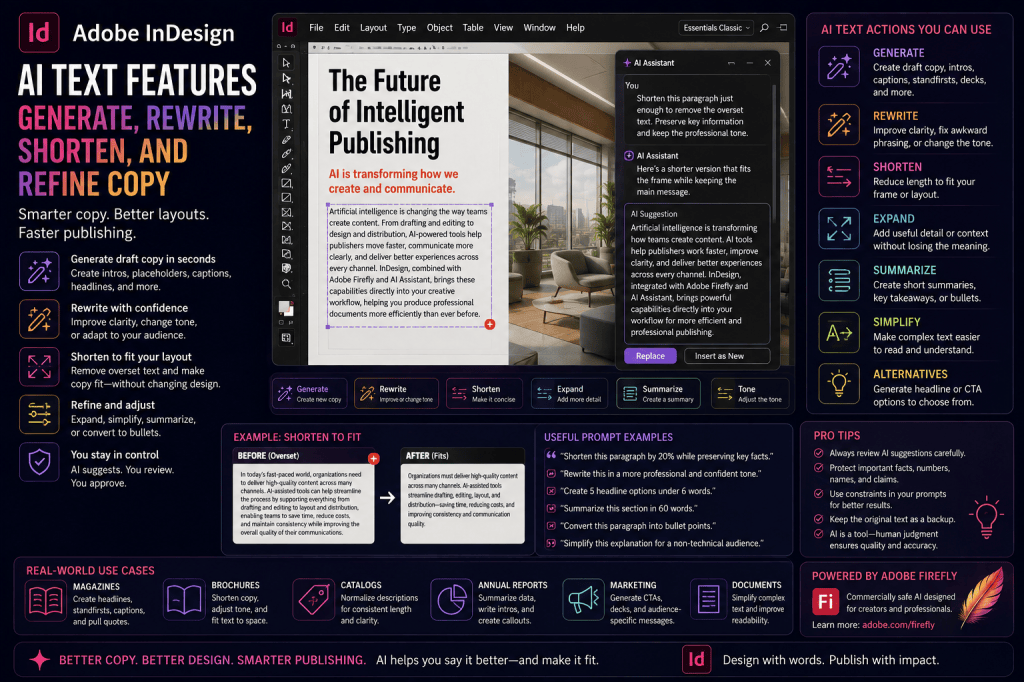
AI-assisted text tools can potentially help designers and editors generate draft copy, rewrite existing text, shorten paragraphs, expand explanations, change tone, summarize content, and adapt text to available layout space.
For InDesign users, this is particularly interesting because text is not merely content.
Text occupies physical space.
A paragraph can be too long for its frame.
A headline can wrap onto an unwanted third line.
A product description can be too detailed for a catalog card.
A pull quote may need to be shorter.
A caption may need to communicate the same information in half the space.
Generative AI introduces the possibility of adapting the copy to the layout while you are designing it.
This guide explores how AI-assisted text workflows can be used with Adobe InDesign, where they can save time, where human editing remains essential, and how designers can use AI without sacrificing editorial quality.
What Are AI Text Features in InDesign?
AI text features broadly refer to generative and assistive capabilities that can help users work with written content using natural-language instructions.
Depending on the Adobe feature, version, Beta availability, and integration being used, AI-assisted text workflows may include tasks such as:
- generating draft text;
- rewriting copy;
- shortening text;
- expanding text;
- changing tone;
- simplifying language;
- summarizing;
- generating alternative headlines;
- improving clarity;
- adapting copy to available space;
- and explaining text-related issues.
The underlying idea is simple.
Instead of editing every sentence manually, you describe the transformation you want.
For example:
Shorten this paragraph by approximately 25% while preserving the key information.
Or:
Rewrite this introduction in a more professional tone.
Or:
Suggest five shorter headline alternatives that fit on two lines.
AI then provides possible alternatives.
Why AI Text Editing Is Particularly Interesting in InDesign
There are already many AI writing tools.
So why does AI text editing matter inside a page-layout application?
Because InDesign understands something a standalone writing tool often does not:
the layout context.
Consider a paragraph that is 15 words too long for its text frame.
A general AI writer knows the paragraph.
An InDesign-aware workflow can potentially understand:
- the paragraph;
- the text frame;
- the paragraph style;
- the font size;
- the available space;
- and the fact that the text is overset.
That opens the door to a much more useful instruction:
Shorten this paragraph only enough to remove the overset text while preserving the key information and existing formatting.
That is not merely AI writing.
It is layout-aware copy editing.
Traditional Copy-Fitting vs AI Copy-Fitting
Copy-fitting is a long-established publishing task.
Suppose a paragraph does not fit.
Traditionally, a designer might:
- reduce tracking;
- reduce font size;
- reduce leading;
- enlarge the text frame;
- change column dimensions;
- edit the text;
- ask the writer to shorten the copy.
Each option has consequences.
AI introduces another possibility:
rewrite the copy to fit.
This can be especially useful when the visual design should remain unchanged.
AI Should Not Automatically Replace Good Typography
This distinction matters.
If text is overset, shortening the copy is not always the correct solution.
Perhaps:
- the text frame is accidentally too small;
- the wrong paragraph style is applied;
- tracking has been changed;
- an incorrect font is being used;
- a hidden object is affecting text wrap;
- the page layout should simply provide more room.
AI should not become an excuse for poor layout decisions.
First identify the problem.
Then choose the appropriate solution.
1. Generate Draft Copy
One potential AI workflow is generating initial text directly from a brief.
For example:
Write a 60-word introduction for a brochure about sustainable office design. Use a professional, optimistic tone.
This can provide placeholder or starting copy while the layout is being developed.
That is significantly more useful than Lorem Ipsum because the generated text approximates the structure and length of real content.
AI-Generated Copy vs Lorem Ipsum
Lorem Ipsum has been used for decades because designers often need text before the final copy exists.
But Lorem Ipsum has limitations.
It does not show:
- realistic word lengths;
- realistic headings;
- punctuation patterns;
- numbers;
- proper names;
- actual paragraph rhythm.
AI can generate realistic placeholder copy.
For example:
Write approximately 120 words of realistic placeholder copy for a technology magazine article about AI-assisted publishing. Use three short paragraphs.
Now your layout contains content resembling the eventual article.
This can make early design decisions more realistic.
Use AI Copy as Placeholder Content
This is one of the safest applications.
The generated copy is not necessarily intended for publication.
It exists to test:
- column depth;
- paragraph spacing;
- heading hierarchy;
- text wrap;
- page balance;
- pull quotes;
- captions.
Later, the placeholder can be replaced with approved editorial copy.
2. Rewrite Existing Copy
AI can help create alternative wording while preserving the core meaning.
For example:
Rewrite this paragraph in clearer, more concise language while preserving all factual information.
This can help with:
- awkward drafts;
- marketing copy;
- introductions;
- captions;
- internal publications;
- product descriptions.
However, rewritten text must always be reviewed.
AI can subtly change meaning.
3. Shorten Copy
This may be the most useful AI text capability for page designers.
Imagine a brochure paragraph that is three lines too long.
Instead of reducing the font size, ask:
Shorten this paragraph by approximately 20% while preserving the key message, facts, and professional tone.
This provides a more controlled transformation.
Specify What Must Not Change
Constraints improve AI editing.
For example:
Shorten this paragraph by approximately 15% without changing product names, prices, dates, or technical specifications.
This tells AI which information is protected.
Another example:
Reduce this paragraph to approximately 80 words while preserving all numbers and quoted statements.
Constraints are particularly important in professional publishing.
4. Fit Text to a Frame
A future-oriented or AI-assisted workflow can go one step further.
Instead of specifying a percentage, you could ask:
Shorten this copy enough to fit the current text frame without changing the font size, leading, or frame dimensions.
This is a fundamentally InDesign-oriented request.
The objective is not simply “shorter writing.”
The objective is:
copy that fits the layout.
Why AI Text Fit Could Be Powerful
Suppose you have 50 product descriptions in a catalog.
Each needs to fit the same card layout.
Some descriptions contain:
- 75 words;
- 110 words;
- 140 words.
Traditionally, this creates inconsistent page density.
AI could potentially normalize them:
Rewrite each product description to between 80 and 90 words while preserving the product name, specifications, and key benefits.
This can accelerate catalog production substantially.
Human review is still required.
5. Expand Copy
Sometimes you have the opposite problem.
The layout feels empty.
A short paragraph needs more explanation.
You might ask:
Expand this paragraph from approximately 60 words to 100 words by adding useful explanatory context without introducing unsupported facts.
The final clause matters.
AI should not invent facts merely to make the text longer.
Never Expand Factual Copy Blindly
If the source paragraph contains factual information about:
- medicine;
- finance;
- law;
- products;
- technical specifications;
- company performance;
- research;
AI-generated additions must be verified.
Expansion creates more opportunities for hallucination.
Use AI as a drafting assistant, not as an unquestioned source.
6. Change Tone
The same information can be expressed differently depending on the publication.
For example:
Rewrite this paragraph in a more professional corporate tone.
Or:
Rewrite this text in a friendly, approachable tone for a consumer brochure.
Or:
Make this introduction more concise and editorial.
Or:
Rewrite this description for a luxury travel publication.
Tone transformations can be useful when content is reused across channels.
Example: Corporate vs Consumer Tone
Original:
Our software provides advanced analytics tools that enable organizations to analyze operational performance.
Consumer-friendly version:
See how your business is performing with clear analytics that help you understand what is working and where you can improve.
The information is similar.
The voice is different.
7. Simplify Complex Text
InDesign is frequently used for documents containing technical or institutional language.
AI can help create simpler alternatives.
For example:
Rewrite this paragraph in plain English for a general audience without removing important technical meaning.
This can help with:
- public-sector documents;
- educational material;
- technical brochures;
- internal communications;
- customer guides.
Again, subject-matter experts should review the result.
8. Adjust Reading Level
For some publications, reading level matters.
You might ask:
Rewrite this explanation for readers with no technical background.
Or:
Simplify this paragraph for a secondary-school audience while preserving the main concept.
This can support accessibility and broader comprehension.
But AI-generated simplification should be checked to ensure important nuance has not been removed.
9. Generate Headlines
Headline generation is a natural AI use case.
For example:
Suggest 10 professional headlines for this article, each under eight words.
Or:
Create five headline alternatives that fit approximately the same width as the current headline.
The second prompt is more interesting for InDesign because it considers layout.
Headline Length Matters
Consider:
Artificial Intelligence Is Transforming the Future of Professional Publishing
versus:
How AI Is Changing Publishing
The meaning overlaps.
The layout impact is completely different.
AI can quickly generate alternatives with different lengths.
Prompt for Headline Constraints
Try:
Generate 10 headline alternatives between four and six words. Keep the phrase “Adobe InDesign” in every option.
Or:
Create five versions of this headline that are approximately 30% shorter.
Or:
Rewrite this headline so it fits comfortably on two lines at the current width.
This is where AI and typography begin to intersect.
10. Generate Subheadings
AI can also help structure long articles.
For example:
Suggest descriptive subheadings for this article based on the existing sections. Keep each heading under seven words.
This can improve:
- scanability;
- hierarchy;
- navigation;
- SEO structure.
Human editors should ensure the headings accurately represent the sections.
11. Generate Captions
Captions often need to be concise.
A useful prompt might be:
Rewrite this image description as a concise editorial caption of no more than 25 words.
Or:
Create a factual 20-word caption using only the information provided below.
The second version helps reduce hallucination risk.
12. Generate Pull Quotes
For magazine design:
Identify five sentences from this article that could work as pull quotes. Do not rewrite them.
This is an excellent distinction.
Sometimes you want AI to select, not generate.
That preserves editorial authenticity.
Alternatively:
Rewrite this idea as a pull quote of no more than 18 words.
Use the appropriate approach for the publication.
13. Summarize Long Text
AI can help turn long content into shorter supporting elements.
For example:
Summarize this 600-word section in 60 words for a sidebar.
Or:
Create a three-bullet summary of this article using only information contained in the text.
This can be useful for:
- sidebars;
- executive summaries;
- callout boxes;
- chapter introductions;
- social excerpts.
14. Create Standfirsts
A standfirst is the short introductory text between a headline and main article.
AI can generate one from the article.
For example:
Write a 35-word standfirst summarizing this article. Do not repeat the headline.
This can save editorial time while preserving the structure of the layout.
15. Generate Decks and Subtitles
A headline may need a supporting line.
For example:
Write five subtitle options under 15 words that explain the practical benefit of this article.
This is useful for:
- magazines;
- blogs;
- brochures;
- reports;
- ebooks.
16. Convert Paragraphs to Bullets
A dense paragraph may work better as a list.
Prompt:
Convert this paragraph into five concise bullet points while preserving all important facts.
This can improve readability in:
- brochures;
- reports;
- instruction manuals;
- presentations;
- product sheets.
17. Convert Bullets to Prose
The reverse is also useful.
Turn these bullet points into a polished 100-word paragraph without adding new factual claims.
This can help when source content arrives in rough notes.
18. Generate Alternative CTAs
Marketing documents frequently require calls to action.
For example:
Generate 10 concise calls to action for this brochure, each under five words.
Examples might include:
- Learn More
- Start Today
- Explore the Platform
- Request a Demo
- Discover More
The final CTA should match the business objective.
19. Rewrite for Brand Voice
Organizations often have tone-of-voice guidelines.
You might prompt:
Rewrite this copy to sound confident, clear, professional, and approachable. Avoid hype, jargon, and exaggerated claims.
For stronger consistency, include actual brand-writing rules.
Create a Brand Prompt Template
For recurring publications, create a reusable instruction such as:
Rewrite using our editorial style: professional but approachable, short sentences, active voice, minimal jargon, no exaggerated claims, and clear practical benefits.
This can help maintain consistency across contributors.
20. Translate and Adapt Copy
AI can assist with translation workflows, but professional review remains important.
A useful instruction might be:
Translate this brochure text into Dutch while preserving product names and keeping the translation approximately the same length as the English version.
The length constraint is particularly relevant in InDesign.
Translations often expand or contract significantly.
Translation and Layout
A translated paragraph rarely occupies exactly the same space.
German may require more room than English.
Some languages may require different line-breaking or typographic treatment.
AI can potentially help with controlled adaptation:
Shorten this translated paragraph by approximately 10% without removing any factual information.
But language quality should be reviewed by a fluent speaker.
AI and Overset Text
Overset text is one of the clearest intersections between AI and InDesign.
Imagine a red plus symbol indicating hidden text.
Instead of immediately shrinking typography, an AI-assisted workflow could:
- identify the overset;
- estimate how much text must be removed;
- suggest a shorter version;
- preserve protected information;
- show the proposed revision;
- let the designer approve it.
This could make copy-fitting substantially more intelligent.
Example Overset Prompt
Shorten this paragraph just enough to remove the overset text. Preserve all names, numbers, dates, and product specifications. Show me the revised text before replacing the original.
This is a strong professional prompt because it defines:
- objective;
- scope;
- constraints;
- approval step.
AI Should Suggest, Not Silently Replace
For important copy, use a review-first workflow.
Prefer:
Suggest a shorter version.
rather than:
Replace this paragraph.
A professional sequence is:
Analyze
↓
Suggest
↓
Compare
↓
Approve
↓
Replace
This preserves editorial control.
Compare Original and Revised Text
Ideally, AI-assisted editing should allow you to compare:
Original
and
AI suggestion
before accepting changes.
Look for:
- factual changes;
- missing nuance;
- altered numbers;
- stronger claims;
- weakened disclaimers;
- changed terminology;
- tone shifts.
Even small wording changes can matter.
Protect Important Terms
Tell AI explicitly what must remain unchanged.
For example:
Shorten this product description by 20%. Do not change the product name, model number, dimensions, price, warranty period, or certification information.
This is much safer than:
Make this shorter.
AI and Legal Copy
Use extreme caution.
Do not casually rewrite:
- contracts;
- disclaimers;
- terms;
- privacy notices;
- regulatory statements;
- warranty language.
A seemingly harmless wording change can alter legal meaning.
For legal copy, approved text should generally remain unchanged unless reviewed by qualified professionals.
AI and Financial Reporting
Annual reports and financial documents also require strict control.
Do not allow AI to casually modify:
- revenue figures;
- percentages;
- accounting terminology;
- risk statements;
- forecasts;
- regulatory disclosures.
AI can help with formatting or drafting supporting content, but factual and regulated statements require rigorous review.
AI and Medical Content
Medical and healthcare publishing requires similar caution.
AI-generated or rewritten content may:
- oversimplify;
- omit warnings;
- alter terminology;
- introduce unsupported claims.
Medical content should be reviewed by qualified experts.
AI and Technical Documentation
Technical documents contain precise terminology.
A rewrite that sounds smoother may become less accurate.
For example, AI could replace a specific technical term with a more general one.
That may improve readability while reducing correctness.
Protect required terminology in the prompt.
AI and Academic Publishing
AI can assist with:
- summarization;
- structural suggestions;
- language cleanup;
- draft headings.
But academic publications must also consider:
- authorship;
- citation;
- research integrity;
- publisher policies;
- factual accuracy.
Never assume AI-generated text is properly sourced.
Hallucinations Are the Main Risk
Generative AI can produce plausible statements that are false.
This becomes particularly dangerous when asking AI to:
- expand copy;
- add examples;
- generate statistics;
- summarize unfamiliar material;
- rewrite technical content.
A useful instruction is:
Do not add facts that are not present in the source text.
That reduces—but does not eliminate—the risk.
AI Can Also Remove Important Information
Shortening creates another risk.
Suppose the original says:
The software supports Windows 11 Enterprise when deployed with version 5.2 or later.
AI might shorten this to:
The software supports Windows 11.
That is shorter.
It is also materially different.
Always compare the revision with the source.
Maintain Version History
For important documents, preserve the original copy.
A sensible workflow is:
Approved source
↓
AI suggestion
↓
Human-edited revision
↓
Approved final
Do not overwrite important content without a way to recover it.
Use Track Changes Where Appropriate
In editorial environments, revision visibility matters.
Where your workflow supports it, AI-assisted changes should ideally be reviewable in the same way as human editorial changes.
Editors should know:
- what changed;
- who approved it;
- whether AI was involved;
- which version is final.
AI Text Features and Accessibility
AI can potentially support clearer language.
For example:
Rewrite this instruction using shorter sentences and plain language while preserving every required step.
This can improve comprehension.
However, accessibility involves more than simplified copy.
It also includes:
- document structure;
- reading order;
- headings;
- alt text;
- language metadata;
- tables;
- links;
- PDF tagging.
AI text assistance is only one component.
AI Text Features and SEO
For web-oriented InDesign content, AI can help create:
- headlines;
- summaries;
- excerpts;
- metadata drafts;
- keyword variations.
But avoid forcing keywords unnaturally into copy.
Editorial quality should remain the priority.
AI Text Features for Catalog Production
Catalogs are an especially interesting use case.
Imagine 500 products.
Each has:
- name;
- specifications;
- description;
- benefits.
AI could potentially help normalize description length.
For example:
Rewrite each description to 70–90 words while preserving all technical specifications and approved product claims.
Combined with InDesign Data Merge or automated publishing systems, this could become a powerful workflow.
AI Text Features for Annual Reports
Potential uses include:
- executive-summary drafts;
- section introductions;
- shorter chart descriptions;
- callout text;
- headline alternatives.
But financial facts and official statements should remain tightly controlled.
AI Text Features for Magazine Publishing
Magazine teams can use AI to assist with:
- headlines;
- standfirsts;
- pull quotes;
- captions;
- sidebars;
- summaries;
- copy-fitting.
This does not replace writers and editors.
It reduces repetitive editorial work.
AI Text Features for Marketing Brochures
Marketing teams can use AI to create:
- shorter benefit statements;
- CTA variations;
- audience-specific copy;
- alternate headlines;
- condensed product descriptions.
Again, all claims should be checked.
A Practical AI Copy-Fitting Workflow
Suppose your brochure paragraph is overset by four lines.
Step 1
Do not immediately change the typography.
Step 2
Check whether the frame or text wrap is causing the problem.
Step 3
Determine whether shortening the copy is editorially acceptable.
Step 4
Ask:
Shorten this paragraph by approximately 15%. Preserve all product names, technical specifications, numbers, and claims. Do not introduce new information.
Step 5
Compare the result with the original.
Step 6
Place the revision in the layout.
Step 7
Check whether the overset is resolved.
Step 8
Have the appropriate editor approve the final text.
This is AI-assisted production—not AI-controlled production.
10 Useful AI Text Prompts for InDesign
Here are ten reusable prompt patterns.
1. Shorten
Shorten this paragraph by 20% while preserving all important facts.
2. Fit
Shorten this copy enough to fit the current text frame without changing the font size or frame dimensions.
3. Rewrite
Rewrite this paragraph in clearer professional language without changing its meaning.
4. Simplify
Rewrite this explanation for a non-technical audience without removing important information.
5. Headline
Generate 10 headline alternatives under six words.
6. Caption
Rewrite this as a factual image caption of no more than 25 words.
7. Standfirst
Write a 35-word standfirst summarizing this article without repeating the headline.
8. Summary
Summarize this section in 60 words using only information from the source.
9. Bullets
Convert this paragraph into five concise bullet points while preserving all factual information.
10. Tone
Rewrite this copy in a confident, professional, approachable tone without adding new claims.
A Better Prompt Formula
For professional AI text editing, use:
Action + text scope + target + protected information + restrictions
Example:
Shorten the selected paragraph to approximately 90 words while preserving all product names, numbers, technical specifications, and approved claims. Do not add new information.
This is far safer than:
Make this shorter.
When AI Text Editing Works Best
AI assistance can be useful for:
- drafts;
- placeholder copy;
- marketing text;
- summaries;
- headline alternatives;
- captions;
- copy-fitting;
- plain-language versions;
- structural transformations.
When Human Editing Is Essential
Human review is particularly important for:
- legal documents;
- medical content;
- financial reporting;
- technical specifications;
- scientific publishing;
- regulated communications;
- quotations;
- journalism;
- contractual language.
AI speed does not eliminate accountability.
Is AI Text Generation Available in Every Version of InDesign?
Not necessarily.
Adobe’s AI capabilities evolve quickly, and individual features may depend on:
- application version;
- Beta availability;
- Adobe account;
- subscription;
- language;
- region;
- rollout status.
Some AI-assisted workflows may also involve other Adobe applications or services rather than being fully embedded in every InDesign release.
Always check the current Adobe documentation for exact feature availability.
Explore Adobe InDesign
Combine professional page layout, typography, publishing, and Adobe’s expanding AI-assisted creative workflows.
→ View Adobe InDesign plans and current offers
Adobe InDesign AI Text Features FAQ
Can AI write text for an InDesign document?
AI-assisted workflows can generate draft text that can be used in InDesign, depending on the tools and integrations available.
Can AI shorten overset text?
AI can help create shorter versions of copy. A layout-aware workflow can use this to help resolve overset text while preserving design settings.
Can AI rewrite paragraphs?
Yes. Generative AI can create alternative versions with different length, clarity, or tone.
Can AI generate headlines?
Yes. Headline generation is a particularly useful workflow because you can specify word-count and length constraints.
Can AI generate captions?
Yes, but factual captions should be based on verified source information.
Can AI simplify technical text?
Yes, but a subject-matter expert should verify that simplification has not changed the meaning.
Can AI automatically fit text into a frame?
AI-assisted copy fitting can help shorten or adapt text, but exact capabilities depend on the current InDesign implementation and available AI features.
Should AI rewrite legal text?
Not without appropriate professional review. Small wording changes can materially change legal meaning.
Can AI-generated copy contain errors?
Yes. Generative AI can invent facts, alter meaning, or omit important information. Human review remains essential.
The Bigger Opportunity: Copy That Understands the Page
The most interesting future of AI text inside InDesign is not generic writing.
It is layout-aware writing.
Imagine selecting an overset text frame and asking:
Make this fit.
A truly layout-aware assistant could potentially understand:
- how much text is hidden;
- the current font;
- the paragraph style;
- the frame dimensions;
- the number of lines available;
- protected terminology;
- editorial rules.
It could then suggest the smallest necessary revision.
Or imagine asking:
Give me five headlines that fit this width.
The AI could generate alternatives based not merely on word count, but on actual typographic geometry.
That is where AI becomes uniquely relevant to InDesign.
From Copy Assistant to Editorial Production Assistant
The workflow could eventually evolve from:
Write something
to:
Help this publication work.
For example:
Find all overset text and suggest minimal copy edits.
Find captions longer than 40 words and suggest shorter versions.
Identify inconsistent terminology across this document.
Find headings that are too long for the current design.
Create summaries for each chapter opener.
Suggest pull quotes from each feature article.
At that point, AI is not merely generating text.
It is assisting with editorial production.
Final Thoughts
AI text features have the potential to change how designers, writers, and editors work together inside Adobe InDesign.
The most useful applications are not necessarily writing entire articles.
They are smaller, targeted production tasks:
- shorten this paragraph;
- generate a better headline;
- create a caption;
- summarize this section;
- simplify this explanation;
- turn this paragraph into bullets;
- make this copy fit.
These are exactly the kinds of repetitive tasks that occur constantly during publication production.
But AI-generated text should always remain subject to human judgment.
The model does not know which sentence is legally important.
It does not automatically know which product specification must remain unchanged.
It cannot guarantee factual accuracy.
The strongest workflow is therefore:
AI proposes.
Humans review.
InDesign publishes.
As Adobe continues integrating AI into professional creative applications, the boundary between writing, editing, typography, and layout is likely to become increasingly fluid.
And for InDesign users, one capability may prove particularly valuable:
copy that can adapt intelligently to the page.
Try Adobe InDesign
Create professional magazines, books, brochures, reports, catalogs, and digital publications while exploring Adobe’s expanding AI-assisted creative workflows.
→ Get Adobe InDesign and view the latest Adobe offer
Continue the InDesign AI Series
Next:
How to Use AI to Rewrite and Shorten Text in Adobe InDesign
Also explore:
- Adobe InDesign AI: The Complete Guide to AI Features and Workflows in 2026
- Adobe InDesign AI Assistant: A Complete Guide
- How to Use InDesign AI Assistant to Edit Documents with Natural-Language Prompts
- Adobe InDesign Text to Image: A Complete Guide
- Adobe InDesign Generative Expand: How to Extend Images with AI
- Adobe InDesign Generative Fill: How to Add, Remove, and Replace Image Content with AI